I managed to print the content in word using the below code. Still there is whitespace on top and left which i wanted to avod (please see screenshot). Please reply if anyone can help.
<CFQUERY NAME="reg" datasource="#client.datasource#">
SELECT first_name,last_name,credential FROM registration
WHERE registration_id = #url.id#
</CFQUERY>
<CFQUERY NAME="req" datasource="#client.datasource#">
select city,state from evh_request where event_id=#url.eventid#
</CFQUERY>
<html>
<head>
<title>Certificate</title>
<style>
body { margin:0; margin-left: 0px;margin-top: 0px;}
.normaltxt { font-family: Arial, Helvetica, Sans-serif;font-size: 25px; border: none;FONT-WEIGHT: normal; }
.namebold { font-family: Arial Black, Helvetica, Sans-serif;font-size: 52px; border: none;FONT-WEIGHT: bold;}
.boldtxt { font-family: Arial Black, Helvetica, Sans-serif;font-size: 28px; border: none;FONT-WEIGHT: bold; }
</style>
</head>
<body>
<cfheader name="content-disposition" VALUE="attachment; filename=1.doc">
<cfset type="application/msword">
<table border=0 cellspacing=0 cellpadding=0 width=200>
<tr><td><img src="https://www.getinge-training.com/images/TopHeader.jpg" width="630" height="220" border="0"></td></tr>
<tr><td></td></tr><tr>
<td align=center height=140 valign=middle><font class="normaltxt">This certificate is to confirm</font>
</td></tr>
<tr><td align=center height=180 valign=middle><font class="namebold"><cfoutput>#reg.first_name# #reg.last_name# #reg.credential#</cfoutput></font></td></tr>
<tr><td align=center height=120 valign=top><font class="normaltxt">attended a didactic presentation and<br>received cadaver laboratory training on<br>Endoscopic Vessel Harvesting utilizing the<br><br></font></td></tr>
<tr><td align=center height=130 valign=middle><font class="boldtxt">Vasoview® Endoscopic Vessel Harvesting System<font></td></tr>
<tr><td align=center height=150 valign=middle><font class="normaltxt"><cfoutput>#DateFormat(Now(),"mmmm d, yyyy")#</cfoutput><br><cfoutput>#req.City#, #req.state#</cfoutput><br></td></tr>
<tr> <td align=left height=60 valign=bottom> <img src="https://www.getinge-training.com/images/signature.jpg" width="345" height="110" border="0"></td> </tr>
</table>
</body>
</html>
@Sandhya231275905kpl , l shall say it again: all of these attempts (with an HTML table, cfheader with Word Content-Disposition, styles, etc.) will NOT produce the display you want. It is well-nigh impossible for the margins that you set in HTML to carry over to MS Word.
Imagine you wish to frame a picture. Obviously, the dimensions and aspect-ratio of the frame and mat board will be the factors that determine how well your picture will fit.
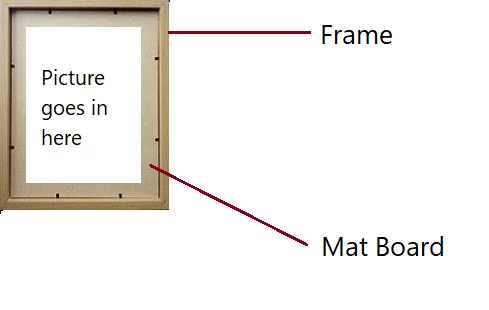
You may be able to adapt the picture's dimensions. But there is a limit to how the picture can affect the mat board and frame. In fact, the frame is fixed and determines the required size and aspect ratio of the picture, not vice versa.
This analogy carries over to your code. The HTML output corresponds to the picture, with or without mat board. MS Word (independent software unrelated to CF) supplies the fixed frame. MS Word may supply headers, footers or margins that you cannot anticipate in the HTML.
What your HTML code is doing is, simply, streaming HTML output to the browser. The Content-Disposition header tells the browser to offer the content as a downloadable MS Word file rather than display it inline.
That's it. Just as the picture in our frame analogy has limited influence on the dimensions of the frame and mat board, so too HTML has limited influence on the footers, headers, margins, styling, etc. that MS Word may impose.
What to do then?
Your best bet is to avoid the table tag. Use divs instead.
A simple example to demonstrate:
<html>
<head>
<cfheader name="content-disposition" value="attachment; filename=1.doc">
</head>
<body style="margin-top: 0in">
<div style="margin-left:-1.0in;margin-right:-1.0in;">
	<img src="http://localhost:8500/workspace/CF_Project/TopHeader.jpg" border="0" width="1429" height="496" style="max-width:100%;">
</div>
</body>
</html>
- Open the downloaded file 1.doc in MS Word.
- Click on Page Layout, then on Margins.
- Click on Custom Margins, select 0 as Top margin and press OK.
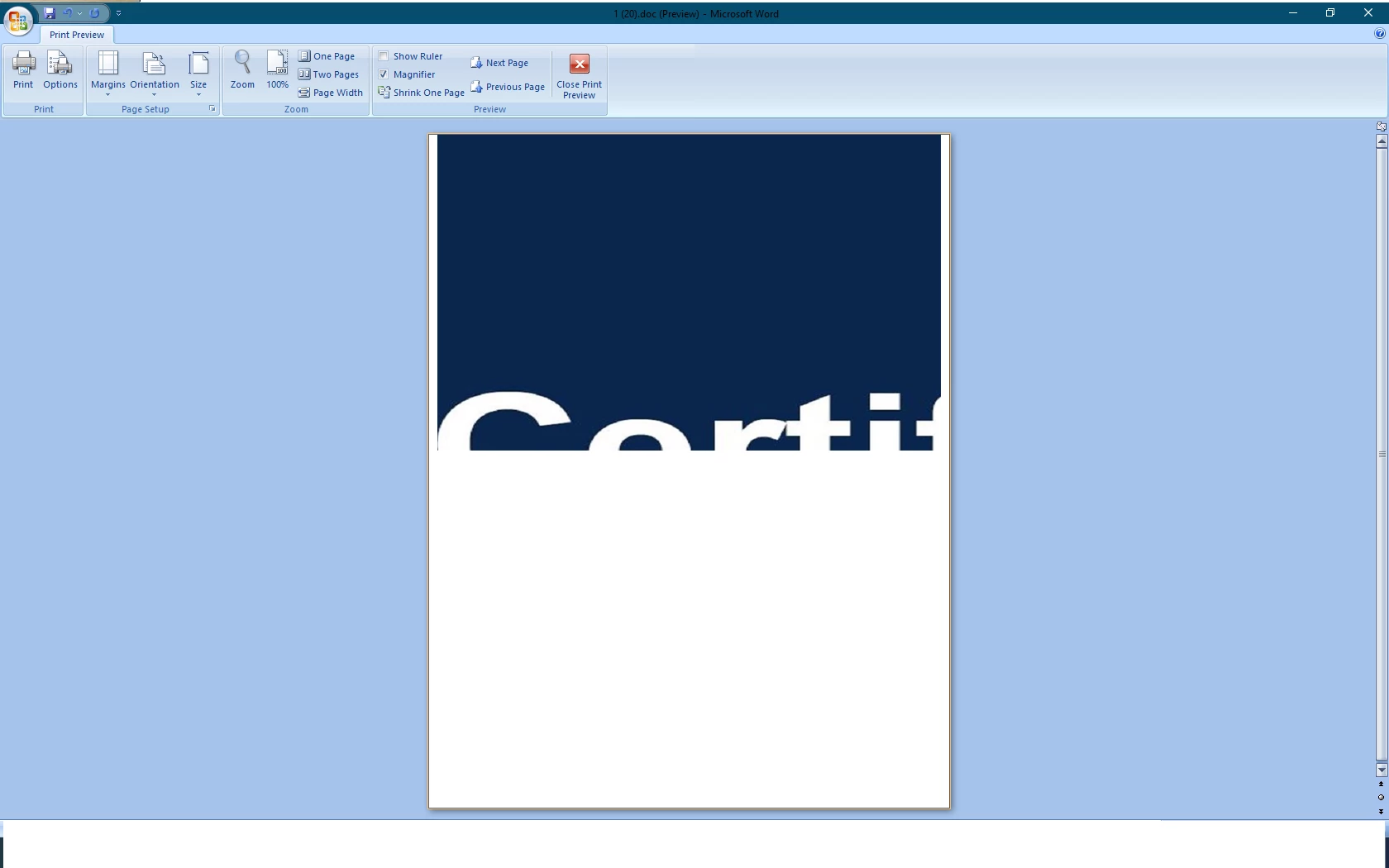
- Examine the Print Preview and you will see that the image is at the top margin of the page.



 AdChoices