
Participating Frequently
November 13, 2025
Question

Creative Cloud (v6.8x) desktop app does not launch from browser

  • November 13, 2025
  • 1 reply
  • 242 views

OS version: Windows 11 22H2, using Microsoft Edge (v142.x), Creative Cloud (v6.8x)
Launching and signing in to the Creative Cloud desktop app works. Signing in to Creative Cloud via the browser also works.
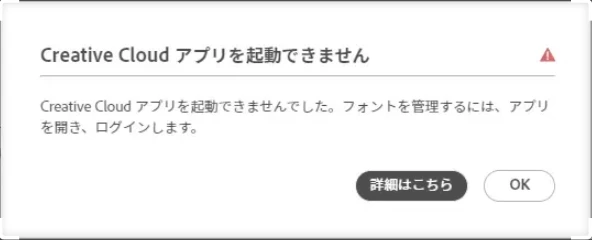
However, when I click “Open Creative Cloud app” from the Adobe Fonts menu, an error message appears.

I have tried using Adobe Cleaner, reinstalling, and restarting multiple times, but the app still does not launch. I believe I have allowed the endpoints specified by Adobe, but the app still does not start.


Please tell me how to resolve this issue.


■error messge

「“The Creative Cloud app could not be launched. To manage fonts, open the app and sign in.”」

(I am already logged in to both the browser and the Creative Cloud desktop app)
 

■Adobe fonts menu

1 reply

kglad
Community Expert
Community Expert
November 13, 2025

are you seeing the error message when clicking something in the cc desktop app or when clicking something in your browser or something else?

Participating Frequently
November 14, 2025

No error occurs in the Creative Cloud desktop app itself,

but when I click 「‘Open Creative Cloud app’」 from the Adobe Fonts in the browser, even though

I am already signed in to both the browser and the desktop app, the message

「‘The Creative Cloud app could not be launched. To manage fonts, open the app and sign in.’ appears.」

Tarun Saini
Community Manager
Community Manager
November 18, 2025

When opening Adobe Fonts from the Creative Cloud desktop app, the Adobe Fonts page in the browser is displayed. If I add fonts from Adobe Fonts in the browser, they appear as added in the browser, but they are not reflected in the Creative Cloud desktop app, so I cannot use them.


Thanks for your response @detailed_hand5326,


Please try signing out and signing in again to see if that resolves the issue. You may also, try reaching out to and working with our support directly as a next step. They can be reached here: https://helpx.adobe.com/contact.html?rghtup=autoOpen 


Regards,

Tarun