
pedzsan
Inspiring
October 10, 2023
Answered

Red triangle on icon in menu bar (macOS Sonora)

  • October 10, 2023
  • 1 reply
  • 10062 views

In my menu bar, the Creative Cloud icon has a red triangle:  

But when I open up the panel, I don't see anything directing me to what is wrong.  After the upgrade to Sonoma, this occurred.  Originally when I clicked on the cloud, the libraries were not syncing.  I restarted the app (not the host) and that problem went away.  It is now green and happy.
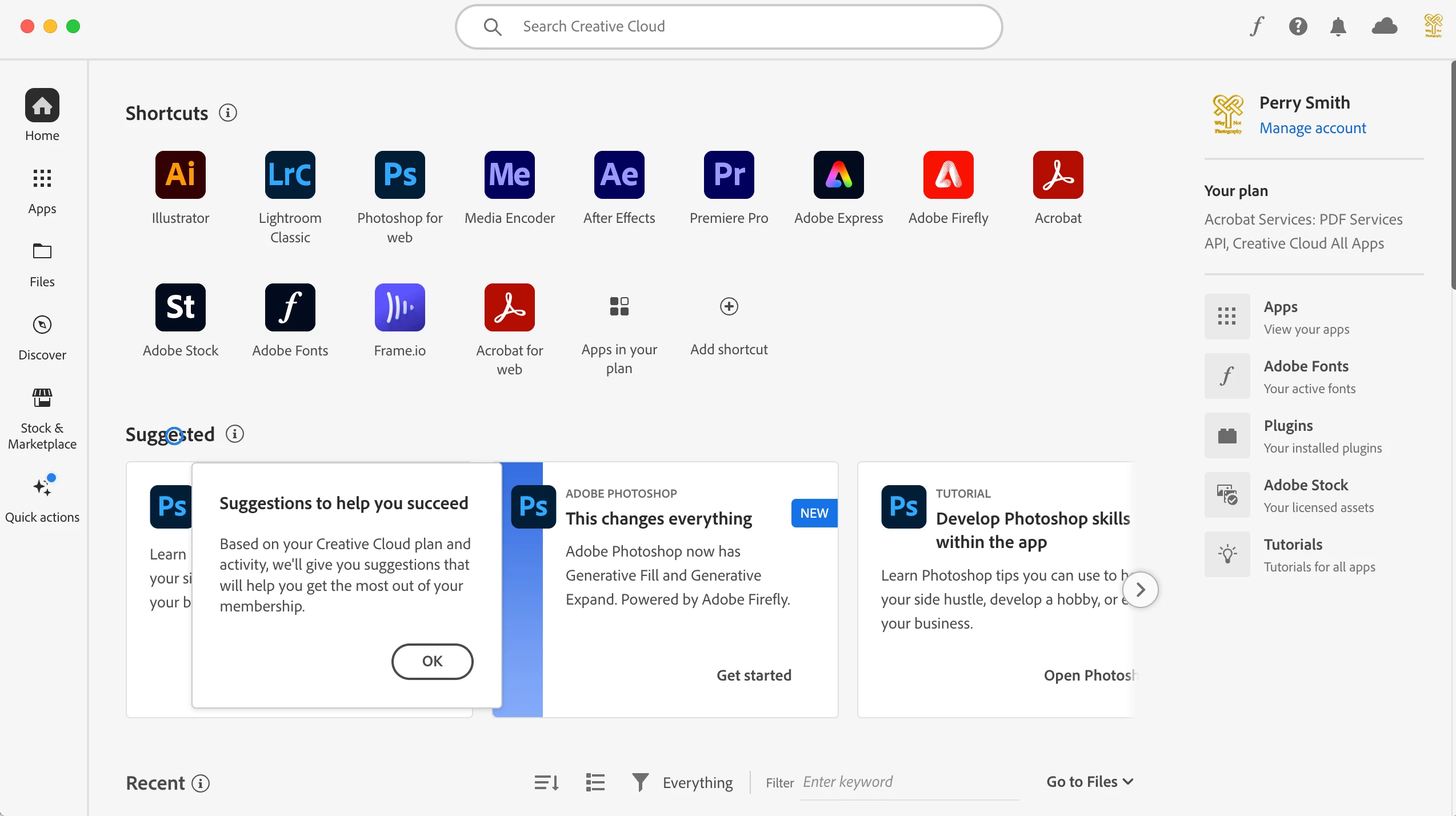
Any ideas of what might be wrong?  Do you think it will go away if I reboot?

Correct answer kglad

restart your computer and see if that warning is still present.


if it is, reset the cc desktop app by making sure it's in the foreground, then press:

Win: Ctrl + Alt + R
Mac: Cmd + Opt + R


1 reply

kglad
Community Expert
kgladCommunity ExpertCorrect answer
Community Expert
October 10, 2023

restart your computer and see if that warning is still present.


if it is, reset the cc desktop app by making sure it's in the foreground, then press:

Win: Ctrl + Alt + R
Mac: Cmd + Opt + R


Pedro Downunder
Known Participant
February 18, 2024

The exceeedingly irritating red triangle with white exclamation mark does not go away from the Adobe Cloud app in my Mac Menu Bar. Each time I reboot the Mac it necessitates going to the Adobe Coud, opening it and clicking on Library Syncing. Once this is done I exit the app and the triangle is gone. However, when re-opening the Adobe app at any given time the red triangle is still there (see attached screenshot).

In an earlier post on this subject an Adobe customer suggested this is a corporate ruse, designed to have cutomers upgrade their Cloud storage plan. If this isn't so why does the annoyance persist, and how can it be stopped? I do not purchase products from Adobe other than their yearly subcription software.

Adobe App Information: Premiere Pro 2024, After Effects 2024, Photoshop 2024, Media Encoder 2024.
Computer: Mac Pro 2019/ Mac OS Sonoma 14.3.1, 16- Core Intel Processor, AMD Radeon Pro Vega II 32GB, 96 GM Memory.


Pedro Downunder
Known Participant
February 21, 2024

Did you try doing the suggeted solution?  Mac: Cmd + Opt + R


To me, the four step process that kglad put on Feb 18, 2024 is complete.  Perhaps going to a computer store or repair shop in your area and ask them to help you perform the steps would be a viable approach.


Another idea... If you open a Finder window for Applications, then open the folder labled Adobe Creative Cloud, there is an Uninstall Application.  One idea (always) is to uninstall the app and reinstall it.  This may be rather drastic.  I would try to do the approach kglad suggested first.


pedzan, thank you for commenting. Yes, I did try did try the Cmd + Opt + R suggestion. The ubiquitas red triangle comes back again. 

With respect I am not interested in any "drastic" action, as I need to keep working at my computer.