


Known Participant
June 27, 2017
Answered

Cloud Syncing is very slow and isn't really "syncing"

  • June 27, 2017
  • 8 replies
  • 9503 views

I have about 5GB of files, and though I haven't personally counted them, CC says I have 170k of them. I moved everything to the sync folder "Creative Cloud Files". Let the syncing begin!

The estimate to finish the job was 14 hours. My internet is not particularly slow. In fact, 3 hours into the sync, I buffered up a two hour movie (which loaded in its entirety in mere minutes). Granted, upload speed != download speed. I went to bed hoping the job would be finished by morning. In the morning, my estimate was down to 0 seconds even though it confusingly still had 10k files left. At this point, I had to go to work, so I closed my laptop and went to work.

When I reopened my laptop at work, it started syncing again... from 0%. The files are in the CC folder, with the exception of the 10k unsynced files, they all had little green checkmark icons (indicating sync). Now my estimate is 40 something hours. I'm not sure if it's writing a second copy or if it doesn't realize that the files haven't changed or what...

Please give me some suggestions. I'm now paying for the entire suite of Adobe products, so I do expect that support will help me resolve this. We're kind of starting on a bad foot here.

Thanks,

Chet

EDIT: A few hours later it says it's synced, which would indicate that the problem of "resyncing from zero" is that it is just reporting the wrong numbers?
This topic has been closed for replies.
Correct answer David__B

Hi Chet,

Our engineering team identified and issue where in some instances if a system went into a sleep state syncing collaborated folders could incorrectly get moved to the trash on the local machine, causing them to be resynced. Our engineering team will be releasing an update to address the issue in the coming weeks. Sorry for the difficulties you encountered.

- Dave


Hi Chet,

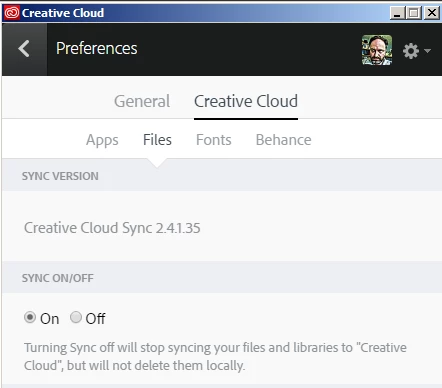
This issue has been addressed now. You should no longer receive the error if you have the latest version of the Creative Cloud app installed. You can confirm you have the latest version from the Creative Cloud > Files section of the preferences. If you have Creative Cloud Sync 2.4.1.35 or later, the issue should be resolved.

Here are instructions for accessing the preferences if you need them.
Use the Creative Cloud desktop app to manage your apps and services

Best,

- Dave

8 replies

Known Participant
April 6, 2018

I am having the same issue on my work Windows 8.1 machine too (Virtual Desktop). This has been very intermittent over the last month or so. I've been working with our I.T. support to try and rectify the issue, as I thought it was more of a local issue (which I still do).

I really need to supply my Log files, so someone can advise where it seems the root of my issue is, so I can advise our I.T. support what the next stage should be in trying to resolve it.

I've even been provided a new VDI (PC) and freshly installed the CC Desktop app, but the issue re-occurred.

Please help me progress with getting this sorted.

Any requirements you need, I can get straight back to you. (for example - the log files as a start)

Thanks

David__B
Adobe Employee
Adobe Employee
April 6, 2018

Hi Audiotechnical,

I can pass on your logs to our engineering department. I don't know if the issue is related to being in a virtualized environment, hopefully not.

To collect the log files download the log collection tool from here:

https://helpx.adobe.com/creative-cloud/kb/cc-log-collector.html

After you run it, it will create a .zip file on your desktop of all of the log files from your system. If you could upload and share a link with me on where to download the .zip from, I'll pass it on to our engineering dept. to review. You can send the link privately by clicking on my name here in the forums and select the message option.

Engineering may have some additional questions but this will help us get started.

Thanks,

- Dave

Known Participant
April 25, 2018

Hi Dave, I've just messaged you with a link to my log file I just collected.

I don't think its purely the fact its a virtual environment, but I am more drawn to possibly how the Desktop application is installed. During the process, it always needs a member of the I.T. team to remote onto my machine, and input an administrator password (or in fact, its their own Active Directory admin username & password) for the installation to continue.

So if the log info I've provided displays some signs of administrative restrictions while the Desktop app is running/synching maybe this is a start, and we'll need to review how the app is installed, to ensure it runs without issue.

The other concern (that no I.T. person likes to troubleshoot) is that the syncing sometimes does eventually complete, so something seems intermittent. But the fact that changing one bit of metadata on a single image on my Mac, takes hours/days for the Windows VDI to update, seems wrong and needs troubleshooting.

Cheers

Participating Frequently
April 6, 2018

I'm having the same issue on my windows computer. On MAC works fine.

David__B
Adobe Employee
Adobe Employee
April 6, 2018

Jesus and Angkrit,

If you're still having the issue you might want to try uninstalling the Creative Cloud app with the Cleaner Tool (download in this article) https://adobe.ly/1K0tmpb then restarting the computer and reinstalling https://adobe.ly/2fHme7E If you're still having the issue after completing these steps please let me know.

Thanks,

- Dave

Participating Frequently
April 9, 2018

One of your tecnician already did that and doesnt work. Why u guys stop giving stupid solutions and fix it, it's a shame that we have to spend hours trying to fix something that must be fixed by Adobe.

chetgnegyAuthor
Known Participant
October 7, 2017

In case anyone is reading my syncing novella with bated breath...

I deleted everything in my cloud sync folder through the web interface and started syncing from scratch. After 14 hours (though the estimate was nearly 400 hours at some times), CloudSync has stopped telling me how many files out of some total it has left to sync and has gone back into "Syncing, but not going to tell me any more info than that" mode. Last time I checked it had done about 80% of the estimated total number of files (200k). It's again consuming 100% of one of my CPUs, so I'm sure it's doing something fantastic. I got a charming little popup saying some files cannot be synced, but it doesn't tell me which ones. Luckily, I find surprises very endearing.

As I type this, it switched back into a mode that appears to be doing something (showing me x / 1115 files remaining and a not-terribly-unreasonable estimate of 15 minutes). After a minute or two, it was done and all files were up to date! My 9GB of files mysteriously occupy 14GB on cloud storage. 

The forums are again acting funny with the same bug I reported earlier in this thread and also here (Unexpected walking behavior ).

David__B
Adobe Employee
Adobe Employee
October 9, 2017

Hi Chet,

Thanks for posting your experience. Sorry to hear you've continued to experience unusual behavior. Glad to hear that the syncing did finish eventually. It is definitely odd that one of your CPU's is still being taxed at 100% and the storage difference of the 14GB versus 9GB. If you could collect and share your log files I'll relay them to our engineering team and see what we can find out.

The issue with typing moving the page up to the top is a known issue with the forum software which we're working on getting fixed. Thanks for posting!

chetgnegyAuthor
Known Participant
October 9, 2017

I'd be happy to get that for you tonight. What is the directory of the logs on OSX and Windows? My main activity is on OSX, but I have had issues getting Windows synced up with that recently as well.

Do you prefer a PM or is there some other official process?

chetgnegyAuthor
Known Participant
October 7, 2017

And it seems that the new syncing is using additional quota rather than clearing out the old files and starting over. I'm not sure what happens when my 9GB of files clear the 20GB limit.

chetgnegyAuthor
Known Participant
October 7, 2017

Sorry for the delay and thank you for your help so far, David. I mostly have been keeping sync off because it just runs at 100% CPU though it appeared to do nothing. It says syncing, but it just hangs.

I deleted my CoreSync *.db files and appears to have started over from scratch, which is kind of what I was going for. It's a bit awkward that my CC folder is locally 9GB, but it says I have 16GB full on sync (archive is empty).

The problem I reported 3 months ago still persists.  For 9GB of files, this really shouldn't take more than an hour or two on modern high speed internet. According to CC, only 74 hours (and climbing) to go! Let me know if I can get some logs together to help fix this. It's pretty tiring to know that my choices for syncing are either to leave my computer syncing for several days or to just not rely on your cloud services at all...

Also, Adobe forums have recently had an occasional bug where typing moves the page up to the top. Adobe's web services really do leave a lot to be desired.

chetgnegyAuthor
Known Participant
September 4, 2017

Sorry for the delay. I had had syncing off, but I haven't seen the problem since. The time I noticed it, it didn't seem to drop down, but I did turn it off not too long after noticing the issue, so it's tough to tell.

I turned sync back on today and after about a week or two of not being synced. After 8 hours of "syncing", it doesn't appear to have made any progress whatsoever. I still have small image files on the web that haven't appeared on my second machine yet (i.e., they couldn't have some kind of merge conflict as they're only on one machine).

chetgnegyAuthor
Known Participant
August 22, 2017

According to here, the version you mention is not yet released. Trying to update the desktop app seems to confirm this.

David__B
Adobe Employee
Adobe Employee
August 22, 2017

Hi Chet,

There are different versions for Creative Cloud desktop app itself versus the Creative Cloud Sync. In the latest versions of the desktop app the sync version is listed in the Creative Cloud > Files portion of the preferences.

chetgnegyAuthor
Known Participant
August 24, 2017

Ok. I am updated past the recommended version of sync. Something is still fishy, though. Today I caught a process "Core Sync" with the CC icon using 100% CPU, even though I had sync disabled/paused. Additionally, I never seem to get a clean sync, there's always a few files that it just doesn't know what to do with (merge conflicts). though that is likely a separate issue.

chetgnegyAuthor
Known Participant
July 4, 2017

Here we go again. Syncing some files on a new computer. Only 116 hours to go!

Come on, Adobe. Get it together.

chetgnegyAuthor
Known Participant
July 4, 2017

Hey, Chet.

Try opening the shared folder through the web interface and deleting the 400 thousand archived files that you don't care about at all. You might be able to get 116 hours down to something reasonable. Like 2 hours. That's right. You've been syncing deleted files.

Best,

Yourself

David__B
Adobe Employee
Adobe Employee
July 15, 2017

Hey Chet,

Sorry to hear about your difficulties. Glad to hear you were able to get things working again though.

- Dave