Participating Frequently
July 29, 2015
Question

Creative Cloud Files Not Syncing

  • July 29, 2015
  • 1 reply
  • 3415 views

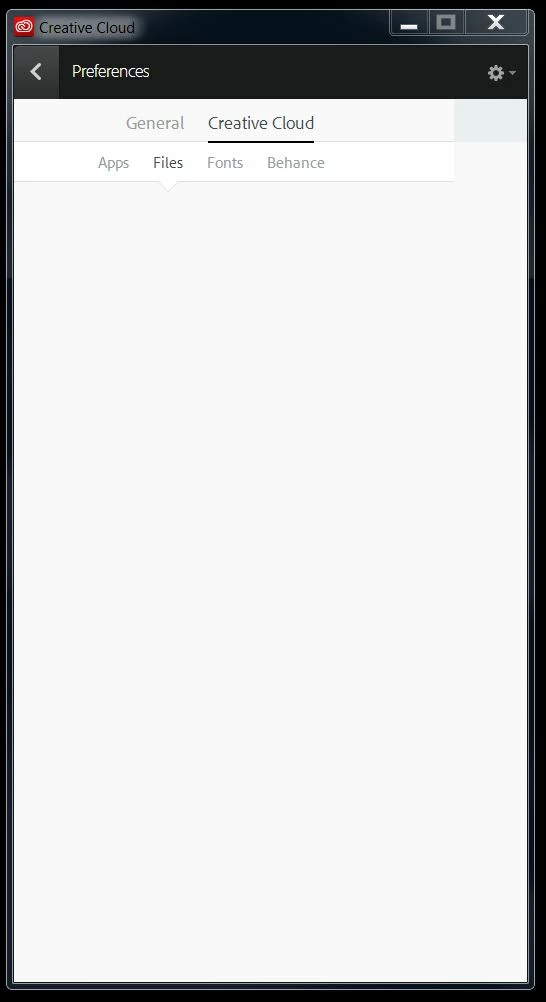
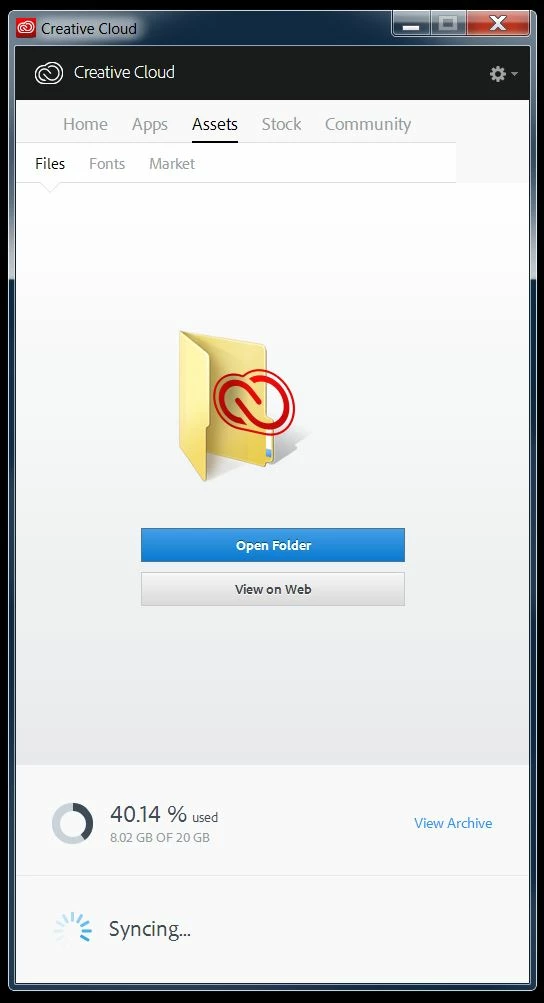
   Recently following an update to my CC app, my shared folder disappeared. It contained 8GBs of assets and I am curious to what happened. I created another folder for the shared service and started the sync, but nothing is syncing. It did copy my directory over, but none of the actual assets. It constantly says that it is syncing, but never syncs anything. I have located my files via the browser, but can only download them one at a time. Where did my files go? I also cannot change anything in my preferences. I have tried the following in order:

  1. Double checked to make sure that I have Sync turned on.
  2. Signed out and back in.
  3. Powered down the PC and restarted.
  4. I have deleted the Core Sync files as recommended in a previous forum.

Win 7 - Creative Cloud 2.2.0.129
This topic has been closed for replies.

1 reply

Bani Verma
Community Manager
Community Manager
July 29, 2015

Hi,

Please mention the operating system of your computer.

Regards,

Bani

Participating Frequently
July 29, 2015

Windows 7 - Creative Cloud Version 2.2.0.129

Bani Verma
Community Manager
Community Manager
July 29, 2015

Thank you.

Please try doing a clean installation of the Creative Cloud app as it seems to be an issue with the app :

1- TURN OFF FIREWALL of your security program

2- Check extensions of your browser if you have any browser protection tool installed disable them ( Ad-block Plus, internet security toolbars etc).

3- After that Sign out of Creative Cloud app > Launch Task Manager and close all adobe processes (eg- Creative Cloud, Core sync, CC library, Adobe Desktop Services, Adobe IPC broker, Adobe Crash daemon etc.)

4- Uninstall Creative Cloud Desktop Manager  :Creative Cloud Help | Uninstall the Creative Cloud desktop app

5- Delete following folders :

C:\Program Files (x86)\Common Files\Adobe\OOBE

C:\Program Files (x86)\Common Files\Adobe\Adobe Application Manager

C:\Program Files (x86)\Adobe\Creative Cloud Folders

C:\Users\<user_name>\AppData\Local\Adobe\ AAM UPDATER  and OOBE both

6- Run Adobe Cleaner tool  : http://download.macromedia.com/SupportTools/Cleaner/win/AdobeCreativeCloudCleanerTool.exe

7- Click on the below link and download Creative Cloud Installer file and use the same to install the Creative Cloud Desktop application.

Download Adobe Creative Cloud apps | Free Adobe CC trial

Let us know if this helps.

Regards,

Bani