Exit
  • Global community
    • Language:
      • Deutsch
      • English
      • Español
      • Français
      • Português
  • 日本語コミュニティ
  • 한국 커뮤니티
0

Creative Cloud Folder doesnt works right.

New Here ,
Oct 08, 2013 Oct 08, 2013

Hello community

Im new to adobe's CC. I found the sync folder feature very useful, so i decided to upload a project.

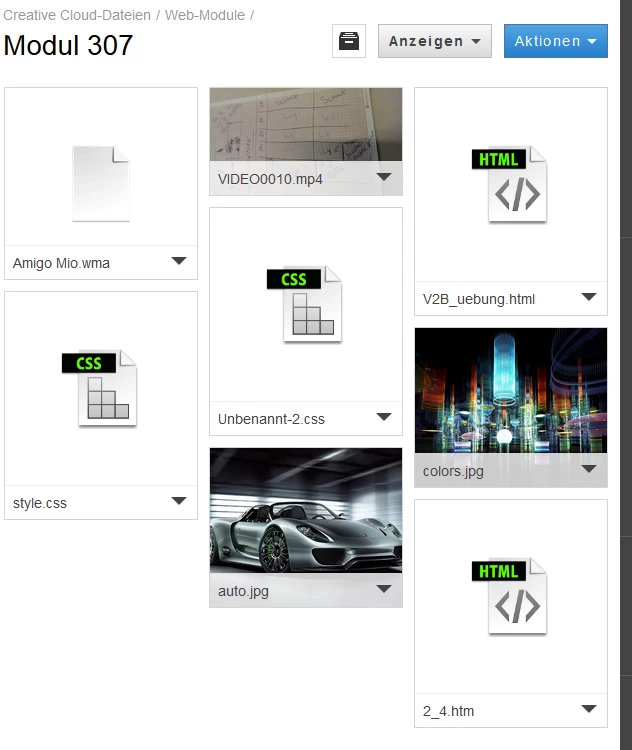
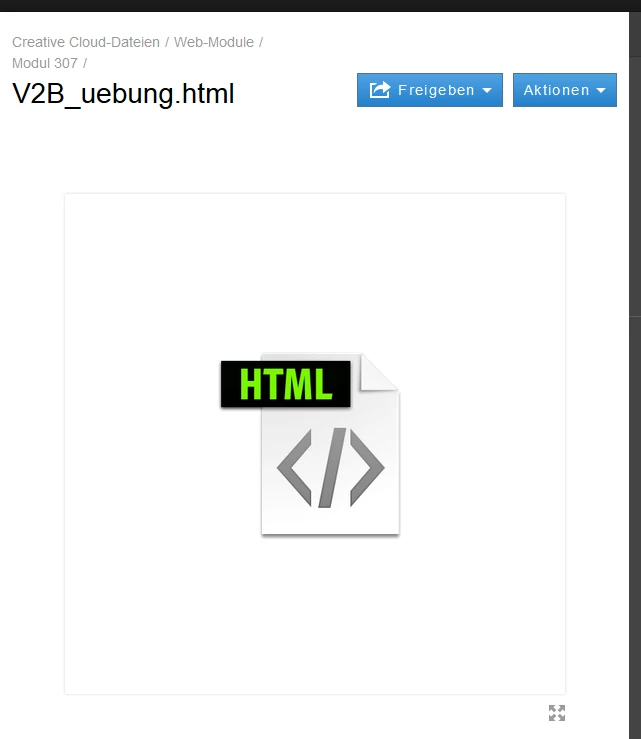
I placed various files from dreamweaver(.jpg, .mp4, .html, .css)in my CC folder((pic 1) they are in a subfolder). The files seem to be there(local i can use them), but when i try to use them from my other device, there are not there. On the browser interface, the html file for example, is just a picture, but it shows me not the content, it shows me the icon(pic 2). And there is another problem. I use a Laptop and a desktop. The files i place with laptop are not visible on the CC folder in the Windows Explorer and vice versa. The upload from laptop worked(showing pictures of what should be code...(pic 3 )), but the desktopfiles are not synced to cloud.

When i download a file, the content is what i expect. But the integrated network drive is useless for me.

I use win 8 on desktop, and win 7 on laptop.

Hope someone can help me. (english is not my native language, thank you for understanding)

pic_1.pngpic_2.pngpic_3.png

TOPICS
File sync
1.5K
Translate
Report
Community guidelines
Be kind and respectful, give credit to the original source of content, and search for duplicates before posting. Learn more
community guidelines
Adobe Employee ,
Oct 08, 2013 Oct 08, 2013

Hi Qwertzasdfjklöä,

Has syncing completed between the two computers? Does turning sync off and back on again make any difference?

-Dave

Translate
Report
Community guidelines
Be kind and respectful, give credit to the original source of content, and search for duplicates before posting. Learn more
community guidelines
New Here ,
Oct 08, 2013 Oct 08, 2013

Hey Dave

At my desktop, i tried to add and delete some folders/files, but nothing changed. No up/download.

The sync settings arent affecting anything. When i add a folder/file to my win explorer, there arent any new files on the web interface visible. Only the ones i added from my laptop have been uploaded.

I figured out, that i only can download the "text-files" from the browser. No viewing. Is it supposed to be like that?

The other images are working fine. I can open them all.

Do i need to configure things like antivirus or firewall ??


Tomorrow im gonna check exactly the settings on my laptop.

Greetz

pic_5.png

...Shouldnt sync  be between server and device(s)


Translate
Report
Community guidelines
Be kind and respectful, give credit to the original source of content, and search for duplicates before posting. Learn more
community guidelines
Adobe Employee ,
Oct 08, 2013 Oct 08, 2013

Hi Qwertzasdfjklöä,

Just to confirm, turning file sync off and back on again has no effect? If you open the Creative Cloud folder through the Creative Cloud app do all the files have the little green check mark indicating that they've synced successfully, including those you added with Windows explorer?

(Click to view larger)

file_sync.jpg

Translate
Report
Community guidelines
Be kind and respectful, give credit to the original source of content, and search for duplicates before posting. Learn more
community guidelines
Adobe Employee ,
Oct 08, 2013 Oct 08, 2013

Based on your screen shot it looks like a you are looking at the syncronization settings in Dreamweaver. These are different from syncing files to Creative Cloud file storage, the sync settings in Dreamweaver are for syncing files for a website from your local computer to the remote web server. If the local copy of a website is not syncing with the remote web server you might want to post about the issue in the Dreamweaver forum.

Translate
Report
Community guidelines
Be kind and respectful, give credit to the original source of content, and search for duplicates before posting. Learn more
community guidelines
New Here ,
Oct 09, 2013 Oct 09, 2013

Hey Dave,

My Problem is not Dreamweaver, its the creative cloud sync on my desktop.

I looked at my Laptop settings. There is exactly the same picture as u posted above.(except ...% usage). Green marks on all the folders.

I put in a picture, there u see how it looks at my desktop PC.

Laptop: green checkmarks and percentage visible... --> sync works

PC:  no green checkmarks, no percentage visible...  --> No sync

At the settings menu, i switched the sync on/off various times, but it is not affecting anything.

As well Uninstall and reinstall as administrator didnt changed anything.

I checked the Antivirus settings, the app has authorization activated.(pic 7)

pic_6.pngpic_7.png

I re configured the sync folder, but files are still unsynced....

C:\Users\%username%\Creative Cloud Files

pic_8.png

By the way, im really happy that u help me out! Hope we can solve this issue!

Translate
Report
Community guidelines
Be kind and respectful, give credit to the original source of content, and search for duplicates before posting. Learn more
community guidelines
Adobe Employee ,
Oct 09, 2013 Oct 09, 2013

First about the image previews. HTML and CSS files currently do not have image previews. The original files given previews were those generated by Adobe applications. Slowly more applications and file types will be added. There will probably never be previews of HTML files since these included linked CSS files, Javascript and images.

Next the issue with syncing not working on your Desktop computer. Have you tried restarting your Desktop computer, or at minimum restarting the Creative Cloud app? This may fix the issue.

If restarting does not work, to help us figure out what happened we will need the log files for desktop sync (CoreSync). The location for each OS are:

  • Mac OS X: ~/Library/Application Support/Adobe/CoreSync/CoreSync-yyyy-mm-dd.log
  • Windows: %APPDATA%/Adobe/CoreSync/CoreSync-yyyy-mm-dd.log

Note that on Mac OS X to see the user library from the Finder click on the Go menu and hold down the Alt/ Option key. Note that on Windows %APPDATA% is a variable that will change to the correct path depending on if version of Windows being used.

Please share the files with me at kenrice@adobe.com.

Translate
Report
Community guidelines
Be kind and respectful, give credit to the original source of content, and search for duplicates before posting. Learn more
community guidelines
New Here ,
Oct 31, 2013 Oct 31, 2013
LATEST

we are still working on it. Could be a problem with a certificate. Any ideas whats causing that?

Translate
Report
Community guidelines
Be kind and respectful, give credit to the original source of content, and search for duplicates before posting. Learn more
community guidelines