
Exit
  • Global community
    • Language:
      • Deutsch
      • English
      • Español
      • Français
      • Português
  • 日本語コミュニティ
  • 한국 커뮤니티
0

"Some files failed to sync" when syncing creative cloud files to a new computer. Help?

Community Beginner ,
Mar 21, 2014 Mar 21, 2014

I have a new computer running Windows 8.1. I installed Creative Cloud on it, and I can download apps just fine, but I can't sync files. When I turn on syncing, after a few minutes this messsage displays: "Some files failed to sync"
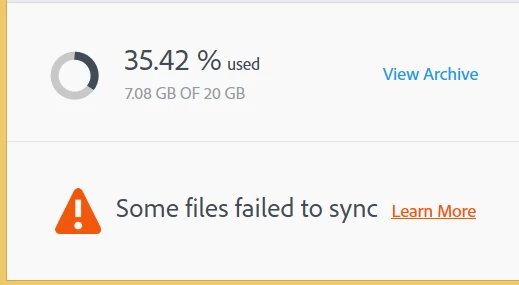
Capture.PNG

And the creative cloud folder remains empty.

None of the problems/solutions in the "learn more" link were relavent. I've tried re-installing the program, restarting my computer, changing the Creative Cloud folder location, and signing out of Creative Cloud on all other devices, to no avail. Please help me out with this.

TOPICS
File sync
7.2K
Translate
Report
Community guidelines
Be kind and respectful, give credit to the original source of content, and search for duplicates before posting. Learn more
community guidelines

correct answers 1 Correct answer

Adobe Employee , Mar 17, 2015 Mar 17, 2015

Hi,

It would be helpful for you to send me your log files so I can look into your issue further.

The logs are located at"

Mac:

The log file can be found here:

<Mac Hard Drive>/Users/<username>/Library/Application Support/Adobe/CloudSync/CoreSync-YYYY-MM-DD.log

(where YYYY-MM-DD indicate the date of the last log)

Note: The Users Library user folder is hidden on starting with 10.7 or later

see http://helpx.adobe.com/x-productkb/global/access-hidden-user-library-files.html

Windows:

The log file can be found

...
Translate
Community Beginner ,
Mar 22, 2014 Mar 22, 2014

I've also tried moving the folder to another hard drive, still nothing.

Translate
Report
Community guidelines
Be kind and respectful, give credit to the original source of content, and search for duplicates before posting. Learn more
community guidelines
Community Beginner ,
Mar 23, 2014 Mar 23, 2014

Now all my computers are having trouble syncing... I'm going to use other cloud storage for now, but it would be great if this could be fixed.

Translate
Report
Community guidelines
Be kind and respectful, give credit to the original source of content, and search for duplicates before posting. Learn more
community guidelines
Explorer ,
May 22, 2014 May 22, 2014

I'm having the same problem off and on. For a while, half my local files were missing!

I was able to sync everything up Tuesday night (after restoring from my Carbonite backup to my local Creative Cloud folder a few weeks ago), but when I opened the Creative Cloud app this morning, it returned to the "Some files failed to sync" message. When I click on "Learn More", I get taken to a system status page.

Since no one answered the previous messages from March, I have t assume that this is an ongoing issue. I have not made any major changes to files or folder structure in quite a while, so I don't know what the issue is.

Any help here would be appreciated.

Translate
Report
Community guidelines
Be kind and respectful, give credit to the original source of content, and search for duplicates before posting. Learn more
community guidelines
New Here ,
Jun 05, 2014 Jun 05, 2014

Hi. I was having the same issue and nothing that was suggested helped until I stumbled across something. For me, there wasn't an issue with a file, but a folder.  I created a new folder and then renamed it, but CC tried to sync the folder as I was renaming it. It synced the originally named "New Folder" and as the folder renamed, causing it to loose it's mind. I tried deleting the "New Folder" on my hard drive but as soon as I did, CC would put it back. I went online and checked my CC files and it wasn't there. It was a phantom folder, so to speak.

My solution was:

  1. Turn off file sync.
  2. Move the parent folder somewhere else on your hard drive so it will not be in the Creative Cloud Files folder. I didn't just do the folder that was having issues, but the folder above that.
  3. I deleted the phantom folder on my hard drive.
  4. I went to CC and deleted the entire parent folder (archived and deleted).
  5. I turned on file sync and re-synced everything again (without the offending folder that was having issues). Everything worked fine.
  6. I then moved the parent folder back into the Creative Cloud Files folder.

When it re-synced, everything was working.

Again, not sure if this will help, but I was having similar issues and this worked for me. Basically CC thought I had two folders when I only had one and it didn't know how to process it. This has happened to me twice now.

Hope it helps.

Translate
Report
Community guidelines
Be kind and respectful, give credit to the original source of content, and search for duplicates before posting. Learn more
community guidelines
Contributor ,
Jan 06, 2015 Jan 06, 2015

I'm having the same issue. Clicking on the "Learn more" link next to the "Some files failed to sync" message led me to my Creative Cloud Status: "Creative Cloud is operating normally."

This may be true—but if normal means failing to sync select files from a project, then there's a problem. I worked on a specific Illustrator file in a project folder on two different computers, my laptop and my desktop.

I started on my laptop, saved. When I got to my office, on my desktop, that file wasn't IN my CC drive. Okay, so, I started over. I worked on this file until 5:20pm yesterday. This morning, I got on my laptop to continue working on it at home. My laptop's CC drive doesn't show ANY of the changes I made from the office yesterday. So, I went to the web view of the files folder and saw that the last saved version of the file was from 4:36pm yesterday. I basically lost an hour of work (at least it appears that way on my laptop). I am heading in to the office to check that version of the file.

What else can I do?

Translate
Report
Community guidelines
Be kind and respectful, give credit to the original source of content, and search for duplicates before posting. Learn more
community guidelines
New Here ,
Feb 23, 2015 Feb 23, 2015

I was having the same issue. It turned out that the permissions of the parent folder were set to "read-only" on my mac. Right click folder>get info>sharing & permissions

When I switched the user permissions everything worked fine.

Maybe that will help someone out there.

Translate
Report
Community guidelines
Be kind and respectful, give credit to the original source of content, and search for duplicates before posting. Learn more
community guidelines
Adobe Employee ,
Mar 02, 2015 Mar 02, 2015

Hi Andrew,

Are you still seeing this issue?

Thanks

Warner

Translate
Report
Community guidelines
Be kind and respectful, give credit to the original source of content, and search for duplicates before posting. Learn more
community guidelines
New Here ,
Mar 16, 2015 Mar 16, 2015

I am seeing the same issue.

I have killed the creative cloud app and restarted. Removed my folder, killed it and restarted and resynched. It just keeps coming back. Also I can't figure out which file exactly fails to synch. Also most things seem to be there in the folder. I would really like to start using the cloud storage, also in unison with the apps, but if it keeps being this unreliable I can not.

Oh and this is on Mac, not Yosimite as of yet.

Regards,

Olivier

Translate
Report
Community guidelines
Be kind and respectful, give credit to the original source of content, and search for duplicates before posting. Learn more
community guidelines
Adobe Employee ,
Mar 17, 2015 Mar 17, 2015

Hi,

It would be helpful for you to send me your log files so I can look into your issue further.

The logs are located at"

Mac:

The log file can be found here:

<Mac Hard Drive>/Users/<username>/Library/Application Support/Adobe/CloudSync/CoreSync-YYYY-MM-DD.log

(where YYYY-MM-DD indicate the date of the last log)

Note: The Users Library user folder is hidden on starting with 10.7 or later

see http://helpx.adobe.com/x-productkb/global/access-hidden-user-library-files.html

Windows:

The log file can be found here:

C:\Users\<username>\AppData\Roaming\CloudSync\CoreSync-YYYY-MM-DD.log

(where YYYY-MM-DD indicate the date of the last log)

Note: The AppData folder is hidden by default this doc shows how to show it if needed

http://helpx.adobe.com/x-productkb/global/show-hidden-files-folders-extensions.html

Please zip them up and send them to <removed my moderator>

Thanks

Warner

Translate
Report
Community guidelines
Be kind and respectful, give credit to the original source of content, and search for duplicates before posting. Learn more
community guidelines
Community Beginner ,
Jun 28, 2015 Jun 28, 2015
Translate
Report
Community guidelines
Be kind and respectful, give credit to the original source of content, and search for duplicates before posting. Learn more
community guidelines
New Here ,
Aug 04, 2016 Aug 04, 2016

This is frustrating me beyond belief. Some files it "can't sync" don't even exist. I'm happy to pay my subscription, i run a business after all. But I have no faith that I do work at home then go to my office and find my files there... I NEED my files in both places.

I never have this problem with Google Drive. I'm on the latest creative cloud for OSX. This simply shouldn't happen for the price I pay each year.

If anyone know's how to fix this i'd be really grateful to hear from you. Especially the Adobe team. I don't think i'm alone with this problem. It's not a slow upload I'm Fibre with over 100 Mbps Down and over 50 Mbps up so I don't think that's the problem.

I really need to trust that the work i'm doing isn't getting lost. I really don't want to do it again!

Translate
Report
Community guidelines
Be kind and respectful, give credit to the original source of content, and search for duplicates before posting. Learn more
community guidelines
New Here ,
Aug 21, 2016 Aug 21, 2016
LATEST

I have the same problem... Files are not syncing.

It seems so unprofessional to open an old version of a dokument when showing to a customer.

Or just not even being able to find new files created at my workspace when I try to find it at home.

Some times it takes a day or two to appear and some files just never appears.

Why?

Its too unstable

Translate
Report
Community guidelines
Be kind and respectful, give credit to the original source of content, and search for duplicates before posting. Learn more
community guidelines