
sharonn13724243
Participant
April 6, 2015
Question

Error Activation Message

  • April 6, 2015
  • 1 reply
  • 355 views

Hi,

For some reason I am no longer able to open ebooks downloaded from my library on my Adobe Digital Editions 4.0. Book downloads and when I attempt to open I receive this message. Any suggestions for how to fix this?

Thank you,Sharon
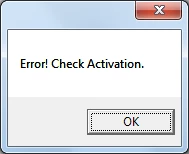
    This topic has been closed for replies.

    1 reply

    Participating Frequently
    April 7, 2015

    Try deactivating and reactivating. Use the instructions on this page (even though the error message is different, the fix is the same). : Error "E_AUTH_NOT_READY" | Digital Editions . The bit under the disclaimer in the Windows section is a second way to remove the activation and was what I had to do on my computer.

    sharonn13724243
    Participant
    April 7, 2015

    Thank you for the recommendation. I probably should have stated this issue

    is on a laptop running Windows 7.

    After Command + Shift+D I then selected Erase Authorization and receive the

    following:[image: Inline image 1]

    I tried using my Adobe login information for Vendor Login ID and my

    password, but it seems to want something else.

    Sharon Renee Nash

    On Mon, Apr 6, 2015 at 9:39 PM, leirahoward <forums_noreply@adobe.com>

    Participating Frequently
    April 7, 2015

    I had the same problem. Also running Windows 7. Ignore the part of the instructions that wants you to deactivate using the software and go on to do the stuff under the disclaimer, making sure that the Digital Editions software is closed. Editing the registry manually removes the activation from your system.

    This is the part you want:

    Disclaimer: The following task requires you to modify the Windows registry. The registry contains system-related information that is critical to your computer and applications. Before you modify the registry, make a backup copy of it. Adobe doesn't provide support for problems that arise from improperly modifying the registry.

    For more information about the Windows registry or the Registry Editor, see the Microsoft Help and Support site at http://support.microsoft.com.

    1. Close all applications.
    2. Choose Start > Run.
    3. In the Open text box, type regedit and then press Enter. The Registry Editor opens.
    4. In the left pane of the Registry Editor, locate the following registry key:

      HKEY_CURRENT_USER\Software\Adobe\Adept

    5. Select the Adept key.
    6. Choose File > Export.
    7. In the Export Registry File dialog box, select Selected Branch under Export Range. Enter a name and location for the backup registry key, and then click Save.
    8. Right-click the Adept key and choose Delete.
    9. In the Confirm Key Delete dialog, click OK.
    10. Close the Registry Editor.
    11. Open Adobe Digital Editions and reauthorize.