Participating Frequently
December 29, 2015
Answered

I have problem to open my purchased books (from konobooks, ebookmall, etc) after a disk crash & reinstalling of ADE. Please sent me a e-mail to tell you more detail about the problem

  • December 29, 2015
  • 2 replies
  • 816 views

Dear Sir or Madam
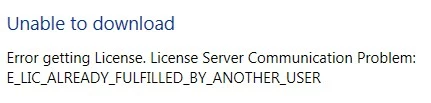
I ' ve purchased a lot of e-books from a number of suppliers (Ebookmall, cobobooks, etc), like the one attached. All these were readable through the services of Adobe Digital Editions(pdf & epub format).Unfortunately I had a disk crash in summer & I retrieved many of my archives, including the e-books , which i' ve purchached, through data recovery. After that I have try to open the above book through ADE 4.5 but it appeared a message like the one attached.Exactly the same message appears in all efforts to open similar e-books like the one attached.In the same time I' ve use my lap-top to open my e-books , using ADE 3.0. Regarding this process , the ADE system requires authorisation & after that , it began to load the book. However , even after the competion of the loading bar, the systen is not able to load the book.
As i 've spent a lot of money for these books, all the time using the good services of Adobe Digital Editions, I like to have, please , a solution regarding my problems. I can't attach the ebook-sample. Furthemore i can't authorize my Deckstop ADE , because the system tells thai I use the same e-mail & password in other devise (my laptop)

Yours Faithfully

Spanos Christos
    This topic has been closed for replies.
    Correct answer Nanaky

    Macintosh:

    1. Open Adobe Digital Wditions.
    2. Press Command+Shift+D to deauthorize Adobe Digital Editions.
    3. Select Erase Authorization.
    4. Click OK and quit Adobe Digital Editions.
    5. Navigate to /Users//Library/Application Support/Adobe/Digital Editions and drag the activation.dat file to the trash.
      If you are using 10.7, see Access hidden library files | Mac OS 10.7 and later.
    6. Open Adobe Digital Editions and reauthorize.

    Windows:

    1. Close all applications.
    2. Choose Start > Run.
    3. In the Open text box, type regedit and then press Enter. The Registry Editor opens.
    4. In the left pane of the Registry Editor, locate the following registry key: HKEY_CURRENT_USER\Software\Adobe\Adept
    5. Select the Adept key.
    6. Choose File > Export.
    7. In the Export Registry File dialog box, select Selected Branch under Export Range. Enter a name and location for the backup registry key, and then click Save.
    8. Right-click the Adept key and choose Delete.
    9. In the Confirm Key Delete dialog, click OK.
    10. Close the Registry Editor.
    11. Open Adobe Digital Editions and reauthorize.

    2 replies

    Participating Frequently
    January 3, 2016

    I have apply all these actions & authorize the ADE but still I can't open my purchased e-books

    Christos

    Nanaky
    Participating Frequently
    January 4, 2016

    Has you open the eBook before you authorize right?

    Participating Frequently
    January 7, 2016

    I had open my e-books, only before my disc crah and data recovery. After this I cant't open my e-books , even after reinstalling & re-authorizing my ADE 3.0 (Windows 7, Ultimate Editions). I have the same problem with all my purchased books (about 30-40) from various suppliers (Kobooks, ebokmal e.t.c.) Books freely downloaded from internet are capable to open, via ADE.

    Christos

    Nanaky
    NanakyCorrect answer
    Participating Frequently
    December 30, 2015

    Macintosh:

    1. Open Adobe Digital Wditions.
    2. Press Command+Shift+D to deauthorize Adobe Digital Editions.
    3. Select Erase Authorization.
    4. Click OK and quit Adobe Digital Editions.
    5. Navigate to /Users//Library/Application Support/Adobe/Digital Editions and drag the activation.dat file to the trash.
      If you are using 10.7, see Access hidden library files | Mac OS 10.7 and later.
    6. Open Adobe Digital Editions and reauthorize.

    Windows:

    1. Close all applications.
    2. Choose Start > Run.
    3. In the Open text box, type regedit and then press Enter. The Registry Editor opens.
    4. In the left pane of the Registry Editor, locate the following registry key: HKEY_CURRENT_USER\Software\Adobe\Adept
    5. Select the Adept key.
    6. Choose File > Export.
    7. In the Export Registry File dialog box, select Selected Branch under Export Range. Enter a name and location for the backup registry key, and then click Save.
    8. Right-click the Adept key and choose Delete.
    9. In the Confirm Key Delete dialog, click OK.
    10. Close the Registry Editor.
    11. Open Adobe Digital Editions and reauthorize.