
danielm21501220
Participating Frequently
September 26, 2016
Answered

Adobe CC "missing or broken" after System Restore, perpetual installation loop

  • September 26, 2016
  • 2 replies
  • 2069 views

So I installed the Adobe CC desktop app & Photoshop for my course, opened it up, did a test and everything worked fine.
that evening I closed my computer down and installed several updates (Windows 7 updates). Turn on again the next morning and the system doesn't start properly and asks to do a system restore, which I did. Upon finally getting it to start, obviously Adobe CC has been uninstalled &/or removed.
So go back to my account, redownload the app and start the installation...

Problems:

- When starting the installer, for any CC product (desktop app, photoshop, etc) it looks like it's starting, but will very often just finish suddenly and not seem to have done anything.
- When it does finish some sort of installation, I'm presented with the "Adobe CC needs to solve this problem (unstated problem). However it is missing or damaged. Please download and install a new version of CC from <the Adobe website>", which proceeds to take me around the loop again, and again, and again.
- At the time of writing this, under instruction I've deleted/renamed select folders, run various uninstall programs for CC programs and the desktop app, with no success whatsoever and temporarily disabled my firewall to see if that would work (it didn't).

To me this seems like an update that went down sour with the current CC, as it was only after said particular update that the software stopped working. Is this

Is this something that can be fixed?
If so: How soon can I expect a fix?
If not: what should my next course of action be?
This topic has been closed for replies.
Correct answer Jeffrey_A_Wright

I just do format and clean windows install, it will be faster . Can I get new trial  of Premiere? I used it only one day


Algirdasv if you feel you were unable to evaluate the Creative Cloud software then please contact our support team directly at Contact Customer Care .

To locate the specific error preventing the uninstall I would recommend reviewing the installation log files.  You can find details on how to review the log files at Troubleshoot Adobe Creative Cloud install issues with log files .  You are welcome to post any specific errors that you locate in the log files to this discussion.

2 replies

algirdasv
Participant
September 28, 2016

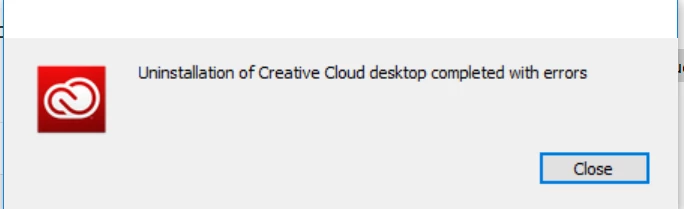
At first tried official uninstaller, but it completes with errors and not helping

John T Smith
Community Expert
Community Expert
September 26, 2016

Sign out of your account... Uninstall... run the Cleaner...

-for non-Cloud programs you need to DE-activate before uninstalling

-http://helpx.adobe.com/creative-cloud/help/install-apps.html (and uninstall)

-using the cleaner after uninstalling and before reinstalling is often needed

-https://helpx.adobe.com/creative-cloud/kb/cc-cleaner-tool-installation-problems.html

-Restart your computer... Sign in to your account... Reinstall

-and 5 steps in reply #1 https://forums.adobe.com/thread/2144928

danielm21501220
Participating Frequently
September 26, 2016

I'm afraid I can no longer uninstall it, going through the control panel doesn't work, neither does the uninstaller included with the desktop app itself (and the cleaner tool).

Govardhan.V
Participating Frequently
September 27, 2016

Follow below steps :

Uninstall Adobe Creative Cloud .

Creative Cloud Help | Uninstall the Creative Cloud desktop app

If the CC Uninstaller does not work , try Microsoft Fix it tool :

https://support.microsoft.com/en-in/help/17588/fix-problems-that-block-programs-from-being-installed-or-removed

Or if you may also use other tools like Revo Uninstaller.

Disable Firewall Temporarily.

Step 1 :

Open C:drive and navigate to C:\Program Files (x86)\ " Common Files" \Adobe.

Open Adobe folder and delete folders named Adobe Application Manager and OOBE.

Step 2:

Navigate to C:\Program Files (x86)\Adobe.

Open Adobe folder and if present delete Adobe Creative Cloud folder. [**important]

Unable to delete??? rename it to Adobe Creative Cloud-old.

Step 3 :

Press Windows button (located between Ctrl and Alt buttons) along with R button together at a time , you will get a run command window.

Type in below command and hit 'Enter' key.

appdata

Then navigate to Local>Adobe.

Open Adobe folder and delete folders named AAMUpdater and OOBE.

Step 4 :

Make sure Adobe Creative Cloud is not listed under Control Panel > Program and Features. list.

Click on the below link and download Adobe Application manager and install the same :

http://download.adobe.com/pub/adobe/creativesuite/cc/win/ApplicationManager10.0_all.exe

Once the installation process is completed, locate Adobe Application Manager launch icon on Desktop and double click on it .

It will start update process.

once it is completed,

it shud launch Adobe Creative Cloud app.