
Inspiring
April 23, 2015
Answered

Couldn't uninstall creative cloud for desktop

  • April 23, 2015
  • 9 replies
  • 148878 views

Hi all,

The new update for creative cloud came in today. Several error happened and now I am completely unable to uninstall my creative cloud.

This is what happened:

1. The creative cloud shut itself down during the first update attempt. I restarted the computer. Previously when I did this the updated creative cloud would be there. This time, creative cloud wasn't updated.

2. I tried updating again. An error happened and my windows start bar and icons all disappeared. I was forced to restart my computer. Now, creative cloud is in the program, by clicking Uninstall on add and remove program show no response at all. As a last ditch attempt I try to just let the creative cloud setup operate. Apparently the installation was a success, but now when I cannot uninstall my creative cloud at all.

I want to uninstall and reinstall my creative cloud just to make sure everything is okay. Except I am getting this message:
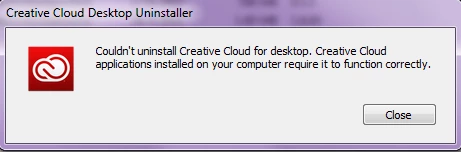
Please help, I don't know why I cannot install my creative cloud at all.

My system info is as below:

Adobe Photoshop Version: 2014.2.2 20141204.r.310 2014/12/04:23:59:59 CL 994532  x64

Operating System: Windows 7 64-bit

Version: 6.1 Service Pack 1

System architecture: Intel CPU Family:6, Model:10, Stepping:7 with MMX, SSE Integer, SSE FP, SSE2, SSE3, SSE4.1, SSE4.2, AVX

Physical processor count: 4

Processor speed: 2893 MHz

Built-in memory: 8174 MB

Free memory: 4556 MB

Memory available to Photoshop: 7147 MB

Memory used by Photoshop: 60 %

3D Multitone Printing: Disabled.

Windows 2x UI: Disabled.

Highbeam: Enabled.

Image tile size: 1024K

Image cache levels: 4

Font Preview: Large

TextComposer: Latin

Display: 1

Display Bounds: top=0, left=0, bottom=1080, right=1920

OpenGL Drawing: Enabled.

OpenGL Allow Old GPUs: Not Detected.

OpenGL Drawing Mode: Advanced

OpenGL Allow Normal Mode: True.

OpenGL Allow Advanced Mode: True.

AIFCoreInitialized=1

AIFOGLInitialized=1

OGLContextCreated=1

NumGLGPUs=1

NumCLGPUs=1

glgpu[0].GLVersion="3.0"

glgpu[0].GLMemoryMB=2048

glgpu[0].GLName="GeForce GT 530/PCIe/SSE2"

glgpu[0].GLVendor="NVIDIA Corporation"

glgpu[0].GLVendorID=4318

glgpu[0].GLDriverVersion="9.18.13.3165"

glgpu[0].GLRectTextureSize=16384

glgpu[0].GLRenderer="GeForce GT 530/PCIe/SSE2"

glgpu[0].GLRendererID=3557

glgpu[0].HasGLNPOTSupport=1

glgpu[0].GLDriver="nvd3dumx.dll,nvwgf2umx.dll,nvwgf2umx.dll,nvd3dum,nvwgf2um,nvwgf2um"

glgpu[0].GLDriverDate="20131023000000.000000-000"

glgpu[0].CanCompileProgramGLSL=1

glgpu[0].GLFrameBufferOK=1

glgpu[0].glGetString[GL_SHADING_LANGUAGE_VERSION]="4.40 NVIDIA via Cg compiler"

glgpu[0].glGetProgramivARB[GL_FRAGMENT_PROGRAM_ARB][GL_MAX_PROGRAM_INSTRUCTIONS_ARB]=[16384]

glgpu[0].glGetIntegerv[GL_MAX_TEXTURE_UNITS]=[4]

glgpu[0].glGetIntegerv[GL_MAX_COMBINED_TEXTURE_IMAGE_UNITS]=[192]

glgpu[0].glGetIntegerv[GL_MAX_VERTEX_TEXTURE_IMAGE_UNITS]=[32]

glgpu[0].glGetIntegerv[GL_MAX_TEXTURE_IMAGE_UNITS]=[32]

glgpu[0].glGetIntegerv[GL_MAX_DRAW_BUFFERS]=[8]

glgpu[0].glGetIntegerv[GL_MAX_VERTEX_UNIFORM_COMPONENTS]=[4096]

glgpu[0].glGetIntegerv[GL_MAX_FRAGMENT_UNIFORM_COMPONENTS]=[2048]

glgpu[0].glGetIntegerv[GL_MAX_VARYING_FLOATS]=[124]

glgpu[0].glGetIntegerv[GL_MAX_VERTEX_ATTRIBS]=[16]

glgpu[0].extension[AIF::OGL::GL_ARB_VERTEX_PROGRAM]=1

glgpu[0].extension[AIF::OGL::GL_ARB_FRAGMENT_PROGRAM]=1

glgpu[0].extension[AIF::OGL::GL_ARB_VERTEX_SHADER]=1

glgpu[0].extension[AIF::OGL::GL_ARB_FRAGMENT_SHADER]=1

glgpu[0].extension[AIF::OGL::GL_EXT_FRAMEBUFFER_OBJECT]=1

glgpu[0].extension[AIF::OGL::GL_ARB_TEXTURE_RECTANGLE]=1

glgpu[0].extension[AIF::OGL::GL_ARB_TEXTURE_FLOAT]=1

glgpu[0].extension[AIF::OGL::GL_ARB_OCCLUSION_QUERY]=1

glgpu[0].extension[AIF::OGL::GL_ARB_VERTEX_BUFFER_OBJECT]=1

glgpu[0].extension[AIF::OGL::GL_ARB_SHADER_TEXTURE_LOD]=1

clgpu[0].CLPlatformVersion="1.1"

clgpu[0].CLDeviceVersion="1.1 CUDA"

clgpu[0].CLMemoryMB=2048

clgpu[0].CLName="GeForce GT 530"

clgpu[0].CLVendor="NVIDIA Corporation"

clgpu[0].CLVendorID=4318

clgpu[0].CLDriverVersion="331.65"

clgpu[0].CUDASupported=1

clgpu[0].CUDAVersion="6.0.1"

clgpu[0].CLBandwidth=2.20386e+010

clgpu[0].CLCompute=73.4826

License Type: Subscription

Serial number: 91190184317178587057

Application folder: C:\Program Files\Adobe\Adobe Photoshop CC 2014\

Temporary file path: C:\Users\TWUSHI~1\AppData\Local\Temp\

Photoshop scratch has async I/O enabled

Scratch volume(s):

  C:\, 456.0G, 350.1G free

  D:\, 456.5G, 422.0G free

Required Plug-ins folder: C:\Program Files\Adobe\Adobe Photoshop CC 2014\Required\Plug-Ins\

Primary Plug-ins folder: C:\Program Files\Adobe\Adobe Photoshop CC 2014\Plug-ins\

This topic has been closed for replies.
Correct answer Charat2011

Hi - Please refer the page https://helpx.adobe.com/creative-cloud/help/uninstall-creative-cloud-desktop-app.html, on how to uninstall the Creative Cloud Desktop app without having to worry about uninstalling CC apps.

Once done, you can trigger a fresh download of Creative Cloud desktop app from https://creative.adobe.com/products/creative-cloud or upon initiating download of any other Creative Cloud apps (say, Ps, Ai) from http://www.adobe.com/creativecloud/catalog/desktop.html.

Please note that ideally Creative Cloud desktop app should always be installed on the desktop (and kept up-to-date) for the best Creative Cloud experience and avoid any missing functionality scenario.

Thanks,

Charat

9 replies

sachins62952671
New Participant
November 16, 2019

If you insist on uninstall Adobe Creative Cloud app, Adobe provides a standalone Adobe Creative Cloud uninstaller that can forcefully remove the app from your system. The utility is provided as a way to help users who are facing problems such as corrupted Creative Cloud desktop app, or are having problems installing some Creative Cloud apps with the expectation that Adobe Creative Cloud will be reinstalled after uninstallation is done. However, you need not to reinstall the Adobe Creative Cloud again if you wish.

New Participant
January 26, 2016
Charat2011Correct answer
Adobe Employee
July 2, 2015

Hi - Please refer the page https://helpx.adobe.com/creative-cloud/help/uninstall-creative-cloud-desktop-app.html, on how to uninstall the Creative Cloud Desktop app without having to worry about uninstalling CC apps.

Once done, you can trigger a fresh download of Creative Cloud desktop app from https://creative.adobe.com/products/creative-cloud or upon initiating download of any other Creative Cloud apps (say, Ps, Ai) from http://www.adobe.com/creativecloud/catalog/desktop.html.

Please note that ideally Creative Cloud desktop app should always be installed on the desktop (and kept up-to-date) for the best Creative Cloud experience and avoid any missing functionality scenario.

Thanks,

Charat

amsofedup
New Participant
December 8, 2015

Mac Plain English Answer.

Problem is with the desktop app.  Use the links given above to uninstall the desktop app.

Then use the cleaner.

Then reinstall the desktop app.

Then when you sign in you can download all the apps in your plan via the desktop app.

That worked for me, and I know nothing about 'programming' and all that technical stuff.

Hope this helps

Trevor

jadecha
New Participant
June 30, 2015

I was only successful at this by uninstalling all of my Adobe apps in the Controls Panel. And then last uninstalling Creative Cloud app.

New Participant
June 22, 2015

Not sure if this will help others but I just found a solution by manually downloading the Creative Cloud uninstaller, closing the existing Creative Cloud app, and running the uninstaller. Link is here:

https://helpx.adobe.com/content/help/en/creative-cloud/kb/Error_Code_2_failed_update/_jcr_content/main-pars/download/fil…

found here:

Error Code 2 failed updating Creative Cloud Desktop app

hope it helps

New Participant
July 2, 2015

thank you so much!

New Participant
June 22, 2015

I'm getting the same error. Trying to uninstall Creative Cloud because like many other people, my Creative Cloud update/install menu is completely blank. I'm on a mac, I've closed the Creative Cloud app in Activity Monitor, but it still wont let me unistall the software, keep getting the above error message. A solution to this would be good.

Pattie-F
Brainiac
April 24, 2015
John T Smith
Community Expert
April 23, 2015

Sign out of your account... Uninstall... run the Cleaner...

-http://helpx.adobe.com/creative-cloud/help/install-apps.html (and uninstall)

-using the cleaner after uninstalling and before reinstalling is needed

-https://helpx.adobe.com/creative-suite/kb/cs5-cleaner-tool-installation-problems.html

-Restart your computer... Sign in to your account... Reinstall

Inspiring
April 23, 2015

Thanks for the suggestion John. I gave it a shot, but everytime I try to uninstall (whether or not I sign out, or I quit CC altogether), the above message still appears.

It would only let me uninstall  it only after I uninstalled my photoshop application too (only application I have on my CC). The uninstalling completed with error, but when I restarted my PC the add and remove program said it completed the uninstallation and removed the program from my add and remove tool.

After which I tried to run the cleaner, but it couldn't find creative cloud. Only the adobe application manager (am I right in thinking that is not the same thing?)

So now I managed to reinstall my creative cloud, and also my photoshop. Fingers crossed nothing weird happens again.

This is so strange. I hadn't had such a troublesome cc update in quite a while.

New Participant
April 23, 2015

Hi,  I have the same issue - trying to uninstall the Desktop application (get the same pop up) but I refuse to uninstall all my Adobe applications I have on my computer. Would take too long - uninstall the lot and then installing everything!?!  I wonder if there's a proper way to deal with this?