Exit
  • Global community
    • Language:
      • Deutsch
      • English
      • Español
      • Français
      • Português
  • 日本語コミュニティ
  • 한국 커뮤니티
0

Dimiss Creative Cloud update notification

Explorer ,
Feb 05, 2020 Feb 05, 2020

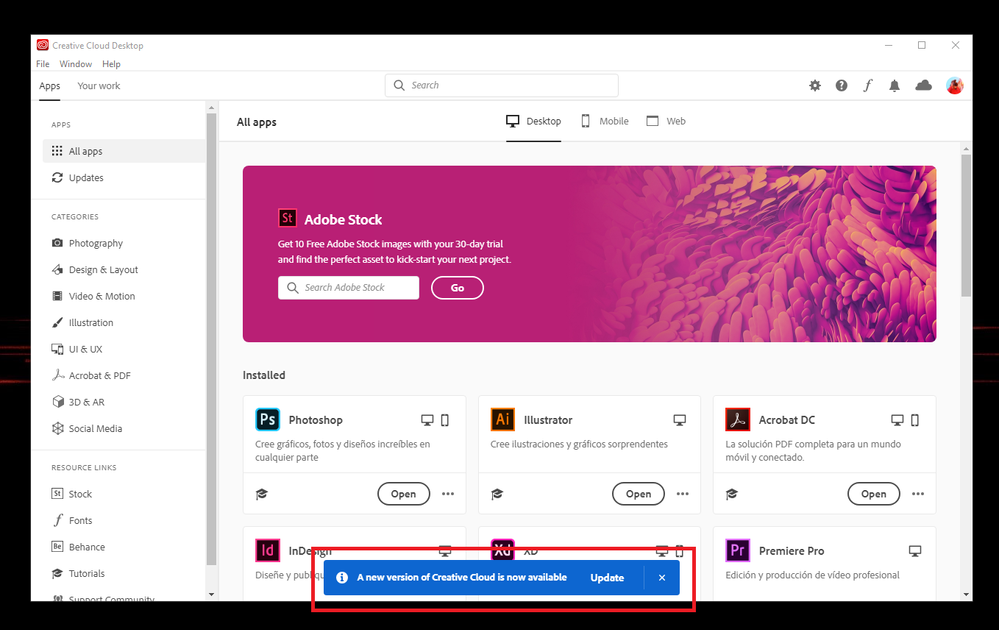
Screenshoot.png


Hi, can anyone tell me how to disable that notification? I'm fine with the current version of Creative Cloud. 

Thanks!

TOPICS
CC FAQ , Creative Cloud
3.4K
Translate
Report
Community guidelines
Be kind and respectful, give credit to the original source of content, and search for duplicates before posting. Learn more
community guidelines

correct answers 1 Correct answer

LEGEND , Feb 05, 2020 Feb 05, 2020

No matter what setting option you select and turn off those announcements always show. As above you can click the x but it will come back. It is just announcing an Update to the CC desktop app.


To completely kill it you have to Close, Quite, the CC desktop app and set it to NOT start with the system.

It is not needed to use any of the installed Adobe programs.

To adjust the options for the CC DTA open the CC DTA Preferecnes, the Gear Icon, then on the General tab turn off these options.


2019-10-29 23_11_21-Creative Cloud Desktop.png


...
Translate
Community Expert ,
Feb 05, 2020 Feb 05, 2020

There is a setting: Always keep CC up to date. But I dont know if that will kill the notification.

If i were you I would always keep it up to date: bugs, new features etc.

Translate
Report
Community guidelines
Be kind and respectful, give credit to the original source of content, and search for duplicates before posting. Learn more
community guidelines
Community Expert ,
Feb 05, 2020 Feb 05, 2020

Click X in the blue box to dismiss it.

For personal settings, go to the gear icon in upper right toolbar.

Gear-icon


See this help article for details.

https://helpx.adobe.com/creative-cloud/help/creative-cloud-updates.html


Nancy O'Shea— Product User, Community Expert & Moderator
Translate
Report
Community guidelines
Be kind and respectful, give credit to the original source of content, and search for duplicates before posting. Learn more
community guidelines
LEGEND ,
Feb 05, 2020 Feb 05, 2020
LATEST

No matter what setting option you select and turn off those announcements always show. As above you can click the x but it will come back. It is just announcing an Update to the CC desktop app.


To completely kill it you have to Close, Quite, the CC desktop app and set it to NOT start with the system.

It is not needed to use any of the installed Adobe programs.

To adjust the options for the CC DTA open the CC DTA Preferecnes, the Gear Icon, then on the General tab turn off these options.


2019-10-29 23_11_21-Creative Cloud Desktop.png


Then to turn off the Auto Update of the program go to the Apps tab and turn off this option.


2019-10-29 23_08_30-Creative Cloud Desktop.png


And if you want to stop OS Notifications go to the Notifications tab.


2020-02-05 18_26_54-Creative Cloud Desktop.png


And to "Completely" shut down the CC DTA Go to File > Exit Ctreative Cloud, or keyboard shortcut Ctrl + w


2019-11-02 10_01_34-Creative Cloud Desktop.png


and then when the Quite dialog window comes up select the Quite button.


2019-10-29 08_48_01-Creative Cloud Desktop.png


As said above the CC DTA does not need to be running to use all the other Adobe programs.

Translate
Report
Community guidelines
Be kind and respectful, give credit to the original source of content, and search for duplicates before posting. Learn more
community guidelines