
Participating Frequently
July 13, 2016
Question

Error 1603 Photoshop CS4 Download / Install

  • July 13, 2016
  • 1 reply
  • 1466 views

Hi all,

I am getting the dreaded Error 1603 when attempting to install CS4 Photoshop on my new computer.

The error:

Error 1603. Fatal error during installation. (AdobeColorCommonSetRGB)

I have attempted to follow the instructions here: Error 1603: A fatal error occurred during Adobe Creative Suite installation

But, when I get to steps 5 and 6, things aren't matching up.

Image 1 shows what I see after step 4 (there is no owner "tab").  So instead, I select "change" link just right of Owner: TrustedInstaller

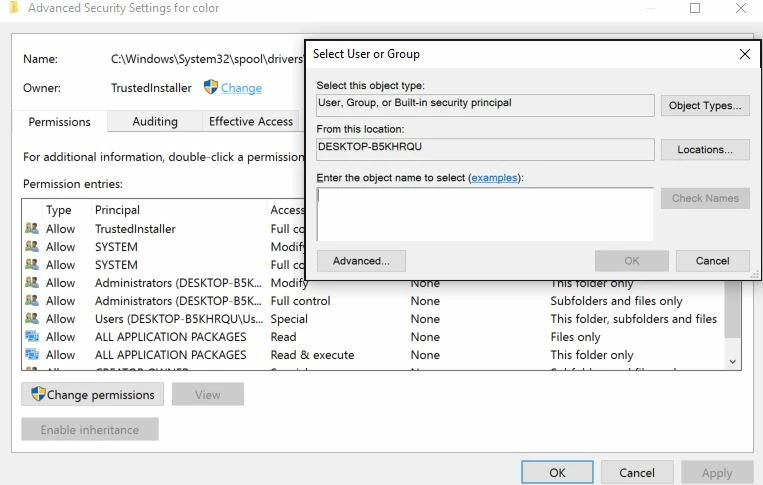
Image 2 shows what I see after selecting "change" link just right of Owner: TrustedInstaller

I have no idea where to go from here.

I am windows 10 and am the ONLY user on the computer with Admin Privileges.

Please help!

Thanks.

Image 1:
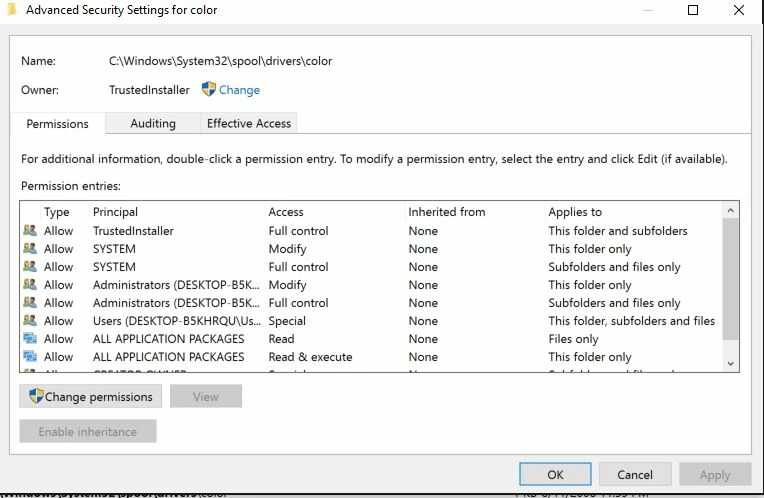
Image 2:
This topic has been closed for replies.

1 reply

John T Smith
Community Expert
Community Expert
July 13, 2016
vitaminAuthor
Participating Frequently
July 13, 2016

John T Smith wrote:

Error 1603 http://helpx.adobe.com/creative-suite/kb/error-1603-install-cs3-cs4.html

Thanks John but, that's the help article I posted in my initial question.   Not sure if you read the post or not.  Thanks tho.

vitaminAuthor
Participating Frequently
October 10, 2016

If anyone is having the 1603 RGB Error and Adobe's solution​ doesn't work, as it didn't for me, I asked the same question to Microsoft and they were able to help me out.

Problem is now fixed by following I did below:  (original Microsoft forum thread can be found here)

Step 1:

  • Press Windows+R key from your keyboard. This will open the run command.
  • Now type services.msc and hit enter.
  • Double-click the service named Windows Installer.
  • Ensure that the value of the Startup Type field is set to Manual.
  • Click OK to confirm the setting.
  • Try reinstalling your Adobe application.

Step 2

  • Press Windows+R key from your keyboard. This will open the run command.
  • Now type "msiexec /unreg" and hit enter.
  • Again press Windows+R key from your keyboard.
  • In the Open box, type "msiexec /regserver" and then press Enter.
  • Try reinstalling your Adobe application.

Hope that helps!


Problem is back.  I had to uninstall Illustrator for an issue and can't re-install due to 1603 error.