Nancy OShea
Community Expert
Community Expert
December 17, 2017
Answered

FYI: Can't find older versions in CC Desktop App?

  • December 17, 2017
  • 3 replies
  • 36146 views

There seems to be some confusion because I've seen this question asked in several forums lately.  Here's the solution.

  1. Open your Creative Cloud Desktop App. 
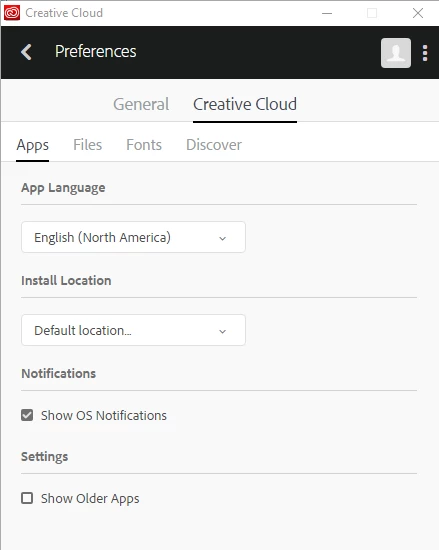
  2. Hit the 3 vertical dots icon beside your profile picture.
  3. Select Preferences
  4. Go to the Creative Cloud tab.
  5. Scroll down and put a check mark by Show Older Apps.
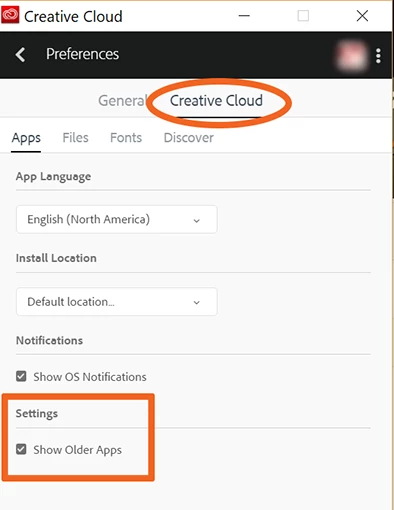
  6. Close out Preferences (top left arrow).
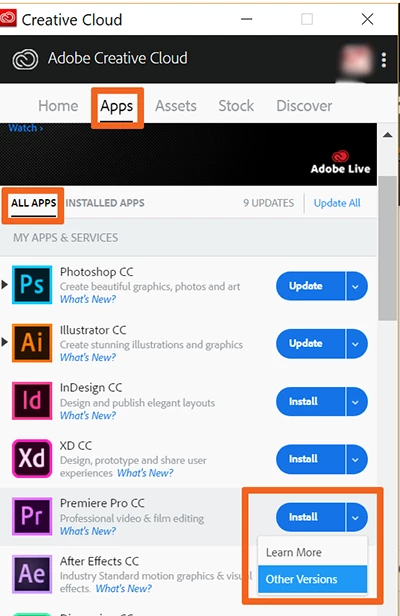
  7. Go to Apps > All Apps.
  8. Hit the Install drop down button & select Other Versions.
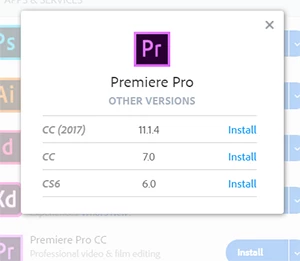
  9. Select  your desired version and click Install.
Hope that helps.

Nancy
This topic has been closed for replies.
Correct answer kglad

i didn't know that 'show older apps' tick box was there.  i looked at mine and it's unticked, but i still see the options for installing previous versions:

so i don't see that tick box having any effect.

3 replies

Participant
February 24, 2020

Okay that is so ridiculous. Just wasted so much of my time thinking there wasnt an older version. Why [abuse removed by moderator] wouldnt it be on already? 

simon.jarpa33
Participant
August 1, 2018

Thank you!

kglad
Community Expert
kgladCommunity ExpertCorrect answer
Community Expert
December 17, 2017

i didn't know that 'show older apps' tick box was there.  i looked at mine and it's unticked, but i still see the options for installing previous versions:

so i don't see that tick box having any effect.

Nancy OShea
Community Expert
Community Expert
December 17, 2017

Try looking for Fireworks without it ticked.

Nancy O'Shea— Product User & Community Expert
Known Participant
May 23, 2018

(in the future, you should post in the cc team/enterprise forum for your team/enterprise issues.)


At the time all I knew was my Encore had disappeared... which is still a mystery. But I've managed to get it back now.