
robbev17366444
Participating Frequently
January 7, 2018
Answered

How do i put a transparent gradient on an image?

  • January 7, 2018
  • 2 replies
  • 20161 views

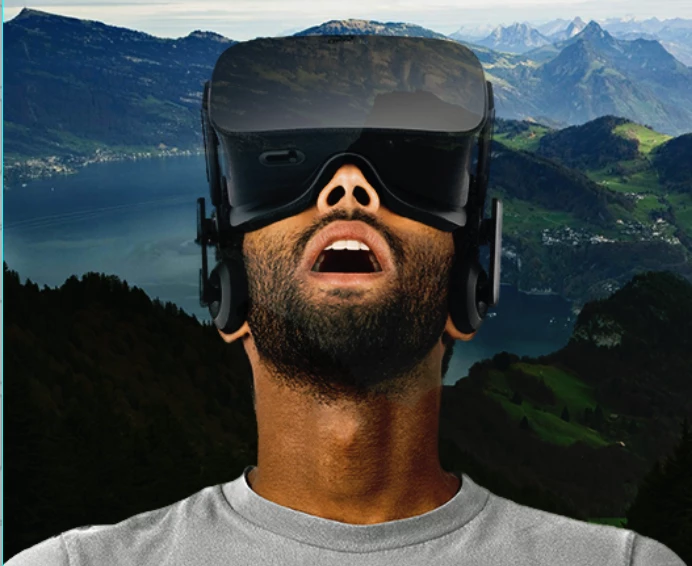
Hello, how do i set a gradient with opacity on this guy so you can only see the background through it at the top? I have 1 layer mask on the guy because i deleted the background of the guy.

Thanks in advance!
This topic has been closed for replies.
Correct answer Norman Sanders

If you are looking for a particular light to dark value,  choose the Gradient Tool after making a selection.

In the Options bar click on the black to white gradient shown.

In the slider of the gradient shown in the Gradient Editor, double click on the bottom left one and choose a dark gray

Next, double click on the bottom right one and choose your light gray

Click OK and use that in your selection area, the goggles. Alter the opacity of the selected goggle area for the degree of show-though you want.

2 replies

Norman Sanders
Legend
January 7, 2018

If this is. what you had in mind:

Since your posted file was a composite, I created a separate background (Layer 0 copy)  and isolated the figure on a separate layer (Layer 1) to simulate what you had created before flattening.

Make a selection. of the goggles, then choose the background layer so the selection appears there. Cmd+J to put that slice of the background on a separate layer.   Move it to the top of the stack. Add a black/white  gradation mask

robbev17366444
Participating Frequently
January 7, 2018

Also a helpful solution but what I actually want to become is the picture I posted.

This is what i have now:

and this is what i want:

Ahmad_Yousef-ggdwkA
Participating Frequently
January 7, 2018

change the Opacity value.

Ahmad_Yousef-ggdwkA
Participating Frequently
January 7, 2018

Create a photoshop file with two layers - one blank and the other containing the image to be made transparent. Select the image's layer.

Click the Add layer mask icon at the bottom of the layers palette.

A layer mask is created in the image layer.

Add Layer Mask Layer Mask Applied

Gradient ToolSelect the gradient tool and apply a black/white gradient to the image layer.

robbev17366444
Participating Frequently
January 7, 2018

And i tried this but i can never get it right, my image just gets black and white in gradient shape...

I dont know what i am doing wrong...

Norman Sanders
Norman SandersCorrect answer
Legend
January 7, 2018

If you are looking for a particular light to dark value,  choose the Gradient Tool after making a selection.

In the Options bar click on the black to white gradient shown.

In the slider of the gradient shown in the Gradient Editor, double click on the bottom left one and choose a dark gray

Next, double click on the bottom right one and choose your light gray

Click OK and use that in your selection area, the goggles. Alter the opacity of the selected goggle area for the degree of show-though you want.