Go to Window->Actions
Click the "New action icon" and fill in some basic data. Hit Record.

Enter the commands you want to happen. Here Image->Image size.
Click off the Chain icon and enter your size: width 450, height: 300 (or whatever you want to enter). The chain icon enables or disables size constraints. You need to disable them.
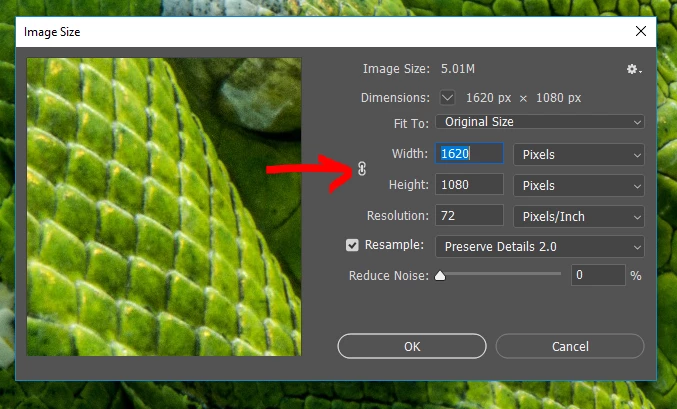
...than hit OK. You may now stop the recording.
This is a new action you have added. We will use that to size all pictures to the correct size before placing on your canvas or to create images at that size if you prefer. You can dismiss your picture for now (not saving).
We will now use the image processor (File->Scripts->Image Processor...) to modify all the files beforehand:
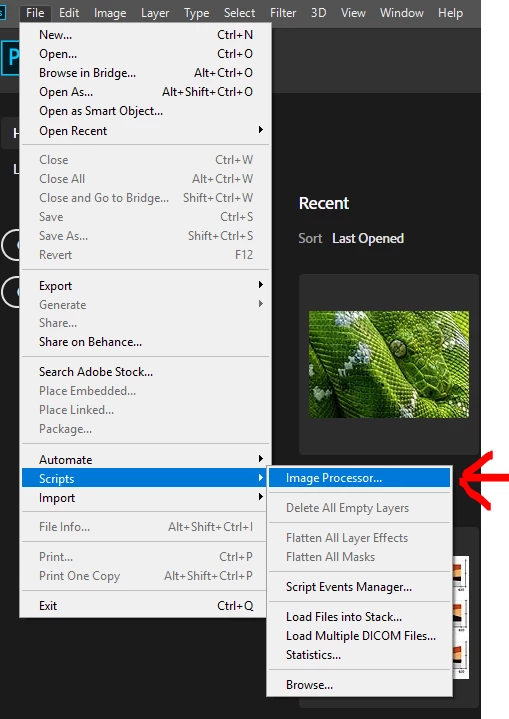
1. Select the source folder
2. Select a destination folder (if save in same location...files will be put in a subdirectory called JPEG, PSD and/or TIFF)
3. Select the file format depending on your need, you can also select two or three formats.
4. do not forget to select your action to be applied on all images.
Click RUN and the image processor will create files at the correct size and the format and parameters you specified. As action you can surely also perform more complex actions as the recording records any command sequence you enter. It's up to you to experiment with that...
[Edit: Changed the text slightly to give more information]

 AdChoices