
jonathanm46137521
Participant
June 6, 2017
Answered

License validation loop

  • June 6, 2017
  • 4 replies
  • 2941 views

When I try to install Photoshop or Lightroom from CC I end up in a loop. I am using Windows 10.  I have tried the various tips about removing licence files and I have uninstalled everything used the CC cleaner tool etc. I have also detailed any Abode folder I could find on my PC. When I then go to install I am asked for my Adobe Id and password. I supply them and eventually end up with the screen below:
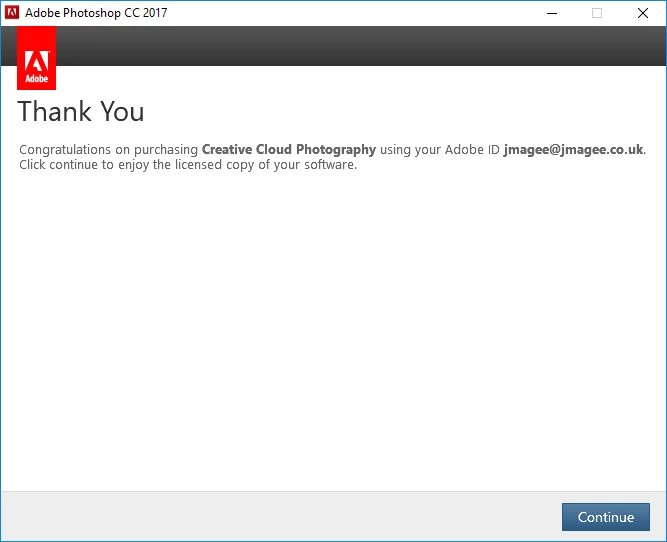
It looks like everything has installed ok and it has recognised my licence but when I click continue the window closes and after a few seconds I get the follow screen:
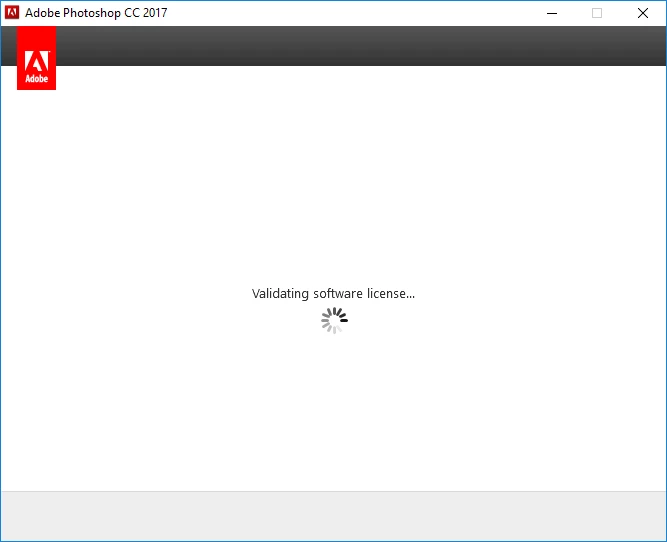
It displays for a while and then closes but pops up again after a few seconds. This keeps on repeating.

Any one got a solution?

This topic has been closed for replies.
Correct answer Jeffrey_A_Wright

Jonathanm46137521 what security software and version are you using? Do you have any other software that may be preventing the licensing connection from being sent?

I would recommend contacting our support team directly at Contact Customer Care so that your computer can be directly investigated.

4 replies

jonathanm46137521
Participant
June 13, 2017

I ended up contacting support and I the problem has been sorted. Here is a transcript of the online chat:

SUPPORT PERSON:

As I understand that you are unable to activate Photoshop and Lightroom CC. Is that correct ?

7:27:35 PM

ME:

Yes, I initially get a message once I enter my details (after a clean install) saying that they have been activated and I am on the CC Photo plan but then I end up in a loop where it says it is validating the licence , window closes and then reopens and says it is validating licence

7:28:07 PM

SUPPORT PERSON:

Thank you for confirming.

7:28:11 PM

SUPPORT PERSON:

I will be glad to help you regarding this.

7:28:24 PM

SUPPORT PERSON:

May I know the Operating system and version that you are using?

7:29:29 PM

ME:

Windows 10 Pro 64 bit

7:30:46 PM

ME:

Version 10.0.15063 Build 15063

7:31:21 PM

SUPPORT PERSON:

Thank you for the information.

7:34:47 PM

SUPPORT PERSON:

On your keyboard, press the keys 'Ctrl+Shift+Esc' simultaneously. This will get you the Task manager.

7:35:06 PM

SUPPORT PERSON:

Click More details.

7:35:18 PM

SUPPORT PERSON:

Go to Details tab on the top and there, click on 'Description' field.

7:35:24 PM

ME:

task man is up

7:35:57 PM

ME:

i have clicked on description

7:36:35 PM

SUPPORT PERSON:

If there are any Adobe processes running, end all of them.

7:36:42 PM

SUPPORT PERSON:

The Adobe processes are Creative cloud, CC library, Coresync,  Acro tray, services for Adobe desktop, AAM updater, AAM notifier, Adobe crash demon, CEF helper, IPC broker, CCXProcess

7:39:00 PM

ME:

All adobe processes have been killed

7:39:44 PM

SUPPORT PERSON:

On your keyboard, press the keys 'windows+R' simultaneously. This will get you the Run command box.

Type '%localappdata%/adobe/'(without quotes) and click on OK

Òpen OOBE folder and delete opm.db file

7:40:52 PM

ME:

opm.db has been deleted

7:42:07 PM

SUPPORT PERSON:

On your keyboard, press the keys 'windows+R' simultaneously. This will get you the Run command box.

Type '%programdata%/Adobe'(without quotes) and click ok.

Open SLStore folder and delete SLStore folder contents.

7:43:00 PM

ME:

files deleted

7:43:15 PM

SUPPORT PERSON:

On your keyboard, press the keys 'windows+R' simultaneously. This will get you the Run command box.

Type 'C:\Program Files (x86)\Common Files\Adobe'(without quotes) and click ok.

Open SLCache folder and delete SLCache folder contents.

7:44:17 PM

ME:

done

7:47:26 PM

SUPPORT PERSON:

Open Creative cloud application and sign-in using your Adobe ID: aaa@aaa

7:49:59 PM

ME:

I have logged in. On the Apps page the button beside Photoshop says "Start Trial", button beside lightroom says "Install" (I haven't reinstalled lightroom since I uninstalled everything)

7:50:53 PM

SUPPORT PERSON:

Open Task manager and end all Adobe processes.

On your keyboard, press the keys 'windows+R' simultaneously. This will get you the Run command box.

Type 'C:\Program Files (x86)\Common Files\Adobe'(without quotes) and click ok.

From there, delete the OOBE, Adobe Desktop common and Adobeapplicationmanager folders.

7:55:01 PM

ME:

Folders have been deleted

7:55:47 PM

SUPPORT PERSON:

Click on the below link and install Adobe application manager.

http://supportdownloads.adobe.com/thankyou.jsp?ftpID=447&fileID=4437

7:58:50 PM

ME:

I have downloaded and installed App Manager

8:00:49 PM

SUPPORT PERSON:

Double click Adobe application manager icon on of your desktop

8:04:20 PM

ME:

When I click on App Manager Icon, I get a popup box: Title Abobe Creative Cloud. Text says CC is missing or damaged. Two buttons Quit and Repair. Should I click on Repair?

8:04:50 PM

SUPPORT PERSON:

Yes, click Repair and let me know what you see onscreen.

8:06:01 PM

ME:

Was asked if CC could make changes to machine. Clicked Yes. Installer is downloading files

8:06:32 PM

SUPPORT PERSON:

Thank you.

8:09:10 PM

SUPPORT PERSON:

May I know the installation status ?

8:10:12 PM

ME:

Just finished installing. On app page Photoshop button says "Open" I take it I should press it and see what happens?

8:10:29 PM

SUPPORT PERSON:

Perfect!

8:10:37 PM

SUPPORT PERSON:

I am glad to hear that your issue has been resolved during our first contact.

Jeffrey_A_Wright
Community Manager
Community Manager
June 13, 2017

Thanks for the update Jonathanm46137521!

jonathanm46137521
Participant
June 11, 2017

Ok, I have turned off my firewall and tried again. I am getting the same issue. I have uninstalled  everything and tried again with no luck. I even tried installing using a different user. Any other suggestions?

Jeffrey_A_Wright
Community Manager
Jeffrey_A_WrightCommunity ManagerCorrect answer
Community Manager
June 12, 2017

Jonathanm46137521 what security software and version are you using? Do you have any other software that may be preventing the licensing connection from being sent?

I would recommend contacting our support team directly at Contact Customer Care so that your computer can be directly investigated.

jonathanm46137521
Participant
June 7, 2017

Hi Jeff,

I am following that process and I have tried the steps listed on that "signed out sign in required" page a number of times but I still get the looping.  Any other suggestions? I think my network connection is fine as using a utility I can see packets being sent to and coming back from adobelogin.prod.ims.adobejanus.com (34.224.163.151) (They are encrypted so I can see the content)

Are there any log files that would contain more info as to the issue?

Jeffrey_A_Wright
Community Manager
Community Manager
June 7, 2017

Yes Jonathanm46137521 details on how to review the log files can be found at Creative Cloud download and install errors​.  Since you may be facing a connection error I would recommend also reviewing the steps listed in Resolve connection errors with Adobe Creative Cloud and Creative Suite applications​.

In addition you can find details on how to configure your firewall for Creative Cloud services at https://helpx.adobe.com/content/dam/help/attachments/Creative_Cloud_for_enterprise_Service_Endpoints.pdf​.

Jeffrey_A_Wright
Community Manager
Community Manager
June 6, 2017

Jonathanm46137521 are you utilizing the process discussed in Download and install Creative Cloud apps to install Photoshop CC 2017?  If so then please review the steps listed in https://helpx.adobe.com/creative-cloud/kb/signed-out-sign-in-required-error-248.html to resolve the current error with licensing the software.

If you have any questions regarding any of the steps listed in either document, Jonathanm46137521, then please update this discussion.