
Participant
March 17, 2018
Answered

Paid Subscription Says Trial Period Expired

  • March 17, 2018
  • 1 reply
  • 5800 views

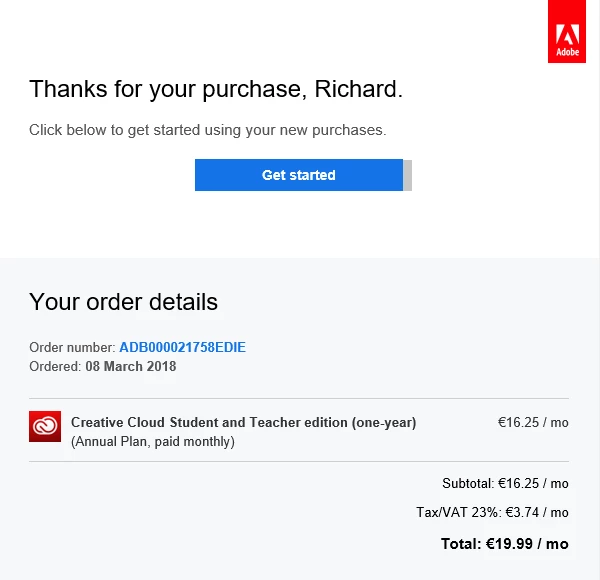
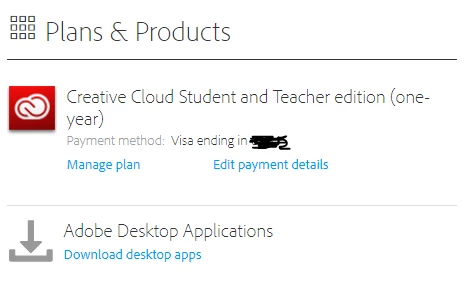
Over a fortnight ago I installed the Creative Cloud and a number of different weekly trials for various apps. When the trials ran out, I then purchased a 12 month subscription, the student / teacher plan. Everything was running smoothly up until this evening when I went to launch Lightroom and received an error saying "Your trial period has expired." I suddenly can't use any apps anymore as they all read "Trial Expired / Buy Now" despite the fact that I have an active subscription. I tried signing out of the Creative Cloud app, uninstalling / re-installing everything AND running the cleaner tool. Absolutely nothing works, I can't understand it. Please help, I need to get this resolved ASAP.
This topic has been closed for replies.
Correct answer AxelMatt

Please try the steps below:

  • Sign out from the Adobe Creative Cloud desktop application (Sign in and sign out to activate Creative Cloud apps)
  • Browse to the location: [System Drive]:\ProgramData\Adobe
  • Rename the 'SLStore' folder to 'SLStore_old'
  • Browse to the location: [System Drive]:\Program Files (x86)\Common Files\Adobe
  • Rename the 'SLCache' folder to 'SLCache_old'
  • Sign in to the Adobe CC desktop app

You can also take a look here:

Stop Adobe Creative Cloud from opening in trial mode after purchase

1 reply

AxelMatt
Community Expert
AxelMattCommunity ExpertCorrect answer
Community Expert
March 17, 2018

Please try the steps below:

  • Sign out from the Adobe Creative Cloud desktop application (Sign in and sign out to activate Creative Cloud apps)
  • Browse to the location: [System Drive]:\ProgramData\Adobe
  • Rename the 'SLStore' folder to 'SLStore_old'
  • Browse to the location: [System Drive]:\Program Files (x86)\Common Files\Adobe
  • Rename the 'SLCache' folder to 'SLCache_old'
  • Sign in to the Adobe CC desktop app

You can also take a look here:

Stop Adobe Creative Cloud from opening in trial mode after purchase

My System: Intel i7-8700K - 64GB RAM - NVidia Geforce RTX 3060 - Windows 11 Pro 25H2 -- LR-Classic 15 - Photoshop 27 - Nik Collection 8 - PureRAW 6 - Topaz Photo AI
Participant
March 18, 2018

Hi! I'm having the same exact problem and it looked like your solution worked for others. However I'm using a Mac OS, and I can't seem to find the SLStore. Do you know how to do the same troubleshooting but on a Mac?

Really really appreciate your help in advance, I desperately need my Lightroom back up and running for work.

Thanks!

Govardhan.V
Participating Frequently
March 18, 2018

Deleting SLStore and SLCache , will remove Activation of all installed Adobe apps , if you had installed any Adobe apps using serial number , make sure you have serial number with you to re-enter when prompted.

Try  with the solution provided in below link :

Stop Adobe Creative Cloud from opening in trial mode after purchase

If that doesn't work , you may proceed with deleting 2 folders mentioned earlier.

Steps to locate SLStore and SLCache:

1) Right click on Finder icon and  select "Go-To Folder" option.
2) You will get a text box, type-in below command and then hit 'Return' key.

/library

It will open Sytem Library folder.

3)Then navigate to Application Support>Adobe.

Open Adobe folder and looks for SLCache and SLStore .

Do not trash it , just rename it like SLCache-old and SLStore-old.