Inspiring
October 10, 2016
Answered

Bootstrap Modal + Image Carousel - click image to see full size?

  • October 10, 2016
  • 1 reply
  • 35560 views

I have put together some image galleries and would like to know if there is a way for a visitor to be viewing one of the galleries and be able to click on an image and have it show in full size?

Thanks,

John

Correct answer Nancy OShea

I think this is what you want.  Your way doesn't make sense because a carousel image is the full size image.

This uses an inline- list of thumbnails.  When thumbnails are clicked, a modal window with a carousel of full sized images appear to facilitate swiping through all images in that carousel group.
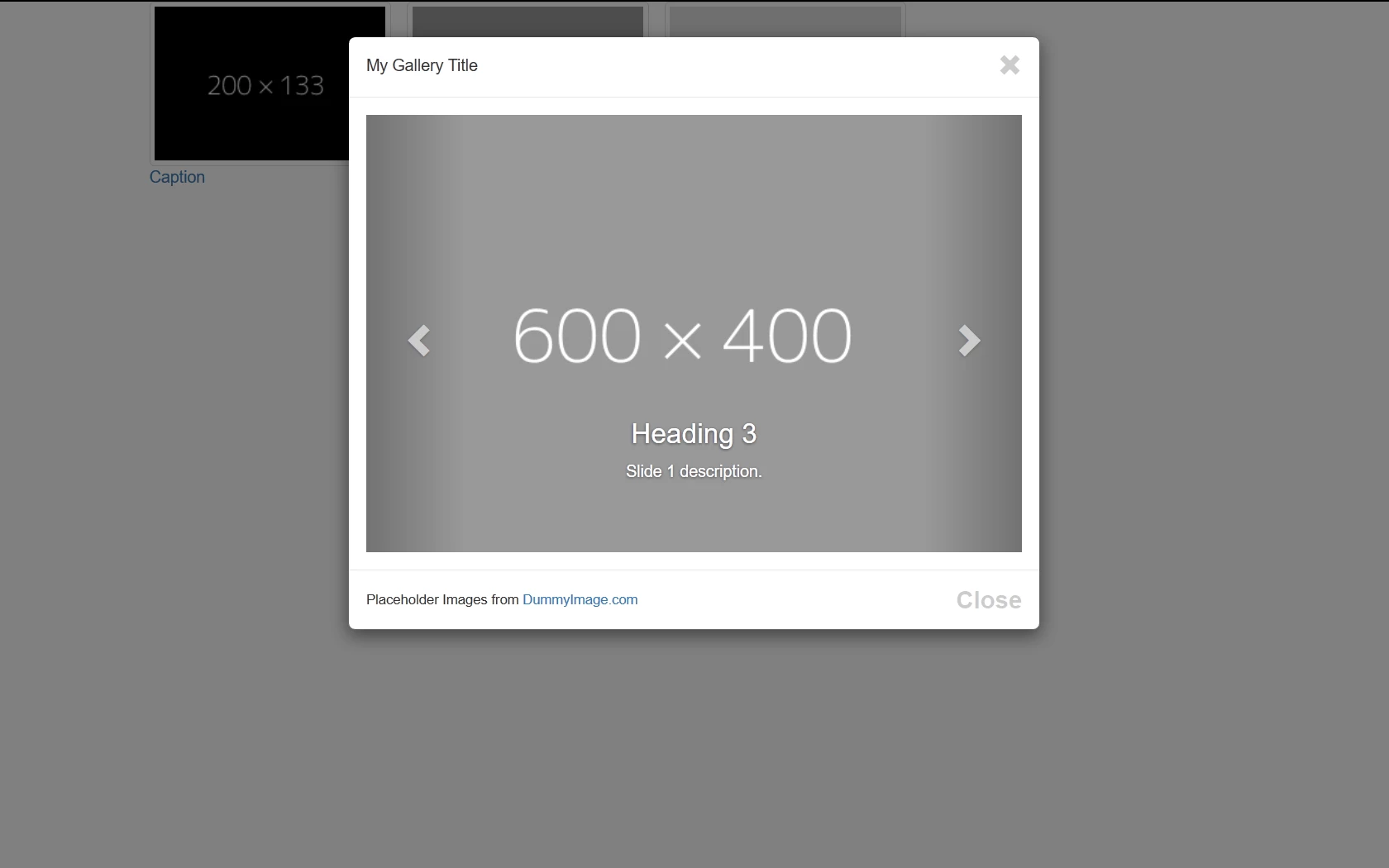
Copy & paste code below into a new, blank document.

<!doctype html>

<html lang="en">

<head>

<meta charset="utf-8">

<title>Bootstrap 3.3.7 Starter</title>

<meta name="viewport" content="width=device-width, initial-scale=1">

<meta http-equiv="X-UA-Compatible" content="IE=edge">

<!--[if lt IE 9]>

<script src="http://html5shiv.googlecode.com/svn/trunk/html5.js"></script>

<![endif]-->

<!--Bootstrap-->

<link rel="stylesheet" href="http://maxcdn.bootstrapcdn.com/bootstrap/3.3.7/css/bootstrap.min.css">

<style>

.center-block { float: none }

</style>

</head>

<body>

<div class="container">

<div class="row">

<div class="col-sm-10 center-block center-text">

<!--THUMBNAILS-->

<ul class="list-inline">

<li data-toggle="modal" data-target="#myModal"><a  href="#myCarousel" data-slide-to="0"><img class="img-thumbnail" src="https://dummyimage.com/200x133/000/fff" alt="..."><br>

Caption</a></li>

<li data-toggle="modal" data-target="#myModal"><a  href="#myCarousel" data-slide-to="1"><img class="img-thumbnail" src="https://dummyimage.com/200x133/999/fff" alt="..."><br>

Caption</a></li>

<li data-toggle="modal" data-target="#myModal"><a href="#myCarousel" data-slide-to="2" ><img class="img-thumbnail" src="https://dummyimage.com/200x133/ddd/f00" alt="..."><br>

Caption</a></li>

<!--end of thumbnails-->

</ul>

<!--begin modal window-->

<div class="modal fade" id="myModal">

<div class="modal-dialog">

<div class="modal-content">

<div class="modal-header">

<div class="pull-left">My Gallery Title</div>

<button type="button" class="close" data-dismiss="modal" title="Close"> <span class="glyphicon glyphicon-remove"></span></button>

</div>

<div class="clearfix"></div>

<div class="modal-body">

<!--CAROUSEL CODE GOES HERE-->

<div id="myCarousel" class="carousel slide" data-interval="false">

<div class="carousel-inner">

<div class="item active"> <img src="https://dummyimage.com/600x400/000/fff" alt="item0">

<div class="carousel-caption">

<h3>Heading 3</h3>

<p>Slide 0  description.</p>

</div>

</div>

<div class="item"><img src="https://dummyimage.com/600x400/999/fff" alt="item1">

<div class="carousel-caption">

<h3>Heading 3</h3>

<p>Slide 1 description.</p>

</div>

</div>

<div class="item"> <img src="https://dummyimage.com/600x400/ddd/f00" alt="item2">

<div class="carousel-caption">

<h3>Heading 3</h3>

<p>Slide 2  description.</p>

</div>

</div>

<!--end carousel-inner--></div>

<!--Begin Previous and Next buttons-->

<a class="left carousel-control" href="#myCarousel" role="button" data-slide="prev"> <span class="glyphicon glyphicon-chevron-left"></span></a> <a class="right carousel-control" href="#myCarousel" role="button" data-slide="next"> <span class="glyphicon glyphicon-chevron-right"></span></a>

<!--end carousel--></div>

<!--end modal-body--></div>

<div class="modal-footer">

<div class="pull-left"> <small>Placeholder Images from <a href="https://dummyimage.com" target="new">DummyImage.com</a></small> </div>

<button class="btn-sm close" type="button" data-dismiss="modal">Close</button>

<div class="clearfix"></div>

<!--end modal-footer--></div>

<!--end modal-content--></div>

<!--end modal-dialoge--></div>

<!--end myModal--></div>

<!--end col--></div>

<!--end row--></div>

<!--end container--></div>

<!--latest jQuery-->

<script src="https://code.jquery.com/jquery-1.12.2.min.js" integrity="sha256-lZFHibXzMHo3GGeehn1hudTAP3Sc0uKXBXAzHX1sjtk=" crossorigin="anonymous"></script>

<!--Bootstrap-->

<script src="http://maxcdn.bootstrapcdn.com/bootstrap/3.3.7/js/bootstrap.min.js"></script>

</body>

</html>

=================

Having said all that, you could potentially put your thumbnails inside a horizontal or vertical slider too.  One such slider I'm using currently is this one.   It's lightweight, easy to set-up and compatible with Bootstrap.

JQuery lightSlider

Nancy O.

1 reply

BenPleysier
Community Expert
October 11, 2016

Nancy has created a tutorial especially for you. You can find it at Bootstrap Modal + Carousel Gallery - http://alt-web.com/

Wappler is the DMXzone-made Dreamweaver replacement and includes the best of their powerful extensions, as well as much more!
jodmcc49Author
Inspiring
October 11, 2016

Thanks Ben,

This is the tutorial I used. What I am wanting to do is be able to click on the image shown in the carousel and modal and have it come up full size.

<!--begin carousel-->
<div id="myGallery" class="carousel slide" data-interval="false">
<div class="carousel-inner">
<div class="item active"> <img src="http://lorempixel.com/600/400/nature/1" alt="item0">Do I create a link for the image and set attributes to 100%?
<div class="carousel-caption">
<h3>Heading 3</h3>
<p>Slide 0 description.</p>
</div>
</div>
<div class="item"> <img src="http://lorempixel.com/600/400/nature/2" alt="item1">
<div class="carousel-caption">
<h3>Heading 3</h3>
<p>Slide 1 description.</p>
</div>
</div>
<div class="item"> <img src="http://lorempixel.com/600/400/nature/3" alt="item2">
<div class="carousel-caption">
<h3>Heading 3</h3>
<p>Slide 2 description.</p>
</div>
</div>
</div>
<!--end carousel-inner--></div>
<!--Begin Previous and Next buttons-->
<a class="left carousel-control" href="#myGallery" role="button" data-slide="prev"> <span class="glyphicon glyphicon-chevron-left"></span></a> <a class="right carousel-control" href="#myGallery" role="button" data-slide="next"> <span class="glyphicon glyphicon-chevron-right"></span></a>
<!--end carousel--></div>

Nancy OShea
Nancy OSheaCorrect answer
Community Expert
October 11, 2016

I think this is what you want.  Your way doesn't make sense because a carousel image is the full size image.

This uses an inline- list of thumbnails.  When thumbnails are clicked, a modal window with a carousel of full sized images appear to facilitate swiping through all images in that carousel group.

Copy & paste code below into a new, blank document.

<!doctype html>

<html lang="en">

<head>

<meta charset="utf-8">

<title>Bootstrap 3.3.7 Starter</title>

<meta name="viewport" content="width=device-width, initial-scale=1">

<meta http-equiv="X-UA-Compatible" content="IE=edge">

<!--[if lt IE 9]>

<script src="http://html5shiv.googlecode.com/svn/trunk/html5.js"></script>

<![endif]-->

<!--Bootstrap-->

<link rel="stylesheet" href="http://maxcdn.bootstrapcdn.com/bootstrap/3.3.7/css/bootstrap.min.css">

<style>

.center-block { float: none }

</style>

</head>

<body>

<div class="container">

<div class="row">

<div class="col-sm-10 center-block center-text">

<!--THUMBNAILS-->

<ul class="list-inline">

<li data-toggle="modal" data-target="#myModal"><a  href="#myCarousel" data-slide-to="0"><img class="img-thumbnail" src="https://dummyimage.com/200x133/000/fff" alt="..."><br>

Caption</a></li>

<li data-toggle="modal" data-target="#myModal"><a  href="#myCarousel" data-slide-to="1"><img class="img-thumbnail" src="https://dummyimage.com/200x133/999/fff" alt="..."><br>

Caption</a></li>

<li data-toggle="modal" data-target="#myModal"><a href="#myCarousel" data-slide-to="2" ><img class="img-thumbnail" src="https://dummyimage.com/200x133/ddd/f00" alt="..."><br>

Caption</a></li>

<!--end of thumbnails-->

</ul>

<!--begin modal window-->

<div class="modal fade" id="myModal">

<div class="modal-dialog">

<div class="modal-content">

<div class="modal-header">

<div class="pull-left">My Gallery Title</div>

<button type="button" class="close" data-dismiss="modal" title="Close"> <span class="glyphicon glyphicon-remove"></span></button>

</div>

<div class="clearfix"></div>

<div class="modal-body">

<!--CAROUSEL CODE GOES HERE-->

<div id="myCarousel" class="carousel slide" data-interval="false">

<div class="carousel-inner">

<div class="item active"> <img src="https://dummyimage.com/600x400/000/fff" alt="item0">

<div class="carousel-caption">

<h3>Heading 3</h3>

<p>Slide 0  description.</p>

</div>

</div>

<div class="item"><img src="https://dummyimage.com/600x400/999/fff" alt="item1">

<div class="carousel-caption">

<h3>Heading 3</h3>

<p>Slide 1 description.</p>

</div>

</div>

<div class="item"> <img src="https://dummyimage.com/600x400/ddd/f00" alt="item2">

<div class="carousel-caption">

<h3>Heading 3</h3>

<p>Slide 2  description.</p>

</div>

</div>

<!--end carousel-inner--></div>

<!--Begin Previous and Next buttons-->

<a class="left carousel-control" href="#myCarousel" role="button" data-slide="prev"> <span class="glyphicon glyphicon-chevron-left"></span></a> <a class="right carousel-control" href="#myCarousel" role="button" data-slide="next"> <span class="glyphicon glyphicon-chevron-right"></span></a>

<!--end carousel--></div>

<!--end modal-body--></div>

<div class="modal-footer">

<div class="pull-left"> <small>Placeholder Images from <a href="https://dummyimage.com" target="new">DummyImage.com</a></small> </div>

<button class="btn-sm close" type="button" data-dismiss="modal">Close</button>

<div class="clearfix"></div>

<!--end modal-footer--></div>

<!--end modal-content--></div>

<!--end modal-dialoge--></div>

<!--end myModal--></div>

<!--end col--></div>

<!--end row--></div>

<!--end container--></div>

<!--latest jQuery-->

<script src="https://code.jquery.com/jquery-1.12.2.min.js" integrity="sha256-lZFHibXzMHo3GGeehn1hudTAP3Sc0uKXBXAzHX1sjtk=" crossorigin="anonymous"></script>

<!--Bootstrap-->

<script src="http://maxcdn.bootstrapcdn.com/bootstrap/3.3.7/js/bootstrap.min.js"></script>

</body>

</html>

=================

Having said all that, you could potentially put your thumbnails inside a horizontal or vertical slider too.  One such slider I'm using currently is this one.   It's lightweight, easy to set-up and compatible with Bootstrap.

JQuery lightSlider

Nancy O.

Nancy O'Shea— Product User & Community Expert