


Known Participant
February 5, 2024
Answered

Cannot change BG colour in bootstrap Navbar

  • February 5, 2024
  • 1 reply
  • 3605 views

Hi everyone


I am a complete beginner in DW this question might sound stupid but I could not find anything on the internet for this specific problem.


So, I am trying to create a website, with Bootstrap, and I have a couple of questions. 


How do I change the BG colour of my navbar? I have followed a tutorial on YouTube but, despite I do everything the guy does my colour won't change.
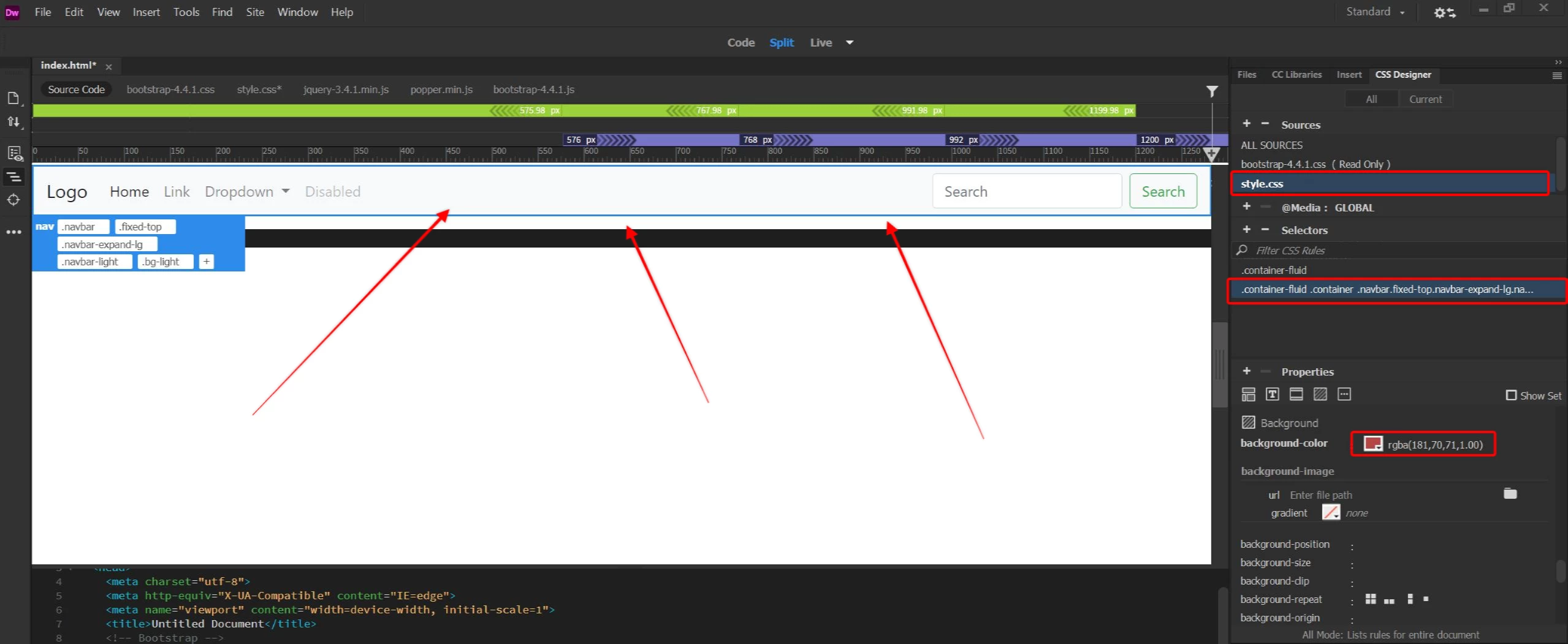


Created a new style.css sheet, added a selector for the navbar, and changed BG colour to red, but as you can see the colour is still White. 


thanks for any help you can provide


This is the code:

<nav class="navbar fixed-top navbar-expand-lg navbar-light bg-light"> <a class="navbar-brand" href="#">Logo</a>
          <button class="navbar-toggler" type="button" data-toggle="collapse" data-target="#navbarSupportedContent1" aria-controls="navbarSupportedContent1" aria-expanded="false" aria-label="Toggle navigation"> <span class="navbar-toggler-icon"></span> </button>
          <div class="collapse navbar-collapse" id="navbarSupportedContent1">
            <ul class="navbar-nav mr-auto">
              <li class="nav-item active"> <a class="nav-link" href="#">Home <span class="sr-only">(current)</span></a> </li>
              <li class="nav-item"> <a class="nav-link" href="#">Link</a> </li>
              <li class="nav-item dropdown"> <a class="nav-link dropdown-toggle" href="#" id="navbarDropdown1" role="button" data-toggle="dropdown" aria-haspopup="true" aria-expanded="false"> Dropdown </a>
                <div class="dropdown-menu" aria-labelledby="navbarDropdown1"> <a class="dropdown-item" href="#">Action</a> <a class="dropdown-item" href="#">Another action</a>
                  <div class="dropdown-divider"></div>
                  <a class="dropdown-item" href="#">Something else here</a> </div>
              </li>
              <li class="nav-item"> <a class="nav-link disabled" href="#">Disabled</a> </li>
            </ul>
            <form class="form-inline my-2 my-lg-0">
              <input class="form-control mr-sm-2" type="search" placeholder="Search" aria-label="Search">
              <button class="btn btn-outline-success my-2 my-sm-0" type="submit">Search</button>
            </form>
          </div>
        </nav>
    This topic has been closed for replies.
    Correct answer osgood_
    quote

    and if I want to make it another color other than red I can't do it


    By @Stephan5FE6


    Change the color of the Bootstrap css selector bg-danger:


    .bg-danger {

    background-color: purple!important;

    }


    or better, rather than deface the default Bootstrap values make your own css selector


    .nav-bg {

    background-color: darkolivegreen;

    }


    <nav class="navbar fixed-top navbar-expanded-lg nav-bg navbar-dark">


    Never directly alter the Bootstrap default css file, unless you're an expert. If you are going to overide the default css values do it in a seperately link stylesheet, which should be linked to your page after the link to the Bootstrap default css file, or you can embed the css styles in the head of the page whilst building.


    1 reply

    BenPleysier
    Community Expert
    February 5, 2024

    Change the first line to

    <nav class="navbar fixed-top navbar-expand-lg bg-danger navbar-dark"> <a class="navbar-brand" href="#">Logo</a>


    Wappler is the DMXzone-made Dreamweaver replacement and includes the best of their powerful extensions, as well as much more!
    Known Participant
    February 5, 2024

    Thank you very much this does the trick, I do not understand why can't I change it from the properties tab, and if I want to make it another color other than red I can't do it

    Known Participant
    February 6, 2024

    They are BUT they are used nowhere in Bootstrap v4, as far as I can see.


    So if you want to change bg-danger to blue instead of red then you need to add the variable for blue to the css selector for .bg-danger. Should be done in a seperate stylesheet, unless you are intending to change all the default variables.


    .bg-danger {
    background-color: var(--blue)!important;
    }


    It makes no sense to change the variable color hexidecimal value ie --blue: #007bff; to any other color, apart from an alternative blue hue, as that variable name is blue, so you would not want to really change its color value to green etc


    You might however want to change a generic var value say --success to another color as it will make more sense because the variable name is less specific.


    So the lesson is IF you are planning to introduce your own color scheme use less specific variable names, just in case you want to change the color values otherwise to make sense you will need to change the variable name as well and update that variable wherever it is used in the css selectors. 


    Personally speaking in my opinion you're much better off not using Bootstrap in this day and age. It was there when responsive construction was difficult to accomplish but its simple these days with the introduction of flexbox and grid and don't forget Bootstrap was put together by Twitter (now X), you're not Twitter or X, so use something less verbose and more streamlined - you will most probably end up with 1000's of lines of redundant css linked to your page.......just my personal opinion, others will of course disagree.


    The way I have done it is:

    <nav class="navbar fixed-top navbar-expand-lg navbar-light bg-light"> <a class="navbar-brand" href="#">Logo</a>


    Remove the navbar-ligh bg-light and then create a new selector called .navbar and chose the color from properties panel


    It works, but do you think is the right way to do it?