_bernard_
Inspiring
October 21, 2021
Answered

Clickable button with image and text and rollover state

  • October 21, 2021
  • 2 replies
  • 1065 views

Looking for suggestions please.

After a very long break from Dreamweaver I am finding myself a little lost. Looking for an effective way to create a clean/blank interface with only two large buttons, both buttons/clickable areas to have:

  • an image as background
  • text inside
  • must have rollover state (and prefereably a brief animation during state change)
  • both text and background image to change on rollover; or text invisible on Up/Initial state


What methods/approaches do you suggest I follow?

Thanks in advance. 


    This topic has been closed for replies.
    Correct answer Nancy OShea

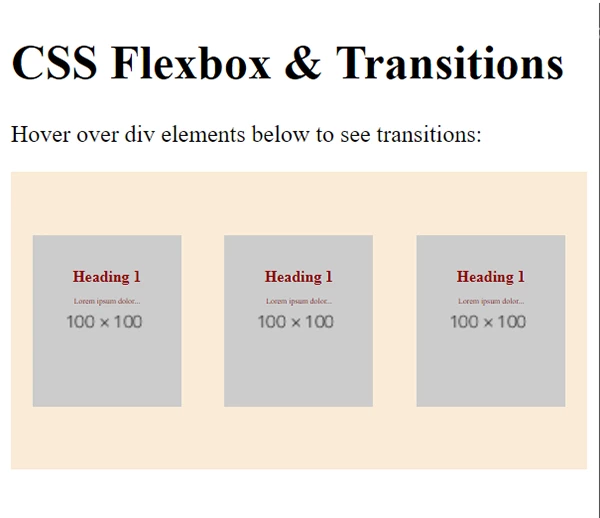
    See example below:


    <!DOCTYPE html>
    <html lang="en">
    <head>
    <title>Unique Page Title</title>
    <meta http-equiv="X-UA-Compatible" content="IE=edge">
    <meta name="viewport" content="width=device-width, initial-scale=1">
    
    <style>
    main {
    display: flex;
    flex-direction: row;
    justify-content: space-around;
    background-color: antiquewhite;
    align-items: center;
    min-height: 200px
    }
    
    div {
    width: 100px;
    height: 100px;
    font-size: 33%;
    text-align: center;
    padding-top: 15%;
    background: #CCC url(https://dummyimage.com/100x100) no-repeat center center;
    transition-property: width, height, font-size, background;
    transition-duration: 1s;
    transition-timing-function: linear;
    }
    
    div:hover {
    width: 300px;
    height: 300px;
    font-size: 100%;
    background: #CCC url(https://dummyimage.com/300x300) no-repeat center center;
    }
    
    a:link {
    text-decoration: none;
    color: darkred
    }
    
    a:hover, a:active, a:focus {
    color: black;
    text-decoration: underline;
    }
    </style>
    </head>
    <body>
    <h1>CSS Flexbox &amp; Transitions</h1>
    <p>Hover over div elements below to see transitions:</p>
    <main>
    <a href="https://google.com">
    <div>
    <h1>Heading 1</h1>
    <p>Lorem ipsum dolor...</p>
    </div>
    </a>
    <a href="https://example.com">
    <div>
    <h1>Heading 1</h1>
    <p>Lorem ipsum dolor...</p>
    </div>
    </a>
    <a href="https://bing.com">
    <div>
    <h1>Heading 1</h1>
    <p>Lorem ipsum dolor...</p>
    </div>
    </a>
    </main>
    </body>
    </html>



    2 replies

    Nancy OShea
    Community Expert
    October 21, 2021

    See if this does what you want:

    <!DOCTYPE html>
    <html>
    <head>
    <style> 
    div {
      width: 100px;
      height: 100px;
      font-size: 33%;
      background: #CCC url(https://dummyimage.com/100x100) no-repeat center center;
      transition-property: width,height,font-size,background;
      transition-duration: 2s;
      transition-timing-function: linear;
    }
    
    div:hover {
      width: 300px;
      height:300px;
      font-size:100%;
      background: #CCC url(https://dummyimage.com/300x300) no-repeat center center;
    }
    </style>
    </head>
    <body>
    <h1>CSS Transition Properties</h1>
    <p>Hover over the div element below, to see the transition effect:</p>
    <div><h1>Heading 1</h1>
    <p>Lorem ipsum dolor...</p>
    </div>
    </body>
    </html>


    Nancy O'Shea— Product User & Community Expert
    _bernard_
    _bernard_Author
    Inspiring
    October 22, 2021

    Thank you kindly @Nancy OShea. This is indeed a good launch point and, as always, so utterly obvious in retrospect. If I can bother you for one more fragment of information: I'm using Float Left on the div (plus a few other parameters), how do I go about having the full Div as an active hyperlink (of course without using Span, as two Divs – each with separate hyperlinks – need to appear adjacent to each other?)

    Nancy OShea
    Nancy OSheaCorrect answer
    Community Expert
    October 22, 2021

    See example below:


    <!DOCTYPE html>
    <html lang="en">
    <head>
    <title>Unique Page Title</title>
    <meta http-equiv="X-UA-Compatible" content="IE=edge">
    <meta name="viewport" content="width=device-width, initial-scale=1">
    
    <style>
    main {
    display: flex;
    flex-direction: row;
    justify-content: space-around;
    background-color: antiquewhite;
    align-items: center;
    min-height: 200px
    }
    
    div {
    width: 100px;
    height: 100px;
    font-size: 33%;
    text-align: center;
    padding-top: 15%;
    background: #CCC url(https://dummyimage.com/100x100) no-repeat center center;
    transition-property: width, height, font-size, background;
    transition-duration: 1s;
    transition-timing-function: linear;
    }
    
    div:hover {
    width: 300px;
    height: 300px;
    font-size: 100%;
    background: #CCC url(https://dummyimage.com/300x300) no-repeat center center;
    }
    
    a:link {
    text-decoration: none;
    color: darkred
    }
    
    a:hover, a:active, a:focus {
    color: black;
    text-decoration: underline;
    }
    </style>
    </head>
    <body>
    <h1>CSS Flexbox &amp; Transitions</h1>
    <p>Hover over div elements below to see transitions:</p>
    <main>
    <a href="https://google.com">
    <div>
    <h1>Heading 1</h1>
    <p>Lorem ipsum dolor...</p>
    </div>
    </a>
    <a href="https://example.com">
    <div>
    <h1>Heading 1</h1>
    <p>Lorem ipsum dolor...</p>
    </div>
    </a>
    <a href="https://bing.com">
    <div>
    <h1>Heading 1</h1>
    <p>Lorem ipsum dolor...</p>
    </div>
    </a>
    </main>
    </body>
    </html>



    Nancy O'Shea— Product User & Community Expert
    Nancy OShea
    Community Expert
    October 21, 2021

    Everything you want can be achieved very easily with CSS & HTML code.  Keep in mind that hover or rollover triggers are meaningless to touch screen devices that don't use a mouse.

    https://www.w3schools.com/css/css3_transitions.asp


    Nancy O'Shea— Product User & Community Expert