


camilleg39490802
Participant
February 26, 2017
Answered

Format from Dreamweaver to cPanel

  • February 26, 2017
  • 2 replies
  • 3328 views

I am currently trying to host my website on Go Daddy through cPanel. I uploaded my files (css and html) on cPanel but when I double click on the pages to make them appear online, their format is completely wrong and doesn't look like the Dreamweaver format at all. I called their help service and they told me that I had to ask Dreamweaver to put my files through FTP but I don't really know what that means. Could someone help me with that? Thank you!
    This topic has been closed for replies.
    Correct answer Nancy OShea

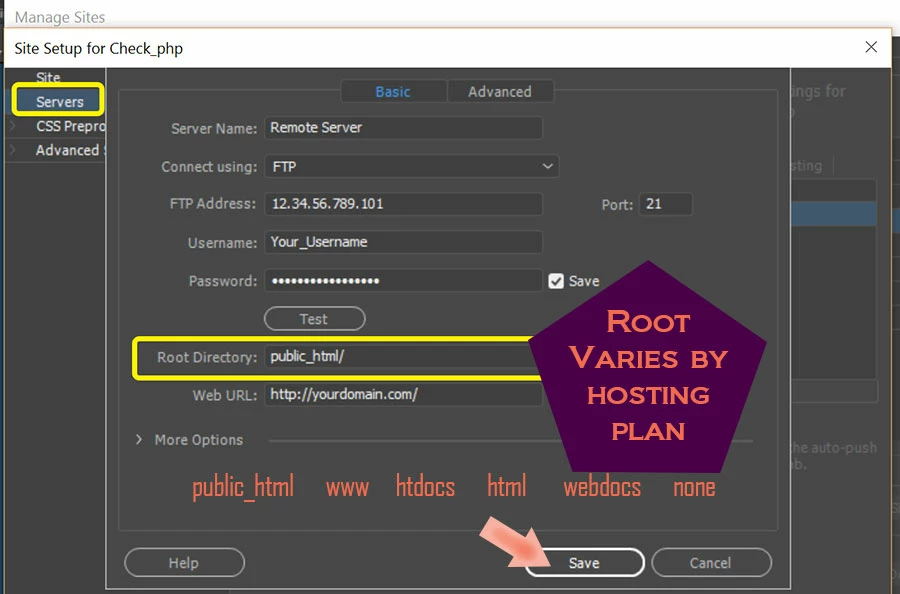
    If you have C-Panel, that implies your hosting plan is on a Linux server and your site's Root Directory is public_html.  That's the folder to which you upload publicly accessible web pages.

    In Dreamweaver, go to Site > New Site or Manage Sites.   Enter your FTP log-in details in the Servers tab.  See screenshot.  The server log-in details were emailed to you when you set-up your web hosting account.  

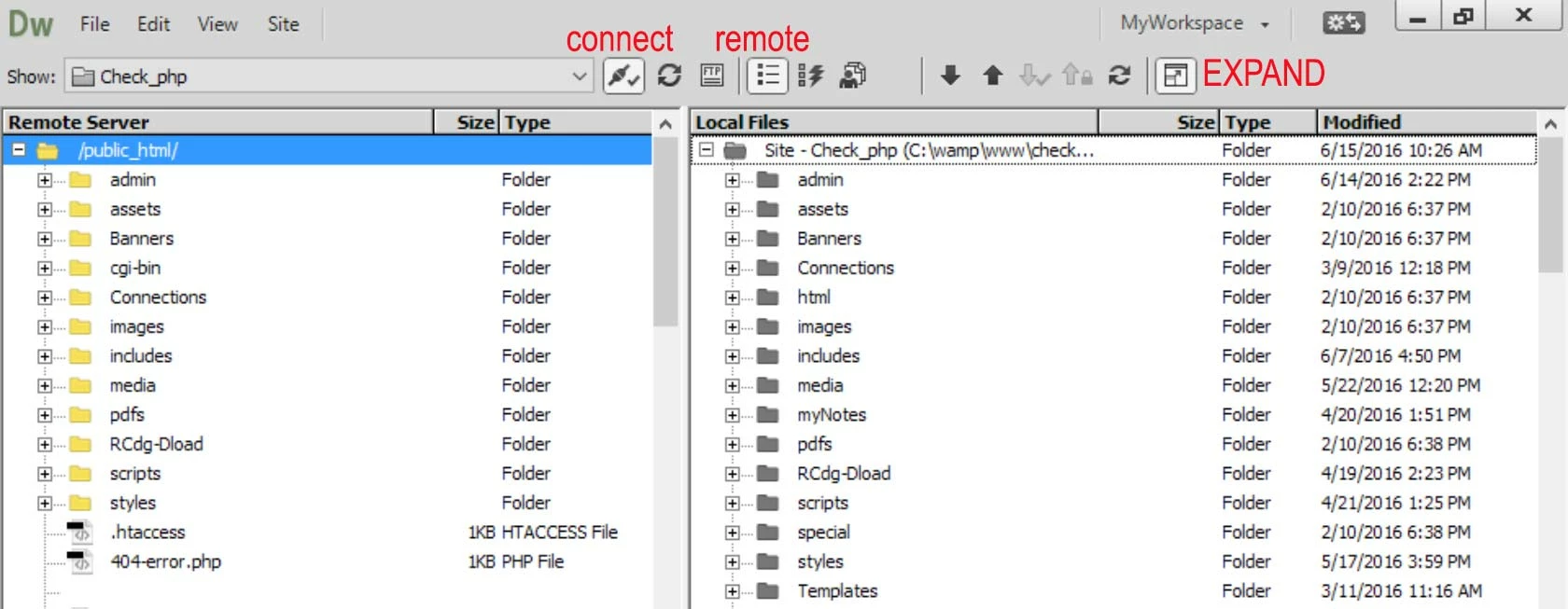
    Once your site is defined, you can upload files directly from Dreamweaver's Files Panel by selecting local folders or files and clicking the UP arrow.   In this Expanded screenshot, Remote files are on the left side and Local files are on the right.  To collapse the Files panel, click the Expand button again.

    Nancy

    2 replies

    Nancy OShea
    Community Expert
    Nancy OSheaCommunity ExpertCorrect answer
    Community Expert
    February 26, 2017

    If you have C-Panel, that implies your hosting plan is on a Linux server and your site's Root Directory is public_html.  That's the folder to which you upload publicly accessible web pages.

    In Dreamweaver, go to Site > New Site or Manage Sites.   Enter your FTP log-in details in the Servers tab.  See screenshot.  The server log-in details were emailed to you when you set-up your web hosting account.  

    Once your site is defined, you can upload files directly from Dreamweaver's Files Panel by selecting local folders or files and clicking the UP arrow.   In this Expanded screenshot, Remote files are on the left side and Local files are on the right.  To collapse the Files panel, click the Expand button again.

    Nancy

    Nancy O'Shea— Product User & Community Expert
    BenPleysier
    Community Expert
    Community Expert
    February 26, 2017
    Wappler is the DMXzone-made Dreamweaver replacement and includes the best of their powerful extensions, as well as much more!