


Participant
February 28, 2019
Answered

How do I make an image full width and remove space around it?

  • February 28, 2019
  • 3 replies
  • 3549 views

Well I have been trying to make this image a landing page all day. I wanted to add a hotspot on the click here part so they can click it and it lead them to my other website. But this part is very confusing. I've watched videos, videos, and blogs online and none has helped get this image to fit the browser so the edges fill the browser. They rather have white edges that you can see that do not look good. Can you tell me what my code suppose to be? What do it need to be because this is so difficult....way difficult. I use to could just insert the image and it put the code in and add a hotspot and the link would work, but this version is way to complicated for beginners.

what is the code suppose to be to make the image fit the browser to the edge. Nothing works! After I put in these codes the image still does not meet the browser.
    This topic has been closed for replies.
    Correct answer Nancy OShea

    Use a background image with an active link in the foreground.  Style the link to look like a button if you wish.

    CSS Buttons

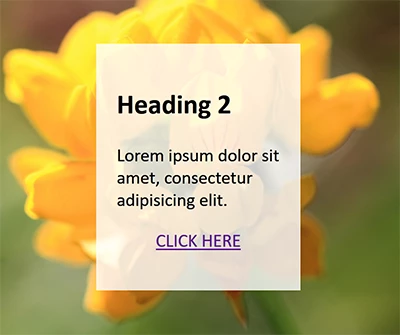
    Below is the basic HTML and CSS code, also a screenshot.

    <!doctype html>

    <html lang="en">

    <head>

    <meta charset="utf-8">

    <title>Background-Size Cover Demo</title>

    <meta name="viewport" content="width=device-width, initial-scale=1">

    <meta http-equiv="X-UA-Compatible" content="IE=edge">

    <style>

    body, html {

    margin: 0;

    padding: 0;

    height: 100%;

    display: flex;

    align-items: center;

    justify-content: center;

    }

    body {

    background: url(https://placeimg.com/900/900/nature) center center fixed;

    background-size: cover

    }

    .container {

    width: 40%;

    margin: 0 auto;

    padding: 5%;

    background: rgba(255,255,255,0.8);

    }

    .center { text-align: center }

    </style>

    </head>

    <body>

    <div class="container">

    <h2>Heading 2</h2>

    <p>Lorem ipsum dolor sit amet, consectetur adipisicing elit.</p>

    <p class="center"><a href="https://example.com" class="button">CLICK HERE</a></p>

    </div>

    </body>

    </html>

    3 replies

    Nancy OShea
    Community Expert
    Nancy OSheaCommunity ExpertCorrect answer
    Community Expert
    February 28, 2019

    Use a background image with an active link in the foreground.  Style the link to look like a button if you wish.

    CSS Buttons

    Below is the basic HTML and CSS code, also a screenshot.

    <!doctype html>

    <html lang="en">

    <head>

    <meta charset="utf-8">

    <title>Background-Size Cover Demo</title>

    <meta name="viewport" content="width=device-width, initial-scale=1">

    <meta http-equiv="X-UA-Compatible" content="IE=edge">

    <style>

    body, html {

    margin: 0;

    padding: 0;

    height: 100%;

    display: flex;

    align-items: center;

    justify-content: center;

    }

    body {

    background: url(https://placeimg.com/900/900/nature) center center fixed;

    background-size: cover

    }

    .container {

    width: 40%;

    margin: 0 auto;

    padding: 5%;

    background: rgba(255,255,255,0.8);

    }

    .center { text-align: center }

    </style>

    </head>

    <body>

    <div class="container">

    <h2>Heading 2</h2>

    <p>Lorem ipsum dolor sit amet, consectetur adipisicing elit.</p>

    <p class="center"><a href="https://example.com" class="button">CLICK HERE</a></p>

    </div>

    </body>

    </html>

    Nancy O'Shea— Product User & Community Expert
    Participant
    March 2, 2019

    Thanks so Much Nancy....your code worked in my dreamweaver cc. I used the body part with width, etc. That worked fine. I guess because I got so many other things going on, I'm still struggling with it. My site does not show up in the live view or in another browser. But your code did help me get the image to fit full screen. Thanks so much for that WOW!!!! Ok....I think I clicked the wrong button above, but I wanted to send this message to let other know you and Ben did and outstanding job helping me with this. Finally a breakthrough. Well....I will keep at it I'm learning as I go, and look forward to more tech help. Thanks guys!

    Nancy OShea
    Community Expert
    Community Expert
    March 2, 2019

    Suggest you do some HTML and CSS tutorials first.  It will make learning DW much, much  easier.

    W3Schools Online Web Tutorials

    Always define your local site folder in DW before you start a new project. Go to Site > New Site and choose a folder on your hard drive..

    Use one of the built-in  responsive  templates to jump start new  projects.

    Go to File > New > Starter Templates.   Pick one and hit the Create button.  See screenshots.

    After saving your newly created web page, DW will create assets folders for your project which can be seen in your Files Panel (F8).

    Nancy O'Shea— Product User & Community Expert
    WolfShade
    Legend
    February 28, 2019

    What you are attempting to do is way old school, and will most likely make the page "heavy".  Using an image as the content of a page just plain looks bad.

    But to answer your question, you give the image and the element that contains it (div, span, etc.) a margin and padding of 0px.  If the image is contained within a div, divs are block elements and will take up 100% of the width of the element containing it (ie, if the div is within the body, it will take up 100% of the body; if it is within another div, it will take up 100% of the width of that div.)

    Again, this isn't a very good design path to take.

    V/r,

    ^ _ ^

    Jon Fritz
    Community Expert
    Community Expert
    February 28, 2019

    I've branched this from the old, unrelated post.