


Slang755489123
Participating Frequently
January 24, 2019
Answered

Popup box when I click on an imagemap within an image?

  • January 24, 2019
  • 2 replies
  • 14314 views

Hi,

Now that Muse has long been discontinued...

I have a large image on a website that has several smaller (numbered dots) images on it. I want to have an image map that will open up a small window that I can add text or links to whenever I click or hover over the smaller (numbered dot) image. Like where a user could hover over a number to get more info?

Is this possible? I know that an image map can open a new webpage, but can it do a hoverbox or imagebox as well?

Thanks!
This topic has been closed for replies.
Correct answer Nancy OShea

What you want are called tooltips.

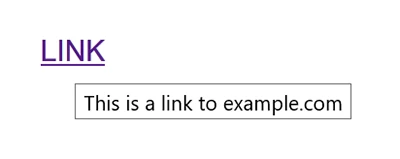
The simplest way to make a tooltip is with the TITLE attribute.

<a href="https://example.com" title="This is a link to example.com">LINK</a>

For fancier tooltips, see links below.

I don't recommend using Image Maps in responsive layouts.  The hotspot coordinates invariably fall out of register when image is re-scaled.   A safer approach is to use separate images, buttons or text links.

2 replies

Slang755489123
Participating Frequently
January 30, 2019

OK, so I am one step closer (thanks to everyone for their input) but what I did was add a hotspot to the selected area on my main image, then added a behavior- add an open browser window.

Now here are some more questions I need help with...

1. I need the window that the image map is linked to via behaviors to be a modal window (say 500px500p) that is a spot for text, an attached PDF and a contact form. Can this be done? Is it best to make the popup window a form and modify form that to hold a PDF and contact us info? Then link to that form from the hotspot-behavior?

2 I have 30 hotspots to do this on, thus 30 separate popup windows (each with a PDF) is there a better way to call the information into the window or should I just create 30 forms, and each form is named 1,2 3 etc and have each PDF attached to them?

Does this make sense?

What I am ultimately trying to achieve is have my main image with 30 hotspots that each open up a modal window that has text, a PDF attached and a contact form...for each hotspot(30) on my main image.

Anyone?

Nancy OShea
Community Expert
Community Expert
January 31, 2019

You don't need Modal windows for any of this.  Just keep it simple.

Hotspot 1 links directly to page1.html

Hotspot 2 links directly to page2.html

and so on...

Nancy O'Shea— Product User & Community Expert
Legend
January 31, 2019

I agree with you Nancy, but the project requirements want a modal window within that a PDF, comments section and brief text...which is why I am stuck.


Slang75  wrote

I agree with you Nancy, but the project requirements want a modal window within that a PDF, comments section and brief text...which is why I am stuck.

You can do that using hotspots on your graphic using only the 1 modal window and passing the information into the modal from an onclick event, which evokes the modal window.

Store all the information in an array (see code below bookList [ ] ) - an object { } contains the information for each entry within the array and starts from 0, 1, 2, 3, 4, 5, 6, 7 etc so you can call the information required into the modal by passing the objects position from an onclick function on your hotspot - in the example line of code below 'position 2' is passed to the onclick function.

<area shape="rect" coords="373,5,561,125" @click="selectBook('2')" >

The methods function 'selectBook(position) {'  in the code below grabs the number 2 from the onclick event and passes it to a variable, in this case the variable is the letter i:

-1 is used to set the position to the correct number i.e, position 2 is really position 1 in the array, as 0 is the first position of an array where you store the information. We normally number from 1 upwards, so visually its more in line with what one is used to and can be adjusted back in the code scripting.

const i = position - 1;

So the result would be 1:

const i = 2 - 1 = 1;

The information for book 1 will be returned. The information is seperated and stored into data variables:

bookTitle: '',

bookDetails: '',

bookPdf: '',

bookAuthor: '',

The contents of the data variables can be applied to the html in the following format using double curly brackets wrapping the variable name.

<h1>{{ bookTitle }} </h1>

<p>{{ bookDetails }} </p>

<p>{{ bookPdf }} </p>

<h5>{{ bookAuthor }} </h5>

Have a play around. Its really quite simple once you understand what is going on. You will have to use your own graphic image and hotspots, so replace the code below with your own graphic and hotspots then just add the @click event.

<img src="graphic.jpg" border="0" usemap="#Map" >

<map name="Map" id="Map">

  <area shape="rect" coords="6,5,181,121" @click="selectBook('1')" >

  <area shape="rect" coords="373,5,561,125" @click="selectBook('2')" >

  <area shape="rect" coords="11,229,187,368" @click="selectBook('3')" >

  <area shape="rect" coords="365,219,561,361" @click="selectBook('4')" >

</map>

EXAMPLE PAGE CODE STARTS HERE

<!DOCTYPE html>

<html>

<head>

<meta charset="UTF-8">

<script src="https://unpkg.com/vue/dist/vue.js"></script>

<title>Modal</title>

<style>

body {
margin: 0 auto;
}
* {
box-sizing: border-box;
}
img {
max-width: 100%;
height: auto;
}
.graphic {
width: 40%;
margin: 0 auto;
}
.modal-wrapper {
position: fixed;
top: 0;
height: 100vh;
width: 100vw;
background-color: rgba(0, 0, 0, 0.6);
}
.modal-content {
position: absolute;
width: 60%;
margin: 0 15%;
text-align: center;
background-color: #fff;
padding: 30px;
padding-bottom: 0;
top: 50%;
-ms-transform: translateY(-50%);
transform: translateY(-50%);
}
.modal-footer {
border-top: 1px solid #ccc;
padding: 20px 0 30px 0;
text-align: center;
}
.modal-footer button {
background-color: #000;
color: #fff;
border: none;
padding: 10px 15px;
font-size: 14px;
text-transform: uppercase;
}
.fade-enter-active, .fade-leave-active {
  transition: opacity .5s;
}
.fade-enter, .fade-leave-to {
  opacity: 0;
}
</style>

</head>


<body>

<div class="app">

<div class="graphic">

<img src="graphic.jpg" border="0" usemap="#Map" >

<map name="Map" id="Map">

  <area shape="rect" coords="6,5,181,121" @click="selectBook('1')" >

  <area shape="rect" coords="373,5,561,125" @click="selectBook('2')" >

  <area shape="rect" coords="11,229,187,368" @click="selectBook('3')" >

  <area shape="rect" coords="365,219,561,361" @click="selectBook('4')" >

</map>

</div>

<!-- end graphic -->


<transition name="fade">

<div class="modal-wrapper" v-if="modalWrapper">

<div class="modal-content" >

<h1>{{ bookTitle }} </h1>

<p>{{ bookDetails }} </p>

<p>{{ bookPdf }} </p>

<h5>{{ bookAuthor }} </h5>

<div class="modal-footer">

<button @click="closeModal">Close</button>

</div>

<!-- end modal-footer -->

</div>

<!-- end modal-content -->

</div>

<!-- end modal-wrapper -->

</transition>


</div>

<!-- end app -->


<script>

var vm = new Vue({
el: '.app',
data: {
modalWrapper: false,
bookTitle: '',
bookDetails: '',
bookPdf: '',
bookAuthor: '',
bookList: [
{ id: '1', title: 'Title 1', details: 'Details 1', pdf:'book_1.pdf', author: 'Author 1'},
{ id: '2', title: 'Title 2', details: 'Details 2', pdf:'book_2.pdf', author: 'Author 2'},
{ id: '3', title: 'Title 3', details: 'Details 3', pdf:'book_3.pdf', author: 'Author 3'},
{ id: '4', title: 'Title 4', details: 'Details 4', pdf:'book_4.pdf', author: 'Author 4'},
{ id: '5', title: 'Title 5', details: 'Details 5', pdf:'book_5.pdf', author: 'Author 5'}
],
},
methods: {
selectBook(position) {
this.modalWrapper = true;
const i = position - 1;
const book= this.bookList;
this.bookTitle = book.title;
this.bookDetails = book.details;
this.bookPdf = book.pdf;
this.bookAuthor = book.author;
},
closeModal() {
this.modalWrapper = false;
}
}
})
</script>

</body>

</html>

Nancy OShea
Community Expert
Nancy OSheaCommunity ExpertCorrect answer
Community Expert
January 24, 2019

What you want are called tooltips.

The simplest way to make a tooltip is with the TITLE attribute.

<a href="https://example.com" title="This is a link to example.com">LINK</a>

For fancier tooltips, see links below.

I don't recommend using Image Maps in responsive layouts.  The hotspot coordinates invariably fall out of register when image is re-scaled.   A safer approach is to use separate images, buttons or text links.

Nancy O'Shea— Product User & Community Expert
Slang755489123
Participating Frequently
January 27, 2019

Thanks! I'll try it out, but I have images on a graph that I need this done on...maybe I can find a way to do this right from illustrator?