
Inspiring
October 12, 2019
Answered

Can't seem to install any Application - Need IT Admin Permission Mac

  • October 12, 2019
  • 14 replies
  • 67375 views

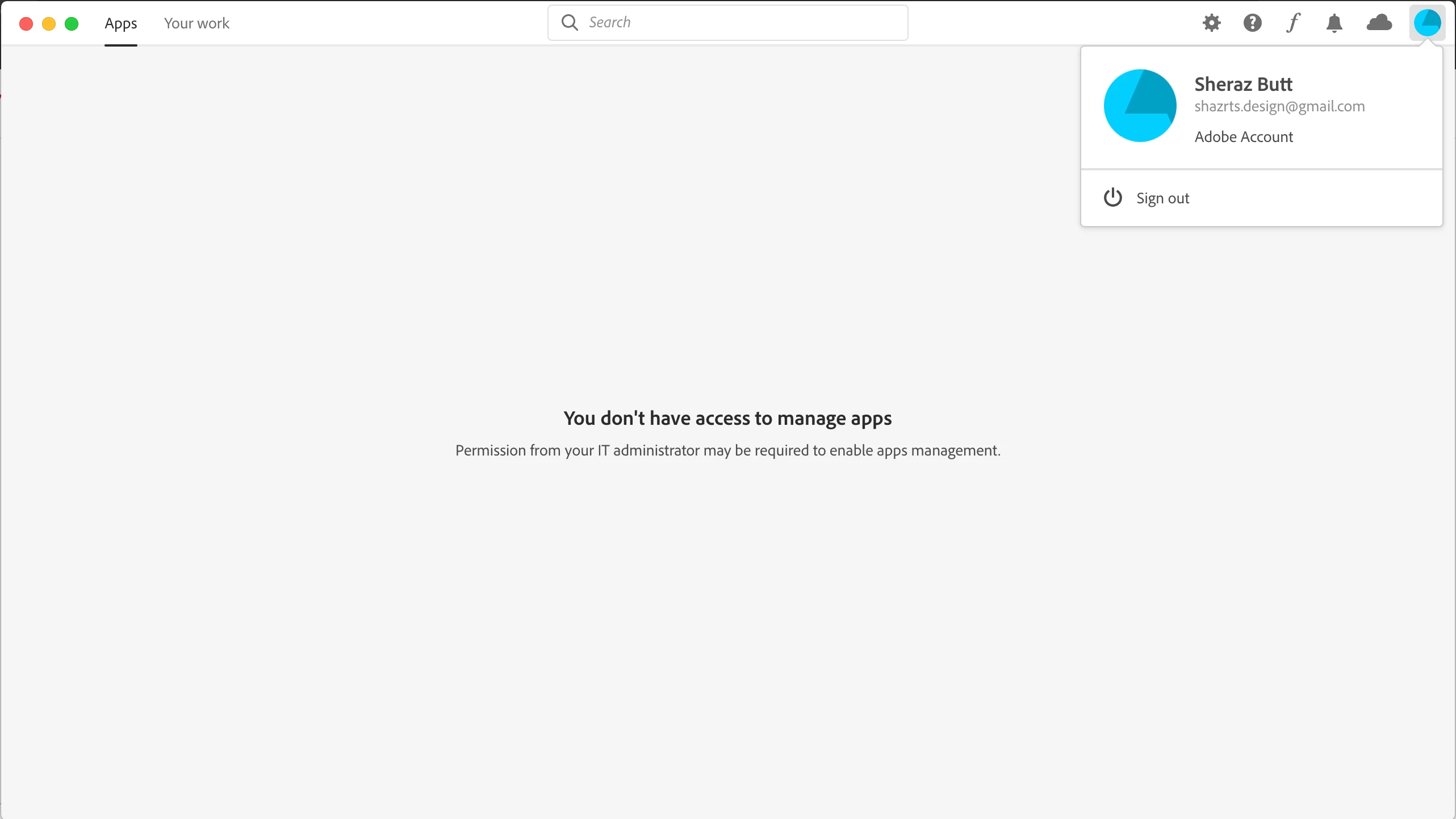
I need to install Adobe XD but the creative cloud desktop app won't let me install because apparently I don't have the access to manage applications. This is so weird because this is my personal laptop. How can I not have the access on my own laptop. The error further states "Permission from your IT Administrator may be required to enable app management".

Attaching the screenshot for proof. Please help me asap as I have a project pending and the deadline is approaching me like a rocket at this stage. Thanks !!

UPDATED

FOUND THE SOLUTION. THANKS TO ADOBE CUSTOMER SUPPORT TEAM

First of all you need to close all adobe processes from activity monitor and also ensure that creative cloud application is closed.

After closing processes, you need the access the following file if you are using macOS. 
/Library/Application Support/Adobe/OOBE/Configs/Serviceconfig.xml

Open it and then change values "false" to "true" and then save the file. 

Now you will be able to install apps from creative cloud application.
Correct answer Shazrts

FOUND THE SOLUTION. THANKS TO ADOBE CUSTOMER SUPPORT TEAM

First of all you need to close all adobe processes from activity monitor and also ensure that creative cloud application is closed.

After closing processes, you need the access the following file if you are using macOS. 
/Library/Application Support/Adobe/OOBE/Configs/Serviceconfig.xml

Open it and then change values "false" to "true" and then save the file. 

Now you will be able to install apps from creative cloud application.


14 replies

Participant
September 22, 2024

and if i am using win on pc?


kglad
Community Expert
Community Expert
September 22, 2024

@anat_0093 


Windows: C:\Users\<user name>\AppData\Local\Adobe\OOBE
NOTE: C:\Users\<user name>\AppData is hidden by default. To unhide see bottom of https://helpx.adobe.com/creative-cloud/kb/unknown-server-error-launching-cc.html for info on unhidding

Participant
May 26, 2022

I got through to OOBE but then when I opened it there wasn't Configs. just TextEdit. How do I fix that? 

Participant
November 12, 2021

But how about in laptop? "You may need to request permission from your IT administrator to use this app or service"

Participant
August 11, 2021

i cant find the configs and i set the mac finder yet notjing shows

Participant
May 30, 2021

i could not find the config folder in my mac 


Nancy OShea
Community Expert
Community Expert
May 30, 2021

I believe it's hidden by default.  Set Mac Finder to show hidden files/folders.


Nancy O'Shea— Product User & Community Expert
Participant
August 17, 2020

Thanks for sharing this. Just a quick note that you may have to sign out and sign back in to get the apps to appear.

I also find it very frustrating that we have to do things like this to use Creative Cloud and hope that this is fixed in the future.

Participant
April 28, 2020

I am having the same issue.


Tried fixing it the aforementioned way, however I cant edit the config file as I keep getting the error message that I dont have permission to edit it.


Did you have similar problems?

Nancy OShea
Community Expert
Community Expert
April 28, 2020

Hi abraham.zsolt,

Are you a Teams / Enterprise member?  Contact your IT dept for assistance.


Individual members need a computer user profile with Administrative level permissions.   If you don't know what that means, Google "file permissions on _______ (your operating system)."


Nancy O'Shea— Product User & Community Expert
ShazrtsAuthorCorrect answer
Inspiring
October 15, 2019

FOUND THE SOLUTION. THANKS TO ADOBE CUSTOMER SUPPORT TEAM

First of all you need to close all adobe processes from activity monitor and also ensure that creative cloud application is closed.

After closing processes, you need the access the following file if you are using macOS. 
/Library/Application Support/Adobe/OOBE/Configs/Serviceconfig.xml

Open it and then change values "false" to "true" and then save the file. 

Now you will be able to install apps from creative cloud application.


Participant
July 12, 2023

While this worked for our end-user, it seems that this issue continues to come back and we have to repeat these steps again to get it working. Has Adobe advised on a fix for this in the future, or is there anything else that can be done to keep this from happening? Our end-user is on a Mac and it seems to be impacting at least 2 associates in my company so far. Thanks!

kglad
Community Expert
Community Expert
July 12, 2023

@Tyra31034281eo37 


open the support tab on your admin console > start chat or start case or request expert session. https://helpx.adobe.com/enterprise/using/support-and-expert-services.html

Tacafy大尉
Legend
October 13, 2019

Shazrts, good evening.
I also have a Creative Cloud for Teams account, so I tried to log in but I can see Apps as usual.
It may not be due to your Teams account because you may have a new email address registered.

Uninstall it once with this procedure (you can also delete Adobe-related files that can not be deleted with a normal uninstaller) and then install again, or if it does not improve, create a separate administrator account for mac. I'd like to try it out.

Use the Creative Cloud Cleaner Tool to solve installation issues

Participating Frequently
October 12, 2019

Your screenshot actually looks like something that would pop up from a Teams or Enterprise Adobe account. So, even though you may be on a personal laptop, your account may need those priviledges because of the type of account it is.

ShazrtsAuthor
Inspiring
October 13, 2019
I have never used a teams or enterprise adobe account. Quite weird !!