
Inspiring
September 10, 2016
Answered

Unable to update Creative Cloud apps 2016

  • September 10, 2016
  • 1 reply
  • 783 views

Not sure how to word this one.

Previously, i would create the packages using Adobe CC Packager and uncheck the Creative Cloud app. because i did not want user to be able to update the apps or be confused as to how to sign in.

We have a Enterprise License and i would Distribute it and Local Admin accounts could update it as needed.

Always worked fine before. but this year with the 2015.5 (or 2016?) versions they no longer update.

AAM keeps saying that Creative Cloud is damaged, or not installed, which is what I want. I don't want users being able to sign into Creative Cloud or update the apps.

I'm signed in, and it recognizes my ID, but Updates is always grayed out.

Am i missing something in the creation of Packages? or is a old version that was not uninstalled causing a glitch in the AAM not being able to function? the Serial number nor my account has changed in years, so it should be fine..
    This topic has been closed for replies.
    Correct answer alisterblack

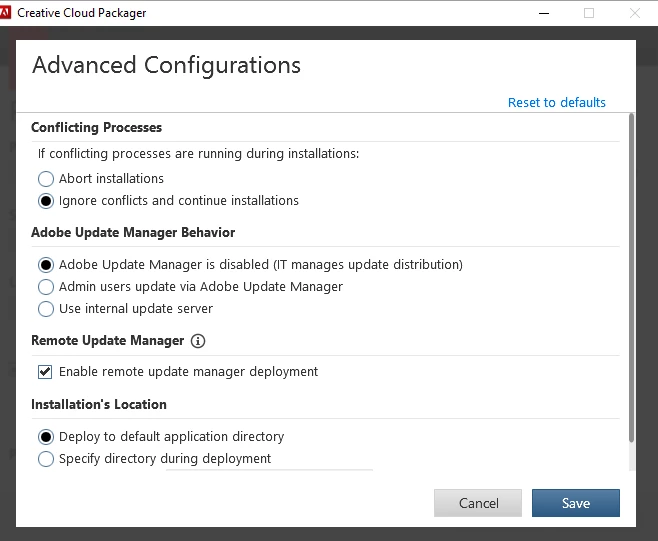
    There is, in fact the default option is to turn off updates when building a package.

    Create packages for Adobe Creative Cloud

    • To prevent the user’s Application Manager from doing automatic update checking for the deployed products, choose the default option, "Adobe Update Manager is disabled (IT manages update distribution)”. In addition to suppressing the automatic update behavior, it disables the Update option from the Help menu in the applications; users can no longer actively look for updates on their own. If you choose this option, the IT admin must download and deploy updates for their users.
    • The option “Admin users update via Adobe Update Manager” enables automatic update checking through the Adobe Application Manager, which is the default for products installed individually. If the user’s system was previously set to suppress updates, deploying a package with this option set re-enables automatic update checking.
    • You can choose to redirect the automatic update process to check for updates with your own update server, rather than the Adobe update server. Select the option “Use internal update server”. For this option, it's necessary to host updates on an internal server, and redirect the Adobe Application Manager to look there for updates. You do this by providing the path to an XML configuration file that contains information about the hosted server. For more information about hosting an internal server, see Using Adobe Update Server Setup Tool.

    1 reply

    alisterblack
    Inspiring
    September 15, 2016

    Is it possible that you chose to block updates when building your package?

    Disable auto-updates in Adobe Creative Cloud and Adobe Creative Suite 6 apps

    Inspiring
    September 15, 2016

    Nope, there's no way to do that in the CCP Packager...

    alisterblack
    alisterblackCorrect answer
    Inspiring
    September 16, 2016

    There is, in fact the default option is to turn off updates when building a package.

    Create packages for Adobe Creative Cloud

    • To prevent the user’s Application Manager from doing automatic update checking for the deployed products, choose the default option, "Adobe Update Manager is disabled (IT manages update distribution)”. In addition to suppressing the automatic update behavior, it disables the Update option from the Help menu in the applications; users can no longer actively look for updates on their own. If you choose this option, the IT admin must download and deploy updates for their users.
    • The option “Admin users update via Adobe Update Manager” enables automatic update checking through the Adobe Application Manager, which is the default for products installed individually. If the user’s system was previously set to suppress updates, deploying a package with this option set re-enables automatic update checking.
    • You can choose to redirect the automatic update process to check for updates with your own update server, rather than the Adobe update server. Select the option “Use internal update server”. For this option, it's necessary to host updates on an internal server, and redirect the Adobe Application Manager to look there for updates. You do this by providing the path to an XML configuration file that contains information about the hosted server. For more information about hosting an internal server, see Using Adobe Update Server Setup Tool.