Known Participant
February 25, 2017
Answered

Align stroke to inside option greyed out

  • February 25, 2017
  • 5 replies
  • 163702 views

Hi,

I know that this has been discussed in other posts, but there doesn't seem to be a definitive answer for this.

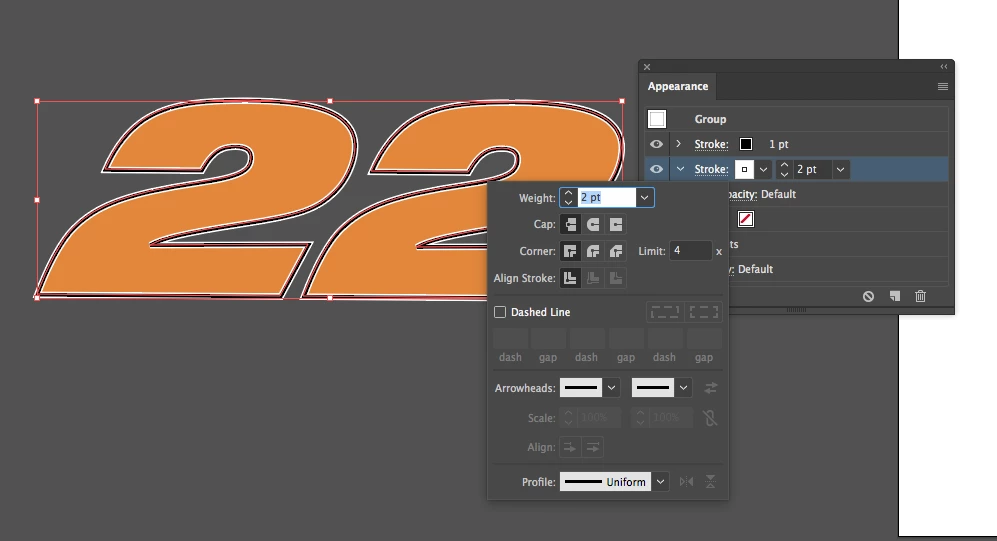
In the attached I'd like to align the white stroke to the inside, but as you can see in the appearance panel that option is not available.

How can this be remedied?

Thanks!

Correct answer Kurt Gold

The reason why you can't choose to align the stroke inside is because you applied the appearance set at the group level. Technically it could or should be possible to use it with strokes at the group level, but at the moment it's better to accept that limitation in a good temper, rather than debating why it doesn't work.

As already mentioned, the common workaround is to use the Offset Path effect instead, but it may be hurtful if you were going to constantly change the stroke weight for some reason. If that applies to your needs, you could go another route.

Prior to applying your appearance sets at the group level, you could take your group and – in the Appearance palette – double click the Contents item to get access to the appearance attributes of the single or probaly compound objects inside the group. Then you may set up your appearances. You will realize that the option to align strokes inside is now available.

5 replies

BowlingBallerina
Participant
March 22, 2020

Changing the brush definition setting to "Basic" has opened up those stroke alignment options for me. When the stroke was set as "5 pt round" the alignment options were greyed out.

Participant
October 24, 2017

I'm going to tell you how to fix this; however, I want to point something out.

"it's better to accept that limitation in a good temper, rather than debating why it doesn't work." is never the right answer. I recognize the author might not work for Adobe and may be a way of commiserating with the person who posted the question.

Something like, “Thanks for the feedback. We recognize this is a problem. We’re working hard to make the experience better.” would be better.

Here’s a work around that worked immediately for me.

  1. Select the object you want to affect.
  2. Use the pathfinder panel and click on Exclude.
  3. Now go to the appearance panel and the align to inside/outside options should be enabled.
Known Participant
May 23, 2019

That does't help. It still does not work.

Monika Gause
Community Expert
Community Expert
May 23, 2019

https://forums.adobe.com/people/Mike+Fernbank  schrieb

That does't help. It still does not work.

Please post a screenshot with appearance and layers panel visible.

Participating Frequently
March 16, 2017

I have the same problem. The object is not grouped.

Align Stroke: Inline / Outline is disabled.

Any ideas?

THANK YOU.

Monika Gause
Community Expert
Community Expert
March 17, 2017

yorh.ekin  schrieb

I have the same problem. The object is not grouped.

Align Stroke: Inline / Outline is disabled.

Any ideas?

THANK YOU.

Please show what kind of objects these are? Live text? WHat kind of stroke? Is that even one object? Or more?

Kurt Gold
Community Expert
Kurt GoldCommunity ExpertCorrect answer
Community Expert
February 25, 2017

The reason why you can't choose to align the stroke inside is because you applied the appearance set at the group level. Technically it could or should be possible to use it with strokes at the group level, but at the moment it's better to accept that limitation in a good temper, rather than debating why it doesn't work.

As already mentioned, the common workaround is to use the Offset Path effect instead, but it may be hurtful if you were going to constantly change the stroke weight for some reason. If that applies to your needs, you could go another route.

Prior to applying your appearance sets at the group level, you could take your group and – in the Appearance palette – double click the Contents item to get access to the appearance attributes of the single or probaly compound objects inside the group. Then you may set up your appearances. You will realize that the option to align strokes inside is now available.

Monika Gause
Community Expert
Community Expert
February 25, 2017

Use the effect > Path > Offset path instead. Negative value moves to the inside