Participant
August 28, 2025
Answered

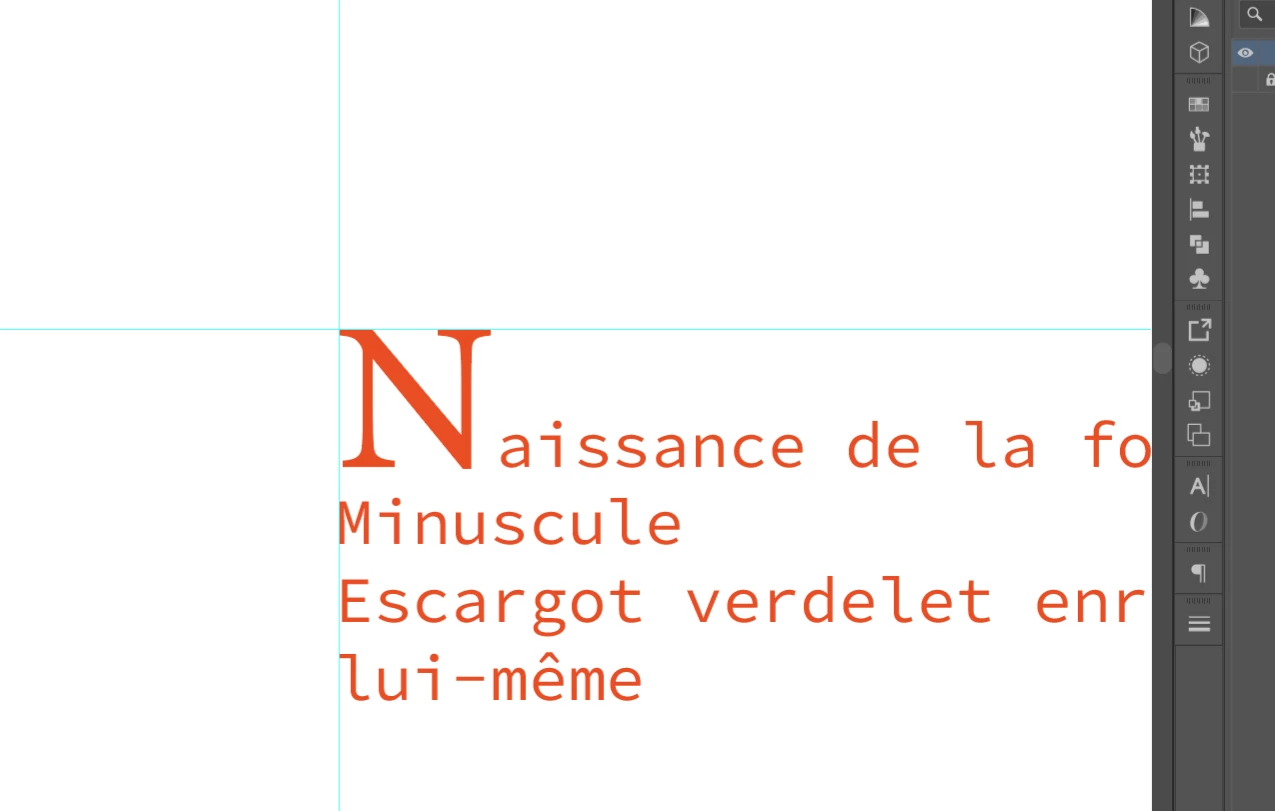
Aligning serif letter on the stem part ?

  • August 28, 2025
  • 4 replies
  • 322 views

Hi everybody !

I am kind of  new to illustrator, and have been trying to find a way to align the stem part of this (N) serif letter with the rest of the paragraph instead of the serif bottom and top part, but I have no clue how to do it. 

What would be the best way way to do that ?

Thank you !

Correct answer Jacob Bugge

Carla,


Here is an elaboration on my first answer, still the only one viable for both simple (point) Type and Area Type; as mentioned I (mis)interpreted your screenshot to show the former.


Generally, alignment of type is a matter of obtaining the appearance of alignment rather than alignment of specific parts of characters, but this is a design choice.


To obtain the alignment in question, you can use the following opposite and rather simple way, and you can always realign the Paragraph/Type instance with the rest of the artwork:


Instead of trying to move the first line with the N to the left, you can move the following lines individually to the right in a sneaky way, still using live Type and only normal operations in the Character palette. If there are other instances of Type, this set can be adjusted as a whole relative to the rest.


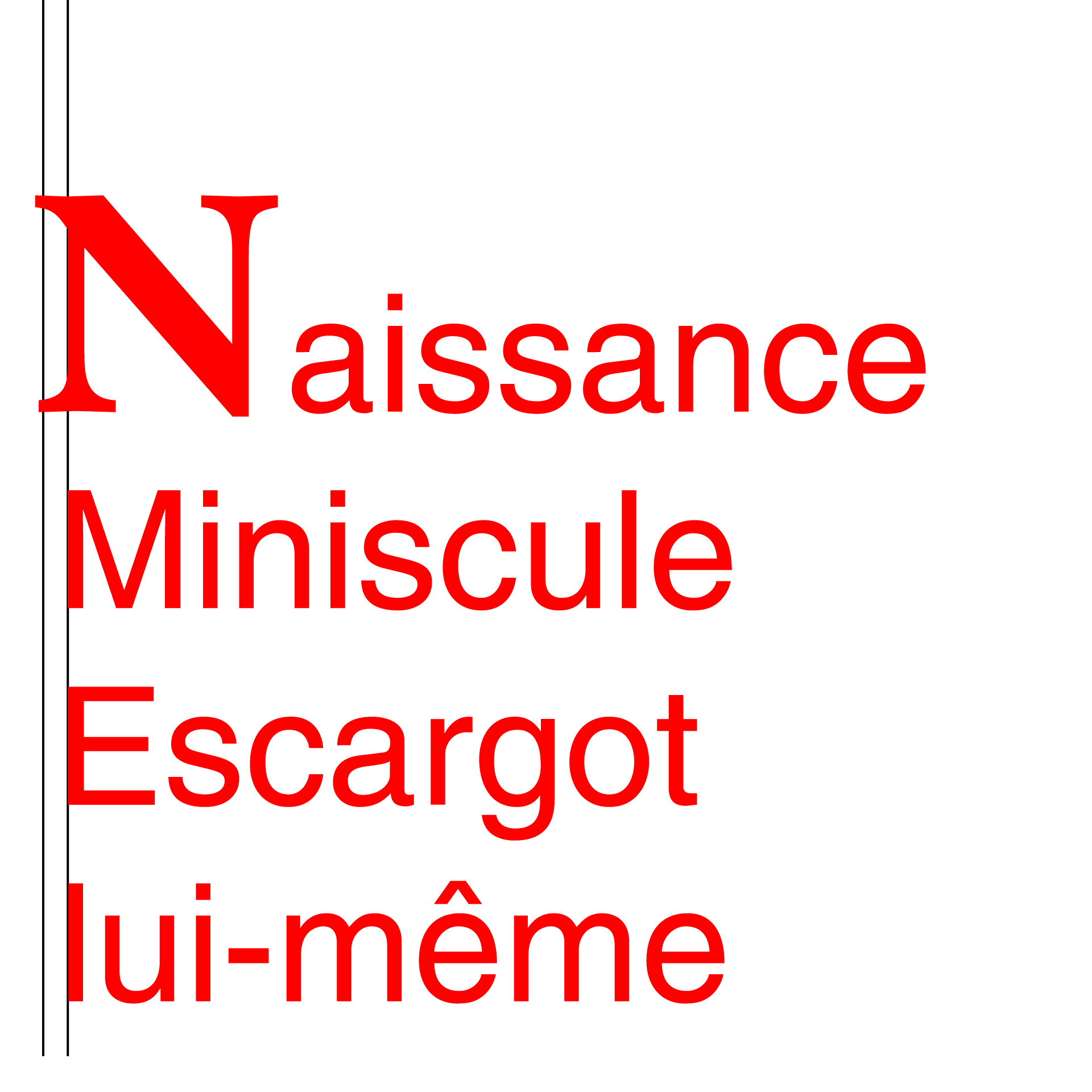
You can click the screenshots to zoom in, and you can see the left alignment of all the stem parts in the final screenshot here by the faint rim of the black line showing just to the left of the stems (no two stem parts were left aligned to start with, neither in the initial screenshot here nor in your screenshot).


Two other fonts have been used, the fairest font and the most famous grotesk/grotesque font, the former in 72pt Bold and the latter in 36pt Medium.


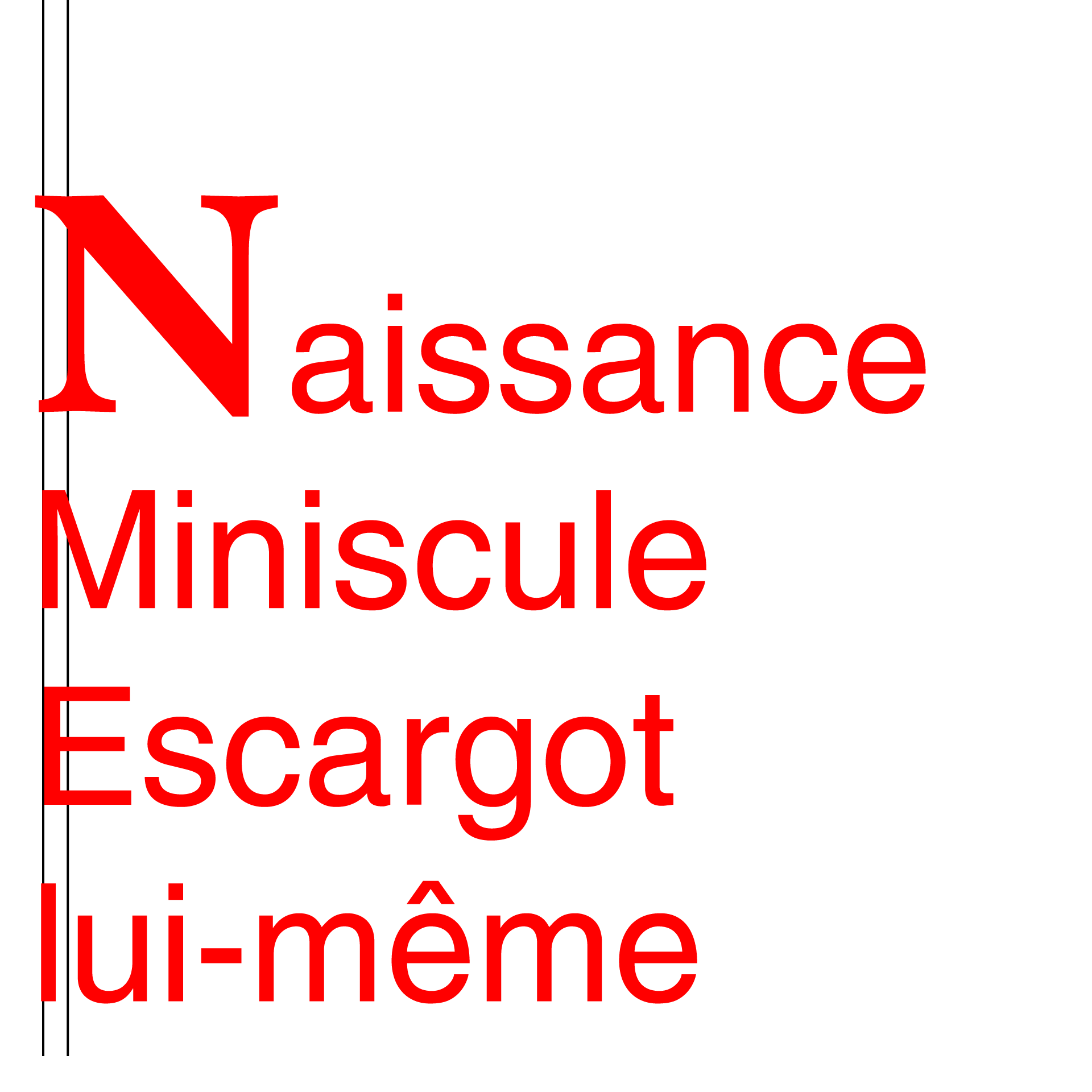
The original non alignment is shown here, the leftmost vertical line left aligned with the left stem of the M, the rightmost vertical line almost left aligned with the left stem of the N with just a faint rim of the black line showing just to the left of the stem to enhance the actual alignments:


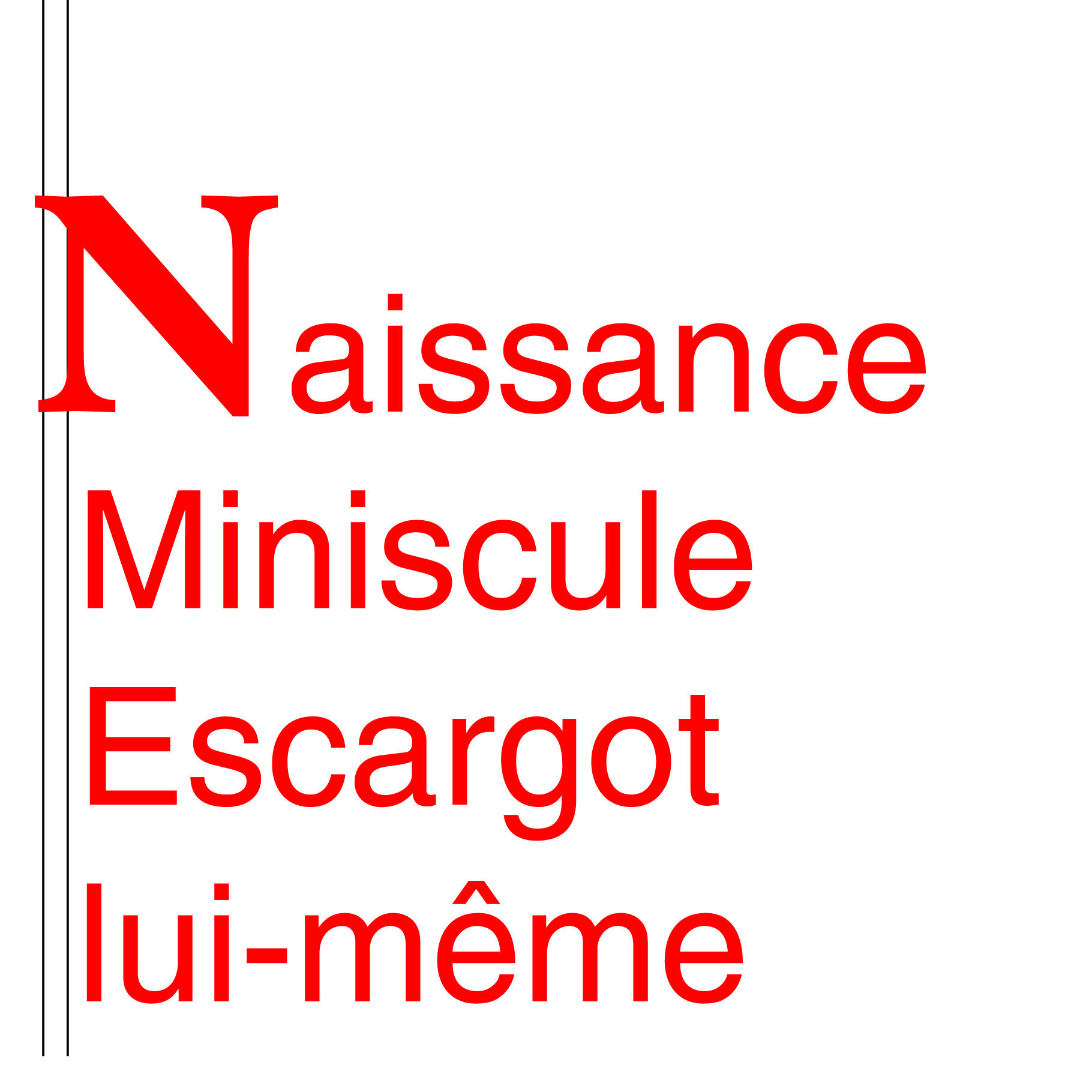
As the first step, a simple space is inserted before the first letter in the 2nd, 3rd, and 4th, line:


As the second and final step, each space is selected, and the Horizontal Scale is reduced to the value that gives the exact alignment in each line (56% in the 2nd, 52% in the 3rd, and 60% in the 4th, line):
 

Click to get closer, Click again to get closer still

 

4 replies

Jacob Bugge
Community Expert
Jacob BuggeCommunity ExpertCorrect answer
Community Expert
August 31, 2025

Carla,


Here is an elaboration on my first answer, still the only one viable for both simple (point) Type and Area Type; as mentioned I (mis)interpreted your screenshot to show the former.


Generally, alignment of type is a matter of obtaining the appearance of alignment rather than alignment of specific parts of characters, but this is a design choice.


To obtain the alignment in question, you can use the following opposite and rather simple way, and you can always realign the Paragraph/Type instance with the rest of the artwork:


Instead of trying to move the first line with the N to the left, you can move the following lines individually to the right in a sneaky way, still using live Type and only normal operations in the Character palette. If there are other instances of Type, this set can be adjusted as a whole relative to the rest.


You can click the screenshots to zoom in, and you can see the left alignment of all the stem parts in the final screenshot here by the faint rim of the black line showing just to the left of the stems (no two stem parts were left aligned to start with, neither in the initial screenshot here nor in your screenshot).


Two other fonts have been used, the fairest font and the most famous grotesk/grotesque font, the former in 72pt Bold and the latter in 36pt Medium.


The original non alignment is shown here, the leftmost vertical line left aligned with the left stem of the M, the rightmost vertical line almost left aligned with the left stem of the N with just a faint rim of the black line showing just to the left of the stem to enhance the actual alignments:


As the first step, a simple space is inserted before the first letter in the 2nd, 3rd, and 4th, line:


As the second and final step, each space is selected, and the Horizontal Scale is reduced to the value that gives the exact alignment in each line (56% in the 2nd, 52% in the 3rd, and 60% in the 4th, line):


Click to get closer, Click again to get closer still

 

Monika Gause
Community Expert
Community Expert
August 29, 2025

First of all for the area text object turn on optical alignment in the Type menu.

Then in the Paragraph panel set up a negative first line indent for the paragraph (and probably that is too much in my screenshot).

Carla5EFDAuthor
Participant
September 14, 2025

Thank you so much ! Tried that it worked perfectly! 🙂 

Monika Gause
Community Expert
Community Expert
September 14, 2025

Glad you could solve it!

kphotopage
Legend
August 29, 2025

Carla, hi

Here I played with Tabs to perfectly align the N stem with the other text.

Type>Show hidden characters

This is area text.

To jump the text to the next line, I use Type>Insert Break Character>Force Line Break.

Window>Type>Tabs. Make your adjustments there to align.

K

Jacob Bugge
Community Expert
Community Expert
August 28, 2025

Carla,


Edit: I have elaborated on this first answer with a full instruction here:

https://community.adobe.com/t5/illustrator-discussions/aligning-serif-letter-on-the-stem-part/m-p/15484242#M452061


Generally, alignment of type is a matter of obtaining the appearance of alignment rather than alignment of specific parts of characters.


To obtain the alignment in question, how about this opposite way?


Instead of trying to move the first line with the N to the left, you can move the following lines individually to the right in a sneaky way, still using live Type and only normal operations in the Character palette. If there are other instances of Type, this set can be adjusted as a whole.


This way is viable for both simple (point) Type and Area Type; I (mis)interpreted your screenshot to show the former.


You can click the screenshots to zoom in, and you can see the left alignment of all the stem parts in the final screenshot here by the faint rim of the black line showing just to the left of the stems (no two stem parts were left aligned to start with, neither in the initial screenshot here nor in your screenshot):


Click to get closer, Click again to get closer still