Exit
  • Global community
    • Language:
      • Deutsch
      • English
      • Español
      • Français
      • Português
  • 日本語コミュニティ
  • 한국 커뮤니티
0

Applying a gradient across multiple paths destroys widths

Participant ,
Aug 10, 2017 Aug 10, 2017

Hello!  I am re-drawing a logo for someone, and have re-drawn using the line tool, pen tool, and a few shapes where I cut off an edge or two to get the shapes I want.

I want to apply a gradient across all the paths.  In the below image, you can see how the dark to light green gradient is applied to the stroke of each path individually.  Also note that some lines have had the Width tool applied to them (like the fronds/edges of the 'snowflake' and the bit under the snowflake pointing down that also forms the top of the mountain).
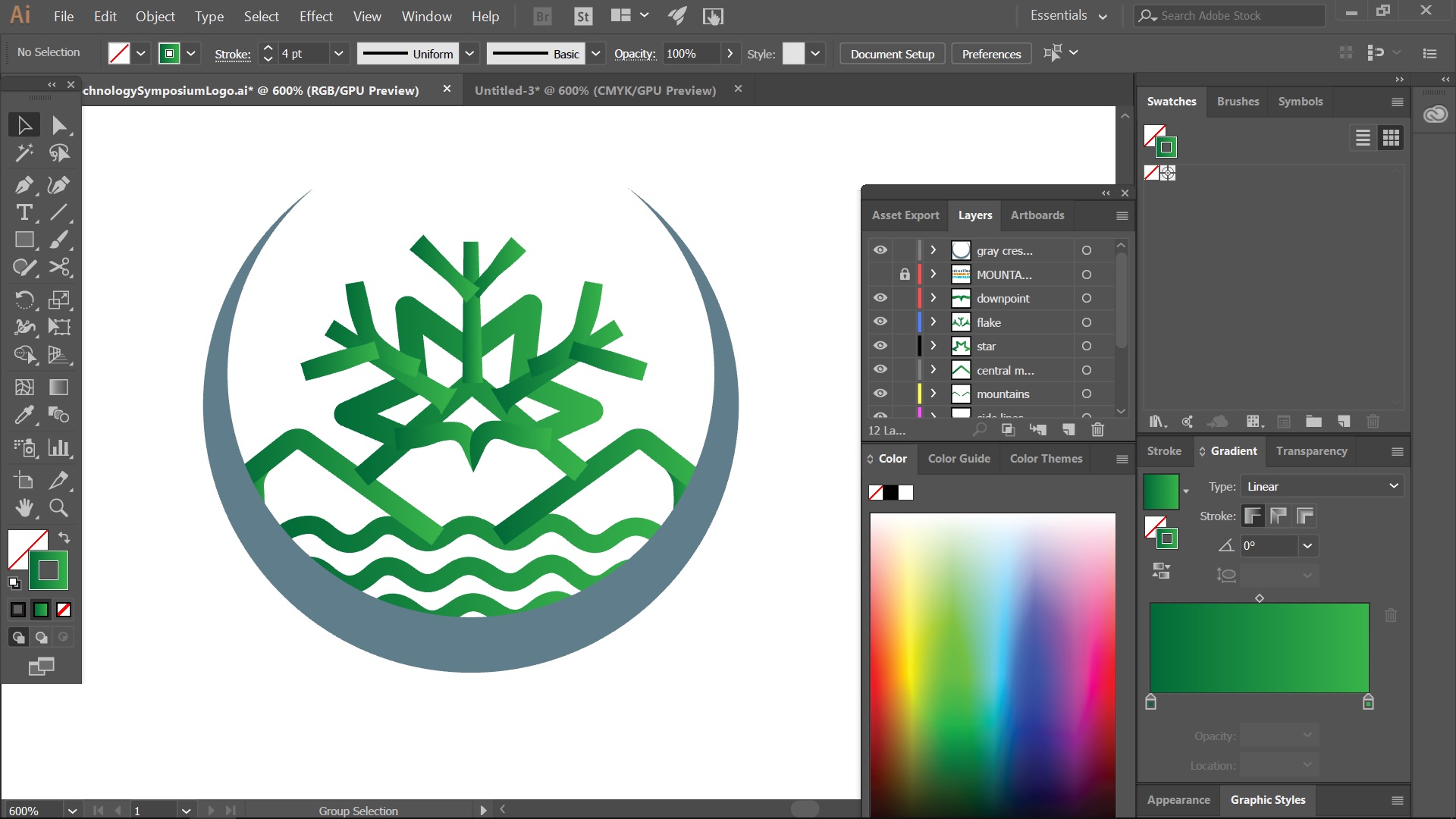
forum1.jpg

If I select all the green lines, right click and 'Make Compound Path', the gradient is applied across all the lines as I want - but the width effects are destroyed.  For instance, the pointy part is no longer pointy.

forum2.jpg

How can I apply the gradient across multiple paths and still preserve the width effects?  Any ideas or suggestions on how to approach this would be greatly appreciated.  Thank you!

2.3K
Translate
Report
Community guidelines
Be kind and respectful, give credit to the original source of content, and search for duplicates before posting. Learn more
community guidelines

correct answers 1 Correct answer

Community Expert , Aug 10, 2017 Aug 10, 2017

A compound path can only have one appearance across all objects (that's why the gradient works acros all the objects).

So what you can do is either: outline all your strokes (but then they are not easily editable anymore)

or

Draw a rectangle that has the gradient, color all your strokes black (RGB 000), group them and apply that as an opacity mask to the rectangle. You might need to experiment with the masking and invert settings in the transparency panel.

Translate
Adobe
Community Expert ,
Aug 10, 2017 Aug 10, 2017

A compound path can only have one appearance across all objects (that's why the gradient works acros all the objects).

So what you can do is either: outline all your strokes (but then they are not easily editable anymore)

or

Draw a rectangle that has the gradient, color all your strokes black (RGB 000), group them and apply that as an opacity mask to the rectangle. You might need to experiment with the masking and invert settings in the transparency panel.

Translate
Report
Community guidelines
Be kind and respectful, give credit to the original source of content, and search for duplicates before posting. Learn more
community guidelines
Participant ,
Aug 11, 2017 Aug 11, 2017
LATEST

Outlining the strokes was a good solution for this particular project.  Thanks so much for your help, Monika!

Translate
Report
Community guidelines
Be kind and respectful, give credit to the original source of content, and search for duplicates before posting. Learn more
community guidelines