


- Home
- Illustrator
- Discussions
- Applying a Gradient Stroke to Multiple Objects
- Applying a Gradient Stroke to Multiple Objects

Copy link to clipboard
Copied
Hi there,
So, I have been pulling my hair out trying to add a gradient stroke as a whole to these objects (not to the individual objects).
I'm using CC 2015 FYI
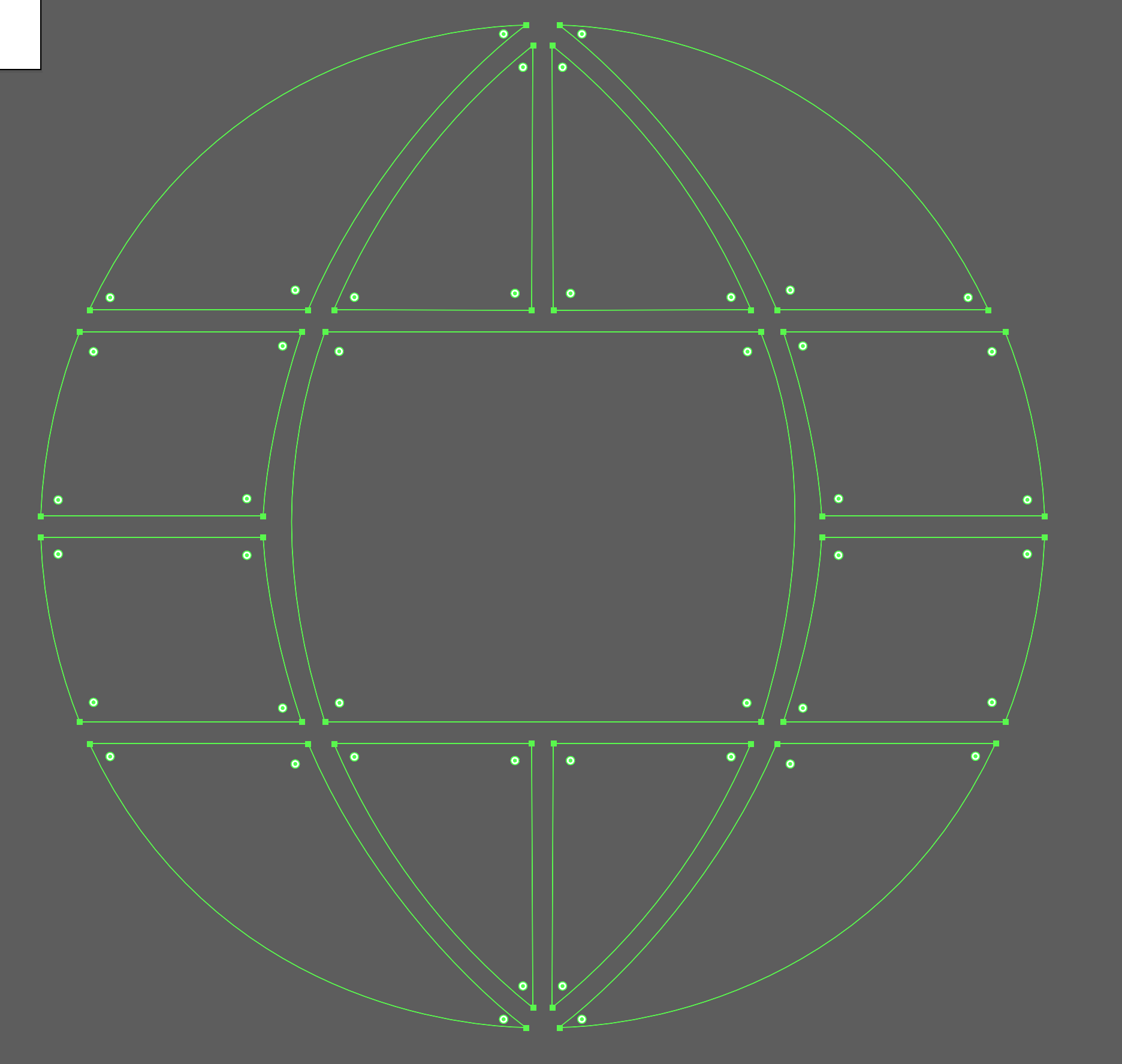
I know this is a fill but I will use this to explain what I am going for.
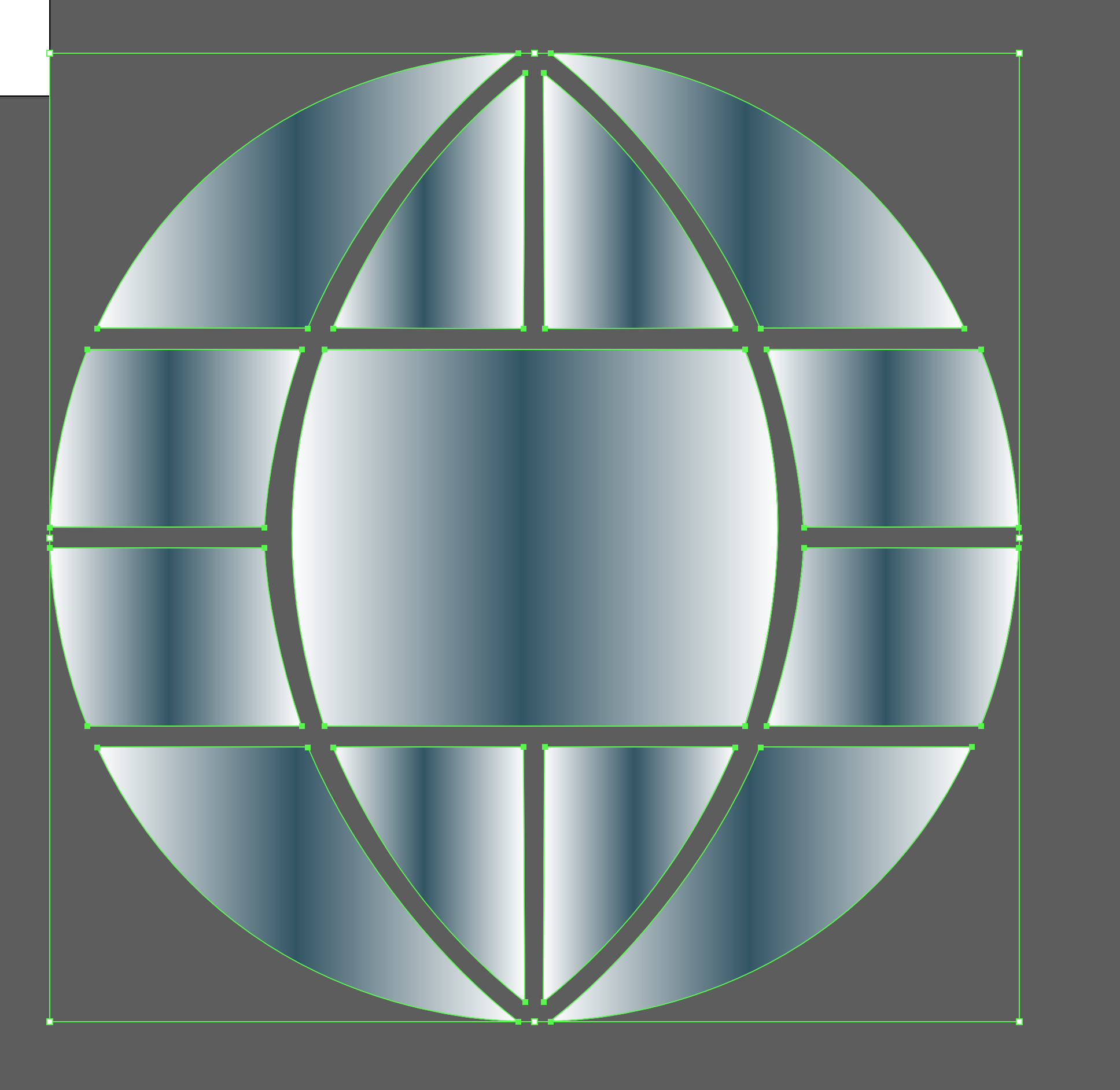
I start with this (above) and then use the gradient tool to change it to be applied over all the objects and end up with this (below).

Which is exactly what I want on the stroke but I can't get any result other than this (below).
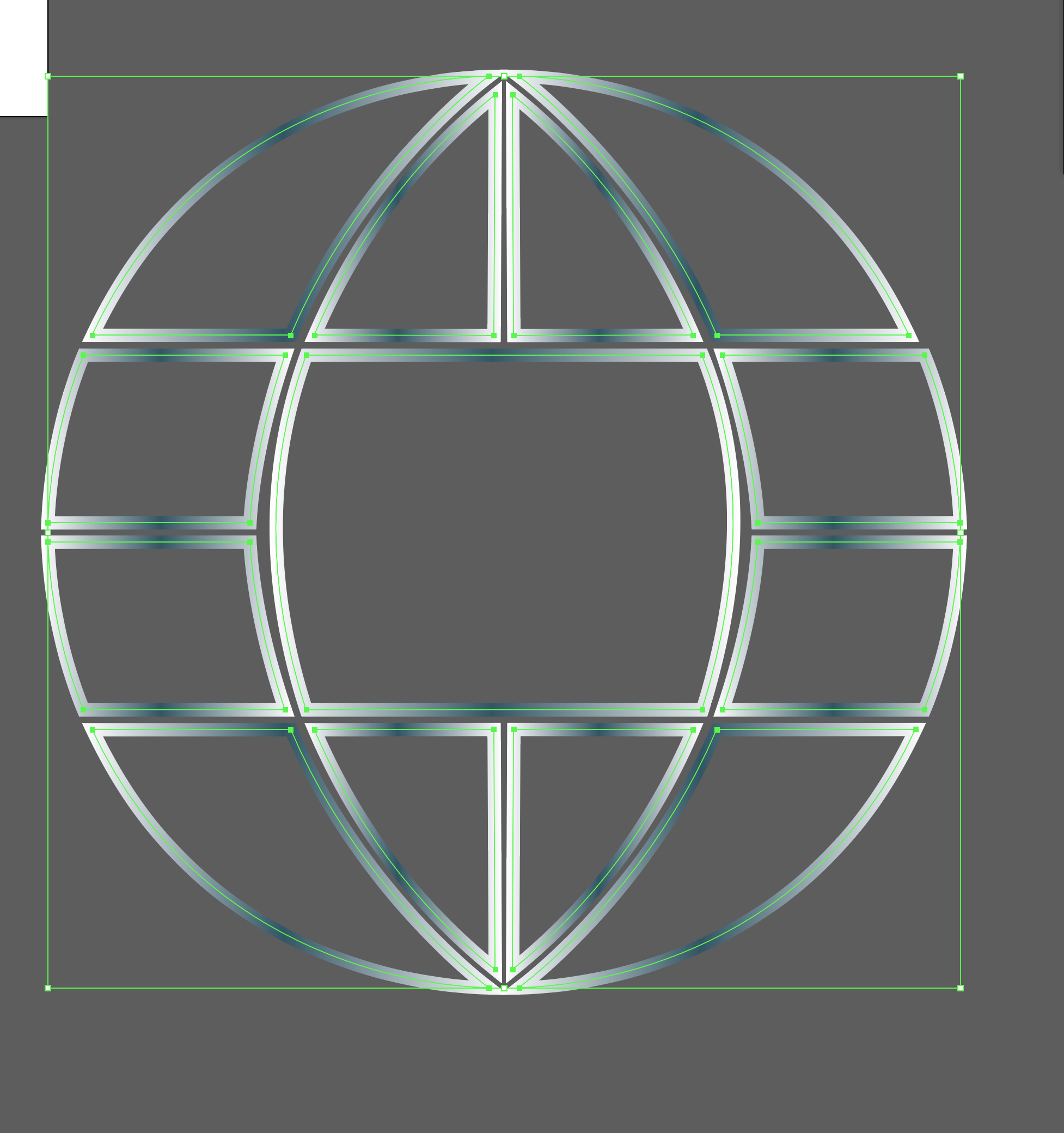
The gradient tool X's out when I try to use it on a stroke so this is where I'm stuck.
I've scoured the web looking for answers and I get close to answer but still no dice. Also, the stroke on the screenshots is 1pt for visibility but I want to use less than 1pt if it matters.
Any help will be greatly appreciated!


 1 Correct answer


...I can't get any result other than this (below).
The gradient tool X's out when I try to use it on a stroke so this is where I'm stuck.
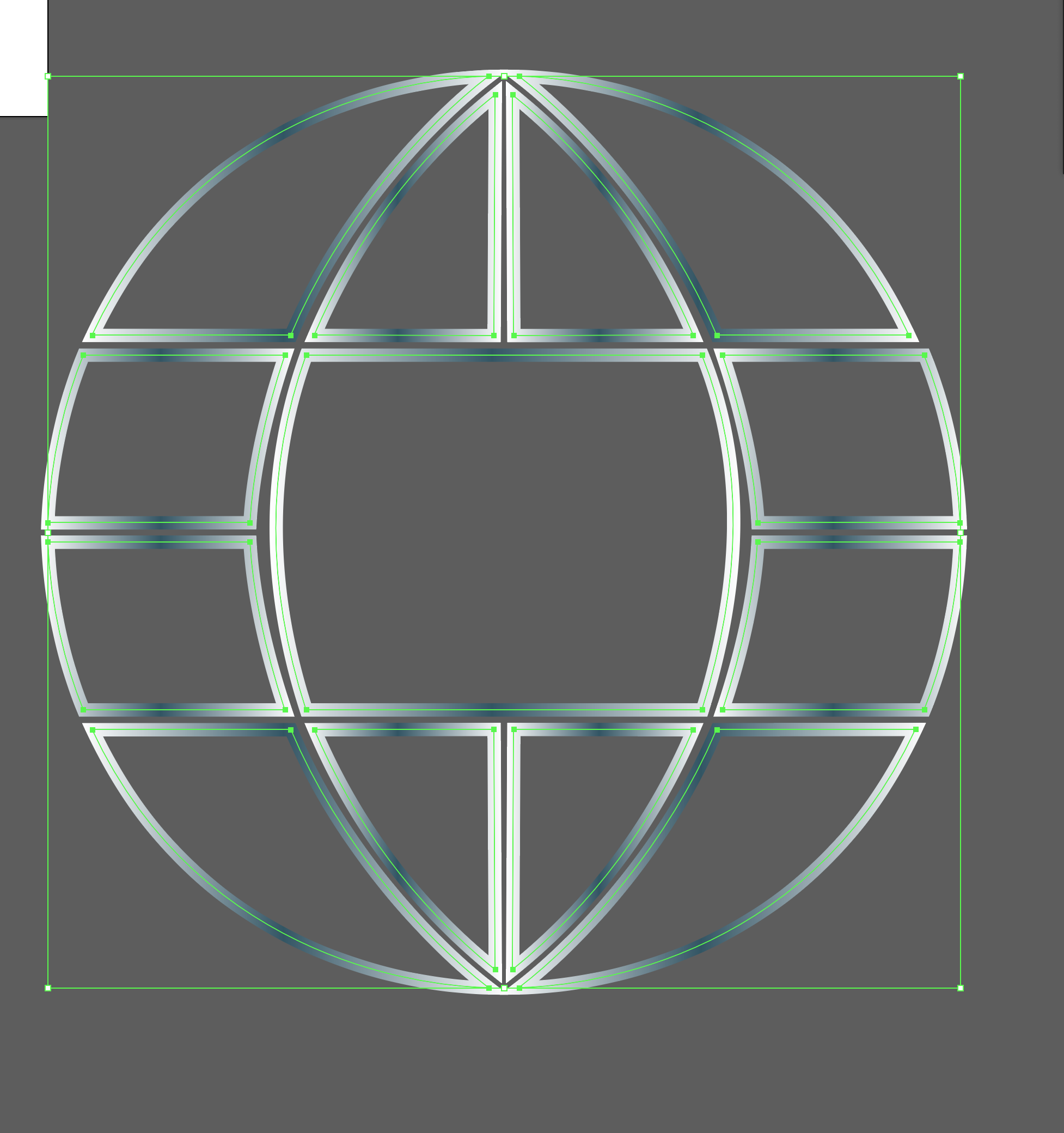
Okay, so at that^ stage, choose Object > Compound Path > Make...


Explore related tutorials & articles
 7
Replies
7
7
Replies
7


Copy link to clipboard
Copied
stopeman,
Unless a brighter solution appears, you may save the original artwork (always do that before you destroy it), then Object>Path>Outline Stroke, then work across the artwork with the fill solution.

Copy link to clipboard
Copied
Try to first create a compound path, then apply the gradient.
Copy link to clipboard
Copied
...I can't get any result other than this (below).
The gradient tool X's out when I try to use it on a stroke so this is where I'm stuck.
Okay, so at that^ stage, choose Object > Compound Path > Make...
Copy link to clipboard
Copied
Yesss! Thank you sir! I knew it would be a simple step I was over looking.

Copy link to clipboard
Copied
You can try to first remove the stroke, so use none for the stroke.
Group the object and add a new stroke to the group in the Appearance panel.
Fill the stroke with the gradient.
The orientation can be controlled in the Gradient panel.

Copy link to clipboard
Copied
This worked for me thank you!

Copy link to clipboard
Copied
You need to expand the shapes. 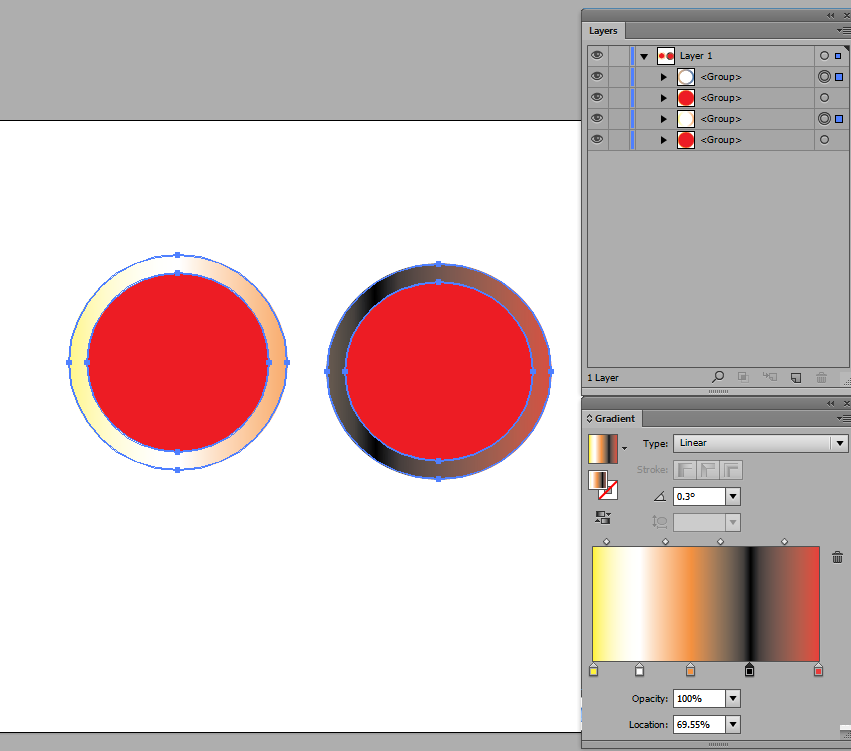


Get ready! An upgraded Adobe Community experience is coming in January.
Learn more
 AdChoices