
FloppyJowl
Participating Frequently
May 7, 2019
Answered

Artifacting when overlaying transparent gradients and shapes

  • May 7, 2019
  • 4 replies
  • 2987 views

I'm overlaying gradients on my artwork with clipping masks to shade things and i'm running into an issue where there is slight artifacting along the edges of the layered shapes. The artifacting stills shows up when the project file is imported into other adobe programs.

Here is the artwork zoomed in. This is where you can see some slight artifacting along the edges of the shapes.

Here is the artwork zoomed out

I have had this issue occur in other projects and in older versions of adobe illustrator.
This topic has been closed for replies.
Correct answer Ton Frederiks

Switching between GPU and CPU will also show the artifacts in Illustrator.

Exporting as a pixel image with Art Optimized will hide the problem edges.

But using the .ai file in other apps can show the problem.

I suspect that the artifact is caused by the way anti aliasing is calculated by the stacking order of objects.

Lighter objects below darker objects reduce the visible anti-aliasing artifacts.

Lighter objects on top of darker objects show the anti-aliasing artifacts.

I used Pathfinder Divide on your file and moved the resulting triangle on the lower left to the top (Object > Arrange > Bring to Front).

That seems to solve the problem.

File here:

https://adobe.ly/2E0HXoo

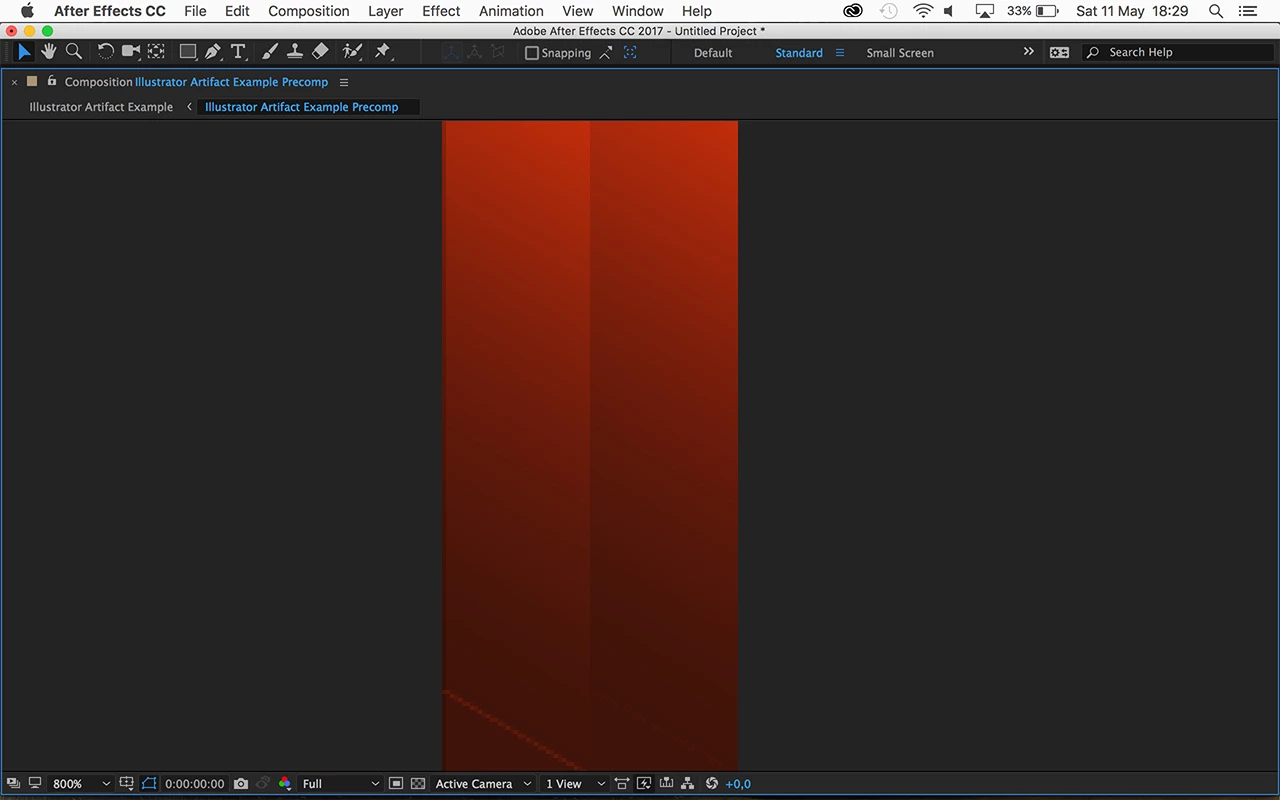
Result in After Effects, your file left, my file right:

4 replies

Ton Frederiks
Community Expert
Ton FrederiksCommunity ExpertCorrect answer
Community Expert
May 11, 2019

Switching between GPU and CPU will also show the artifacts in Illustrator.

Exporting as a pixel image with Art Optimized will hide the problem edges.

But using the .ai file in other apps can show the problem.

I suspect that the artifact is caused by the way anti aliasing is calculated by the stacking order of objects.

Lighter objects below darker objects reduce the visible anti-aliasing artifacts.

Lighter objects on top of darker objects show the anti-aliasing artifacts.

I used Pathfinder Divide on your file and moved the resulting triangle on the lower left to the top (Object > Arrange > Bring to Front).

That seems to solve the problem.

File here:

https://adobe.ly/2E0HXoo

Result in After Effects, your file left, my file right:

FloppyJowl
Participating Frequently
May 12, 2019

Thanks for your post. While that seemed to have reduced the artifacting, it did not resolve the artifacting completely.

To avoid the artifacting completely, I'm going to stick with a simpler shading method for the time being.

rcraighead
Legend
May 9, 2019

MikeGondek​ has shown you how to use Appearances. I think this is your answer. No need for multiple objects and masks. Your objects ARE your masks.

Ray Yorkshire
Participating Frequently
May 8, 2019

If if vector, maybe instead  just add a new fill in the Appearance panel, for example  to the side of the column shape.

Or is it a pixel image that you are trying to overlay onto?

if so , maybe better to recreate the  whole building in vector with illustrator tools

Free plugin to help draw at the right angle,

from Rick Johnson/Graffix

IsoTool (Formerly Isometric Line Tool)

Adobe Illustrator plugins — rj-graffix

isometric actions may help to project  isometric view from regularly drawn shapes.

Actions — rj-graffix

Mike_Gondek10189183
Community Expert
Community Expert
May 7, 2019

FloppyJowl  wrote

The artifacting stills shows up when the project file is imported into other adobe programs.

Some information would better help us to help you

When you print or export to a bitmapped format (eg: png) does the artifact go away?

Are you saving this as a .ai with pdf compatible on and importing in InDesign with high quality preview on in InDesign?

Why are you masking, there appears to be no need for masks as clipping mask or in transparency palette?

FloppyJowl
Participating Frequently
May 8, 2019

Starting from your first question. Yes, I tried that and the artifact doesn't go away.

Second, I don't use InDesign. I imported in after effects and the preview is raster based and looks the same as the png export. Also, I don't see the artifacting in adobe illustrator preview.

Lastly, I was trying to use clipping masks as a way to avoid this problem but the same issue still persists with that method. I normally use transparent gradient shapes that are perfectly aligned and have the same outline as the base shape it's layered over. This is how I like to do my shading, but I am running into this issue. Am I not able to shade my artwork in this way?

Here's a little GIF to demonstrate my method:

Mike_Gondek10189183
Community Expert
Community Expert
May 8, 2019

Best to design in Illustrator with as few shapes as possible, as Ray mentioned above. Designing with more shapes leaves more room for error, and takes more time to do revisions.

If you are trying to modify a bitmapped image, then you are dest doing that in Photoshop. Trying to align vector against bitmapped to be perfect is nearly impossible.