
Participant
August 15, 2018
Answered

Creating Outlines Around Offset Drop Shadow

  • August 15, 2018
  • 4 replies
  • 13517 views

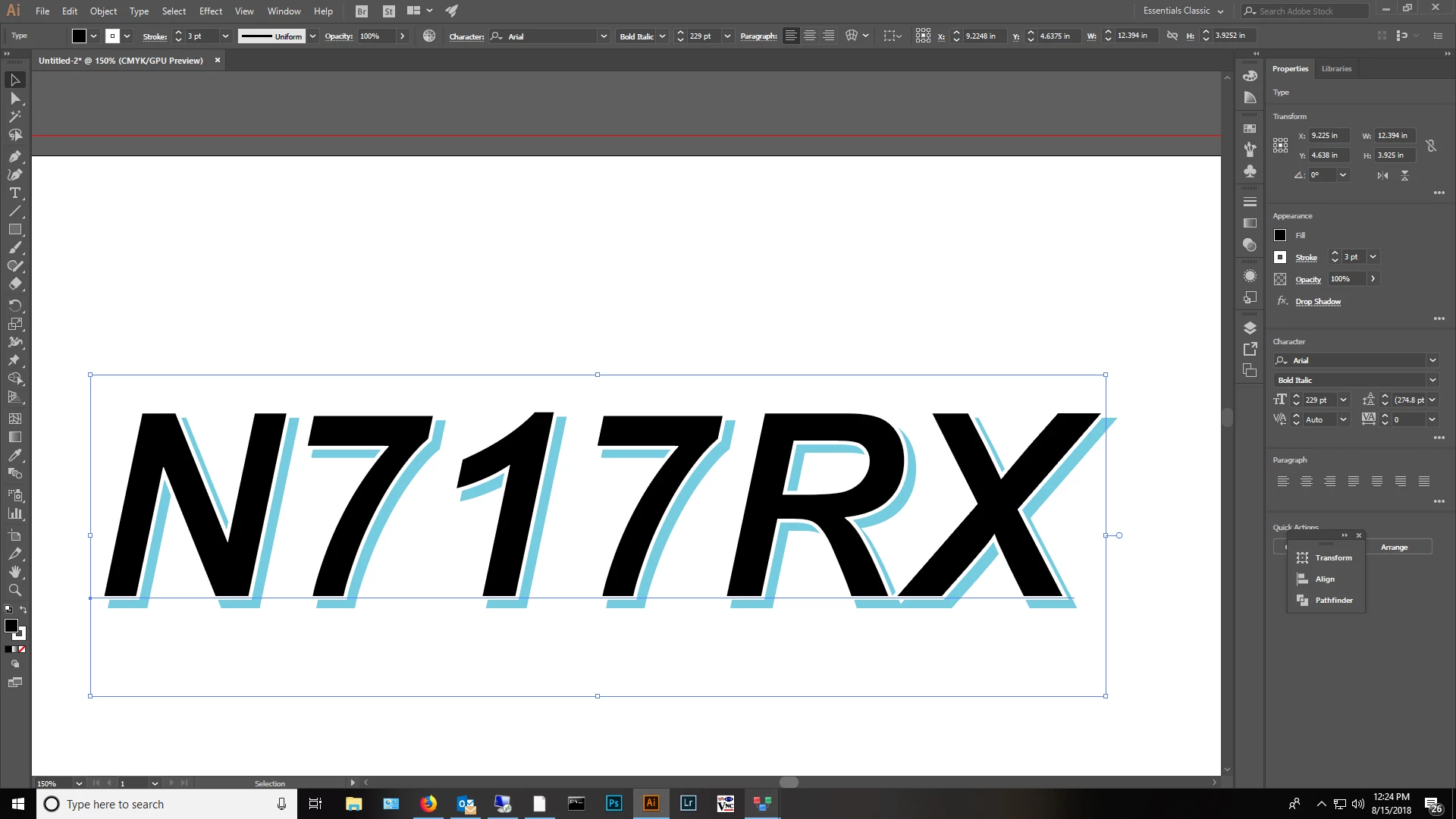
Is it possible to create outlines around a drop shadow? Here's what I'm trying to accomplish...I need to cut out this registration number and it's drop shadow separately for vinyl cutting purposes. The type and the shadow need to be separate paths so I can cut them separately on our vinyl cutter. Can anyone point me in the right direction? Is this fairly simple? Thank you in advance!


Correct answer barbara_a7746676

Create 3 pieces of text and offset them similar to this, with enough space between letters. I used red for the center text to make it stand out, but color is not important.

Select all 3 pieces of text with the black Selection tool and choose Type > Create Outlines.

Select just the blue shapes, Object > Ungroup. Then Object > Compound Path > Make.

Repeat for the red shapes, Object > Ungroup, then Object > Compound Path > Make.

Select just the blue and red shapes. Choose Pathfinder > Minus Front.

4 replies

Inspiring
August 16, 2018

Hi,

To preserve to complete editibility of your text, I can show you a better way. If you combine that trick with the use of symbols, you only have to type one text. Good luck. Patrick

Monika Gause
Community Expert
Community Expert
August 16, 2018

thepatje  schrieb

Hi,

To preserve to complete editibility of your text, I can show you a better way. If you combine that trick with the use of symbols, you only have to type one text. Good luck. Patrick

You can do this with one text and appearances (including the transparency) and there's no need for symbols. But if you read the initial question:

it's about vinyl cutting.

ScooterD76
Legend
August 15, 2018

Easiest way IMO would be to just use an offset duplicate of the text, instead of a drop shadow effect. then just use the method above...

tromboniator
Community Expert
Community Expert
August 16, 2018

That IS the method above.

Monika Gause
Community Expert
Community Expert
August 16, 2018

The drop shadow effect will work just fine

I just noticed that I forgot one important step: after flattening transparency use the pathfinder "Merge" on the result (not the effect, but the panel)

barbara_a7746676
Community Expert
barbara_a7746676Community ExpertCorrect answer
Community Expert
August 15, 2018

Create 3 pieces of text and offset them similar to this, with enough space between letters. I used red for the center text to make it stand out, but color is not important.

Select all 3 pieces of text with the black Selection tool and choose Type > Create Outlines.

Select just the blue shapes, Object > Ungroup. Then Object > Compound Path > Make.

Repeat for the red shapes, Object > Ungroup, then Object > Compound Path > Make.

Select just the blue and red shapes. Choose Pathfinder > Minus Front.

Monika Gause
Community Expert
Community Expert
August 15, 2018

You might use Object > Flatten transparency.

Check "Outline text" and "Outline stroke"

Then delete all the white and/or invsible objects in the result.