

Mike_Gondek10189183
Community Expert
Community Expert
September 2, 2010
Answered

Deleted Global Colors/[HUH?] error/Unused Brushes Keep Returning

  • September 2, 2010
  • 12 replies
  • 69249 views

On Mac AI4 I inherited files, that have 1000s of duplicate brushes in the library. Any copying is slow and pasting between documents fills the swatches palette with 1000s of Deleted Global Colors and brushes. The files are excessively large, slow and any copying is really slow. Can't load CS5 trial here at work(to try out that new cleanup command). This problem has been on the forums before (MAC/PC/CS3/CS4), but has not been solved. I started this as a new thread, as this problem is spreading out of control on other files.
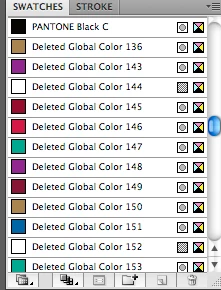
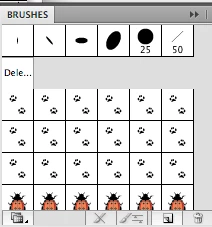
Here is what I have tried so far that has not worked (as the files are slow/crashing and the brushes keep coming back)

  1. Recovered the file using 'Content Recovery Mode = 1". Edited this in simpletext to remove all code that has "Deleted global colors" & the "Begin PluginObject: Object". There was lots of junk to remove and I got everything in between the open & close tags.
  2. Saved files as AI3
  3. Copied & Pasted all elements into a new document
  4. Removed all unused Brushes, Swatches, Graphic Styles
  5. Deleted all layers/objects & did a save as, and the file is still 6mb.

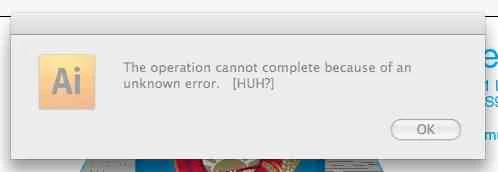
The "deleted global colors"(see images below) problem has gotten better since cleaning up the code. The problem must lie in in the non-standard characters of the code, as I used search to flush out all items with "Deleted global" and "BeginPlugInObject" between start and ends tags. I also am getting the HUH error(see images below) when saving.
HELLp

    This topic has been closed for replies.
    Correct answer Nils M. Barner

    Today, our studio(150 AI users strong) is still dealing with supplied Ai files with this crippling bug/corruption/virus!

    As I stated/adapted in an earlier post, the procedure by kuongchin6600 has worked on every file thrown at us. And we have some heavily affected files! Symptoms of not printing, not being able to save, slow responding,  several times the normal Ai file sizes, and unexpecting crashes add to the already heavily stressed design/production staff. We have mandated that every user has the Brushes palette open for early detection of the bug. With thousands of Ai files on our servers, budgets/deadlines don’t allow 10-15 minutes per file altering code that will cause missing text or improper colours on a major campain!? By our standards, these are very serious alterations that cannot be risked or passed onto released production. It is a very difficult task to keep everyone  in, and outside our studio informed of the damage of a casual cut and paste in Illustrator. I find it curious that Adobe hasn’t chimed in here.... wonder how many calls on their customer support lines have been misdiagnosed? I know of three other agencies/suppliers dealing with this. So in the hopes of saving others from losing their minds/clients or lost revenue....I will repost the fix. Goodluck.

    1) Unlock all layers and elements and "Show All"

    2) Make sure "Paste Remembers Layers" is on in the Layers palette

    3) Select all

    4) Open a new blank document

    5) Drag the contents of the infected file to the new blank document

    6) In the new document, check that the palettes are clean.

    7) Save the new document with a new name. Click Use Compression only in options.

    8) Close the infected file without saving it

    9) Delete or quarantine the infected file and notify Project Manager.


    As I said before, this issue is fixed.

    If you are using Ai CS5 or CS6, feel free to follow these steps:

    http://helpx.adobe.com/illustrator/kb/copy-paste-artwork-slow-or.html

    12 replies

    Participant
    January 28, 2016

    I know this is an old post but it's been great help to me this week. I had this problem working in CS5 and I wanted to share that I picked up the bug from opening an old pdf that had been supplied to us in AI.

    The work around has been great (drag and dropping etc), but thought I'd share about this starting again from opening an infected pdf, and not originating from an AI file.

    Thanks

    Hatem monem
    Participant
    June 23, 2015

    How can Adobe leave this problem hard to be solved like that ?!!!!!!!!!!!!!!

    Mike_Gondek10189183
    Community Expert
    Community Expert
    June 23, 2015

    They have already solved this, and this has been mentioned a few times, see this link.

    Pasting artwork is slow, includes unused data

    Participant
    October 22, 2013

    Shame on Adobe for not chiming in with a solution to this. I work at a small Graphic Design firm and we're just finding this issue within many of our files (we are running CS 5.5). It's great that everyone here is posting new information and trying their best to fix this issue, but the fact of the matter is that we all spend a lot of money and time using Adobe products. We shouldn't have to deal with work-arounds or searching through code in order to fix these problems. That's Adobe's job!

    I've just wasted hours of my day trying one of the solutions shown in these post. Guess what? I don't have the time to remove 881 instances of bad code and that's just one file in our archives.

    Poor customer service is inexcusable for a company that demands the amounts of money that they do for these products. Shape up Adobe and give us a real solution (i.e. software update for legacy products) to this "real problem" that plagues so many working professionals in our industry.

    Participant
    September 28, 2013

    For the last 8 months

    I have had the exact same issue with Deleted Global Colors [HUH?] error

    and then Illustrator CS6 quits on me immediately.  

    I have tried all kinds of things to resolve this issue

    and nothing has worked.

    I have been back and forth with Adobe Tech Support several times in the last 8 months

    --They have never figured out had to resolve this issue either.

    I might have a file that is just black and white,

    and I paste a black and white logo into it.

    suddenly hundreds of global colors appear from out of nowhere.

    I try to save without doing anything and then the

    Deleted Global Colors [HUH?] error message appears and Illlustrator immediately quits.

    I have become more and more frustrated

    because I use Illustrator CS6 every day, all day.

    Because I can no longer do a quick copy / paste,

    I am now stuck.

    The Deleted Global Colors [HUH?] error has made my life miserable

    and made my work -flow counter-productive.

    I am longer efficient at what I do.

    I don't know where else to turn.

    Sincerely frustrated!

    Shmule59

    Inspiring
    September 28, 2013

    drag the logo. don't paste.

    Jeffcd19
    Participant
    October 5, 2012

    Hey Mike, see kuongchin6600's post in #13 and #16.

    I've been using this method for the last 2 years and it works everytime with no hassles.

    I don't have CS6 yet so I don't have the two up function but that doesn't matter much.

    1. Open infected doc

    2. Select all

    3. Open new doc

    4. DRAG (do not copy), all elements from infected doc to new doc.

    5. Select all unused colours and delete

    6. Save new file

    It's that simple. I posted this solution over a year ago but can't find it so thought it was worth repeating.

    Jeff

    Mike_Gondek10189183
    Community Expert
    Community Expert
    October 5, 2012

    Thanks Jeff.  Great to see so much response to this post. The methods in 13 & 16 sped up files in some cases, but in each case they left residual infected useless code. Though deleting lines of code may take longer, and some appearance colors are lost, I feel more comfortable in erradicating this entirely. I have not had anyone send me files to fix since the CS6 patch has come out, but would definitely try that.

    Though there is no way to cleanse all files on the planet of this permanently, as designs get sunsetted and people delete their old files, this "Deleted Global Name" problem should fade into a distant bad memory.

    Participating Frequently
    March 13, 2013

    Today, our studio(150 AI users strong) is still dealing with supplied Ai files with this crippling bug/corruption/virus!

    As I stated/adapted in an earlier post, the procedure by kuongchin6600 has worked on every file thrown at us. And we have some heavily affected files! Symptoms of not printing, not being able to save, slow responding,  several times the normal Ai file sizes, and unexpecting crashes add to the already heavily stressed design/production staff. We have mandated that every user has the Brushes palette open for early detection of the bug. With thousands of Ai files on our servers, budgets/deadlines don’t allow 10-15 minutes per file altering code that will cause missing text or improper colours on a major campain!? By our standards, these are very serious alterations that cannot be risked or passed onto released production. It is a very difficult task to keep everyone  in, and outside our studio informed of the damage of a casual cut and paste in Illustrator. I find it curious that Adobe hasn’t chimed in here.... wonder how many calls on their customer support lines have been misdiagnosed? I know of three other agencies/suppliers dealing with this. So in the hopes of saving others from losing their minds/clients or lost revenue....I will repost the fix. Goodluck.

    1) Unlock all layers and elements and "Show All"

    2) Make sure "Paste Remembers Layers" is on in the Layers palette

    3) Select all

    4) Open a new blank document

    5) Drag the contents of the infected file to the new blank document

    6) In the new document, check that the palettes are clean.

    7) Save the new document with a new name. Click Use Compression only in options.

    8) Close the infected file without saving it

    9) Delete or quarantine the infected file and notify Project Manager.

    Community Expert
    October 5, 2012

    This issue is solved now!

    In September 2012 in corporation with Nils M. Barner (nmbdesign, Germany) and Lanter Design AG (Swiss), the amazing Adobe Illustrator engineers (special thanks to Varun!!) were able to finally fix this issue for ever! This basically is Illustrator Update Illustrator 16.0.1 (and just a part of 16.1.0 - for Creative Cloud user only!)

    Please check the following *how to* tech note the engineers posted for you:

    http://helpx.adobe.com/illustrator/kb/copy-paste-artwork-slow-or.html

    This is a brand new update of an already existing solution killing all the errors which might have remained in the structure of your *infected* files, so follow the steps and cleanup all of them.

    Personal advice / tips 'n tricks:

    This is a way to clean your files structures completely without any changes to your artwork at all. There will be no flattening, no additional clipping mask creation nor any other change to your stuff. It*s a brilliant solution to solve the HUH-issue for ever, so go a head and give it a try! The only reason why this correction is not set to auto-correct each file by default is the change of structure elements within the file. Engineers may not be allowed to change the structures of your files automatically but they added a script for you making it easyier to activate/deactivate auto-correction - you will love it ;-)

    Here*s a 10 step work flow tip from Lanter Design who just have fixed hundreds of files:

    1. open your document in Ai CS6 (after having set Illustrator to auto correction)
    2. unlock all(!) layers/elements and make sure all of them are visible
    3. copy the whole content (may took a while but it*s worst the price ;-)
    4. create a new document with same size than the original one
    5. check if *copy/paste remembers layers* is activated within the fly-out-menu in the Layers Panel (once activated it will remain for ever)
    6. delete all unused swatches in the Swatches Panel
    7. *Paste in Front* for inserting with same position (Ctrl + F)
    8. just to be sure check Swatches, Brushes, Graphic Styles and Symbols Panel
    9. finally save your new document
    10. done!

    Enjoy

    Nils

    PS. Please feel free to post your personal feedback, compliments and worship for the engineers for this solution:

    Participating Frequently
    October 5, 2012

    In Step 3.  we found that copying/pasting was the culprit.

    We selected all then dragged contents to new document to ensure clean pallettes.

    Community Expert
    May 25, 2011

    Best, easiest and most elegant way to get rid of that stuff without loosing functionality is:

    - open the infected file in illustrator

    - menu: file -> save a copy -> choose .pdf

    - within the option dialog box make sure you DESELECT(!) the **Preserve Illustrator Editing Capabilities** check box ! ! !

    - close all documents

    - open the freshly saved .pdf in illustrator

    - save it as an illustrator (.ai) file again!

    Done! All panels (swatches, symbols, graphic-styles) should be empty now.

    To get back only the colors used within you objects just

    - select all (ctrl + A)

    - go to the swatches panel

    - click on the little folder icon on the lower end of the panel (New Color Group button ) and

    - choose **from selected artwork** + **create global**

    That*s it!

    Enjoy.

    Nils Barner, ACI / ACE

    Participating Frequently
    May 25, 2011

    The above PDF method flattens the layers, which you may not want to happen.

    The drag to a new document is working fine for us.

    thx

    Inspiring
    April 15, 2011

    Looks like there's still no real solution for this and we're at CS5 now. The real problem is when you copy and paste, all these deleted global colors get added to the swatches. Does anyone have a solution for the colors not being added at all? Cleaning up code is like a medicine for after you're already sick. We need a vaccine so this infection doesn't happen at all! Help us, Adobe! You're our only help!

    kuongchin6600
    Participating Frequently
    April 18, 2011

    Hi,

    hope my attached picture explain well.

    1) open infected file, you can see all the brushes swatches and symbols duplicated.

    2) Create New document.

    3) click the arrange documents choose 2 up.

    4) with the side by side documents, click the infected document. Then, select all. Drag the selected artworks Over to New document. As attached.

    5) Check the brushes Swatches Symbols at the new document. The duplicated items has gone. Oh Yeah!

    Now, save the new document. DELETE the infected file. Or you want to keep it.

    Then, delete unwanted colors, then do the copy and paste in your new saved document. Check color swatches.

    Is my solution fix your file?

    Inspiring
    April 27, 2011

    yes, thank you! i would also add unchecking the "Embed ICC Profiles" box in the Illustration Options window when you save. this seems to keep those deleted global colors from coming back.

    kuongchin6600
    Participating Frequently
    February 21, 2011

    This may help, i've try one of the infected file.

    - open the infected file, select all

    - create new document

    - click the arrange documents on the infected document, choose 2-up

    - drag over the selected all file to the new document, save it.

    - close all document

    - open the new saved file. check brushes, it should back to normal.

    Participant
    May 8, 2014

    Yaa. Bro. ir works. Simple solution. Here I have repeat it.

    This may help, i've try one of the infected file.


    - open the infected file, select all

    - create new document

    - click the arrange documents on the infected document, choose 2-up

    - drag over the selected all file to the new document, save it.

    - close all document

    - open the new saved file. check brushes, it should back to normal.

    Participant
    January 18, 2011

    Thanks to Mike for forwarding me to this thread. Unfortunately the prescribed cure hasn't worked for my nearly identical problem...

    None of the infected files have any occurence of "%AI5_Begin_NonPrinting" or "%AI5_End_NonPrinting" or "ARTPRO" etc. They are client files, so I'd be unable to share them... any ideas?

    Participating Frequently
    January 18, 2011

    After a couple of weeks there are still some painful anomalies in the files. Some text changing to black instead of K/O etc. Not sure if this is a result of removing critical data in textwrangler? Still scary moving forward and trying to keep infected files separate from finals. Hope we don’t have egg on our face at the printers!!!! Still no word as to a cause anyone???

    Mike_Gondek10189183
    Community Expert
    Community Expert
    February 21, 2011

    Paul,

    You should be good once this goes to print if you have corrected any spot colors/styles/ brushes, that got lost in the process.  I've fixed quite a few files now since started working on this account. The worst that happens is some type goes missing, but doing a command Y shows it is there, and never had to spend more than 10 minutes proofing and recoloring lost spot colors. Prior to fixing this bad code, I lost 10 minutes on each copy/paste, so recoloring a few items was a small price to pay for clean files that won't infect other accounts.

    Though we do packaging design here, they do not remember the Art Pro plug in, but will ask our weekly tech guy that comes in to see if he remembers.