
Exit
  • Global community
    • Language:
      • Deutsch
      • English
      • Español
      • Français
      • Português
  • 日本語コミュニティ
  • 한국 커뮤니티
0

Fill doesn't match the path created

Community Beginner ,
May 10, 2019 May 10, 2019

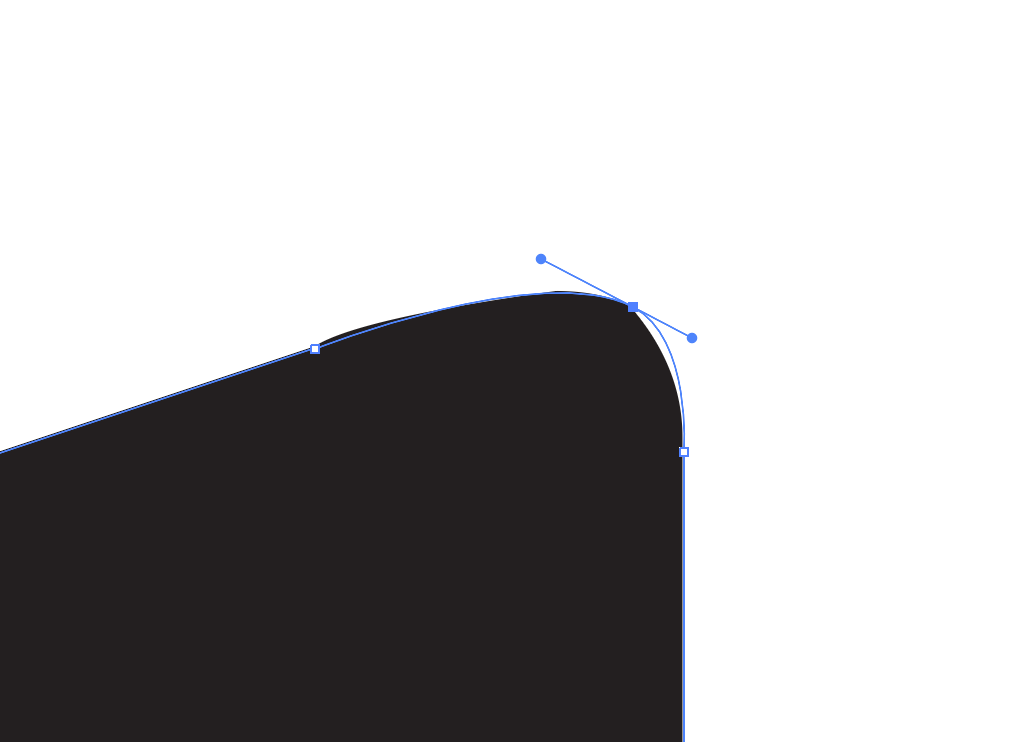
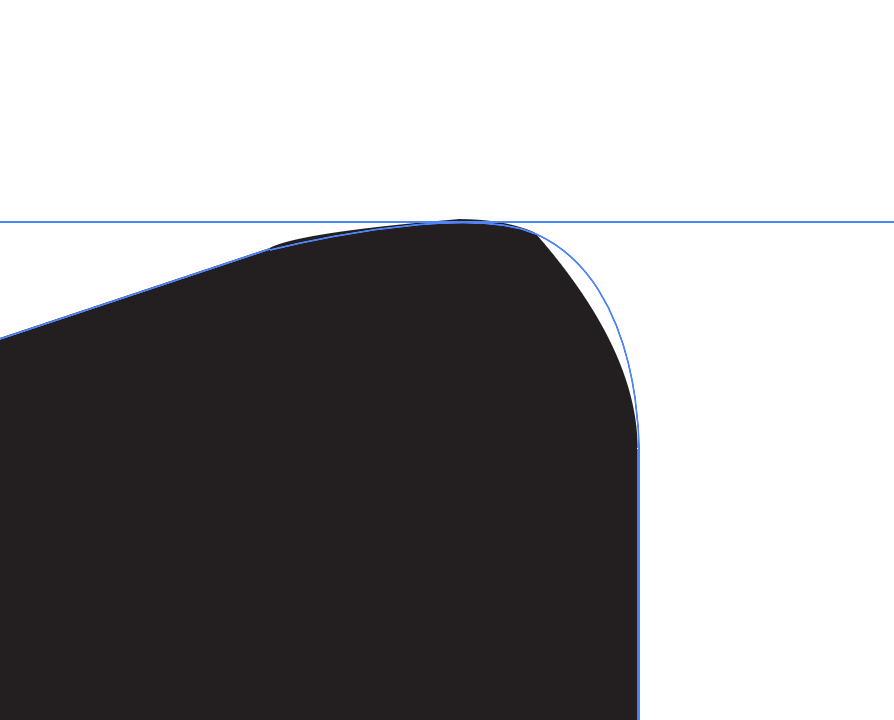
When I create a path for an object, the fill isn't lining up with the path (see examples below) I've been having this problem for a while, but can't seem to find a solution. I've tried converting the anchor points to see if it goes away, and moving them around, but the fill never lines up perfectly with the path. This seems to happen especially when I'm working on small areas and zoomed in really close (could be that I just notice it more when I'm closer though). I went through and reset my preferences for Illustrator and restarted, but I'm still having the issue.

I'm running MacOS Sierra, Version 10.12.6, and am using Illustrator 2019. I also had this same problem with Illustrator 2018.

This is the thread I followed to remove my Illustrator preferences.

Object path misaligned with fill.
Screen Shot 2019-05-10 at 2.26.36 PM.png

This is what the path looks like (smooth, rounded line).
Screen Shot 2019-05-10 at 2.32.50 PM.png

This is what it looks like when I click off of the shape (not smooth at all like the path I made).

Screen Shot 2019-05-10 at 2.32.59 PM.png

3.2K
Translate
Report
Community guidelines
Be kind and respectful, give credit to the original source of content, and search for duplicates before posting. Learn more
community guidelines

correct answers 1 Correct answer

Community Expert , May 10, 2019 May 10, 2019

Did you also tried before [Strg]+[E] ? (toggle between CPU and GPU preview)

Translate
Adobe
Community Expert ,
May 10, 2019 May 10, 2019

Did you also tried before [Strg]+[E] ? (toggle between CPU and GPU preview)

Translate
Report
Community guidelines
Be kind and respectful, give credit to the original source of content, and search for duplicates before posting. Learn more
community guidelines
Community Beginner ,
May 10, 2019 May 10, 2019

That worked! Thank you!

Translate
Report
Community guidelines
Be kind and respectful, give credit to the original source of content, and search for duplicates before posting. Learn more
community guidelines
Community Expert ,
May 10, 2019 May 10, 2019

So you knew, ex-pdx.

Translate
Report
Community guidelines
Be kind and respectful, give credit to the original source of content, and search for duplicates before posting. Learn more
community guidelines
Community Beginner ,
May 10, 2019 May 10, 2019

Yes, thank you!

Translate
Report
Community guidelines
Be kind and respectful, give credit to the original source of content, and search for duplicates before posting. Learn more
community guidelines
Community Expert ,
May 10, 2019 May 10, 2019

ek-pdx,

Just in case Strg is new to you, it is the equivalent of Ctrl/Cmd (Win/Mac).

Translate
Report
Community guidelines
Be kind and respectful, give credit to the original source of content, and search for duplicates before posting. Learn more
community guidelines
Community Beginner ,
Nov 23, 2021 Nov 23, 2021

Hi

Ctrl + ? doesn't work on my PC...Any other clue?

 

Translate
Report
Community guidelines
Be kind and respectful, give credit to the original source of content, and search for duplicates before posting. Learn more
community guidelines
Community Expert ,
Nov 23, 2021 Nov 23, 2021

View menu: View using CPU

Translate
Report
Community guidelines
Be kind and respectful, give credit to the original source of content, and search for duplicates before posting. Learn more
community guidelines
Community Beginner ,
Nov 23, 2021 Nov 23, 2021

@Ton Fredriks: Thanks!! I just found it out via another website!

Translate
Report
Community guidelines
Be kind and respectful, give credit to the original source of content, and search for duplicates before posting. Learn more
community guidelines
Community Expert ,
Nov 23, 2021 Nov 23, 2021
LATEST

It's Ctrl + E in the English version.

Translate
Report
Community guidelines
Be kind and respectful, give credit to the original source of content, and search for duplicates before posting. Learn more
community guidelines

