


- Home
- Illustrator
- Discussions
- Help with pathfinder/divide and image trace
- Help with pathfinder/divide and image trace

Copy link to clipboard
Copied
Hello everyone,
I'm trying to turn one of my line drawings into vector art to use for cards. Here's the drawing: .png)
I've already Image Traced it, and I am happy with the results. The only problem is that I'd like to put the line drawing on a colorized background for cards, which I can't do because the inside of the drawing is filled with white. As you can see: .png)
I tried selecting and deleting, but it did this:
.png)
Obviously not what I"m looking for. Finally, after trying many other things, I remembered pathfinder and I tried "Divide" which seemed to work. However, as I was happily deleting all the "divided" white areas, leaving only the lines, I noticed that I was being left with thicker, simpler, and more uniform lines:.png)
comparing the two, I could see I much preferred the more delicate first version with varying widths. However, the first one won't work because it is filled in with white.
What should I do? What can i do to keep the delicate varying widths of lines, but also get rid of the white insides??
Any help would be much appreciated!!!


 1 Correct answer

While getting a compound path that you're happy with the weight of is probably better in the long run, you could just use the original trace, grouped and set the blending mode to multiply. That will also make it overprint the green, which is advisable.


Explore related tutorials & articles
 12
Replies
12
12
Replies
12


Copy link to clipboard
Copied
It might just be the result of an optical illusion.
You could try this: select all the white areas.
Apple the opacity 0% to them
Group black and white objects
Make the group a knockout group
You might need to set View > CPU-Preview in order to see the result.
Copy link to clipboard
Copied
Thank you for responding, I really appreciate it.
I selected all the white areas after dividing and adjusted opacity to %0. I also tried masking and knockout group. Unfortunately nothing worked... it still has noticeably thicker lines than the original.
I've been trying other things since i posted this question, and nothing has gotten me the results I'd like. I've tried deleting all the white portions and then selecting the leftover line paths and offsetting them, but it won't let me offset them to a negative number for some reason, so it only makes the lines thicker.
any other suggestions? I'm sorry, i just don't know why it's doing this. I've had this similar problem with every other project I've tried. No matter what I do, the vector image trace looks largely different than the original.
Copy link to clipboard
Copied
As I suspect.
The issue is an optical illusion
What happens when you print it?
Copy link to clipboard
Copied
thank you all, I have tried the image trace with Ignore White checked on. Although i didn't have to remove the white areas, the lines automatically thickened. It's as if the white portions are slightly covering up the black lines, making them rougher and thinner, even when the white "isn't there."
This is what I want it look like:
.png)
this is what the outline preview looks like, if that helps:
.png)
I will try printing it.
Copy link to clipboard
Copied
tried printing it. It looked like this in photos, and exactly like that printed:
.png)
I don't know. Still not as thin as I'd like it, but I think I'll just have to deal with it. I've been having troubles with image tracing for a long while now. I'm not sure what else to do, other than just accept the results as I get them.
Thank you all for your time and help. Before I go, are there any ways I can seperately adjust the thickness of the lines? I know photoshop has threshold that seems to do just that. Maybe I'll just bring it into photoshop and adjust it from there.
Thank you all again, I really do appreciate it, even if it didn't end up how I'd like.
Copy link to clipboard
Copied
to make lines thinner afterwards try and apply offset path
Copy link to clipboard
Copied
I have tried Offset path, I can't seem to make it a negative number, only positive, which of course, makes the line thicker..
I will try different blend modes next, thanks for the suggestion!
I have also tried new image trace with Ignore White, I've tried several times now actually. Each time I check "ignore white" the lines automatically thicken. I don't have to get rid of the white spaces, which is nice, but it doesn't give me the thinner lines of the original.
Thank you all for your time and advice.. I'm going to try to figure out everything I can about Image trace over the next few days and see if I can get it to where I want it.

Copy link to clipboard
Copied
For next time, you might not be aware, but in the advance settings for the Trace Image you can knock out the white so that you just get the lines and don't have this issue. It may not work, depending on your drawing, but worth playing with.


Copy link to clipboard
Copied
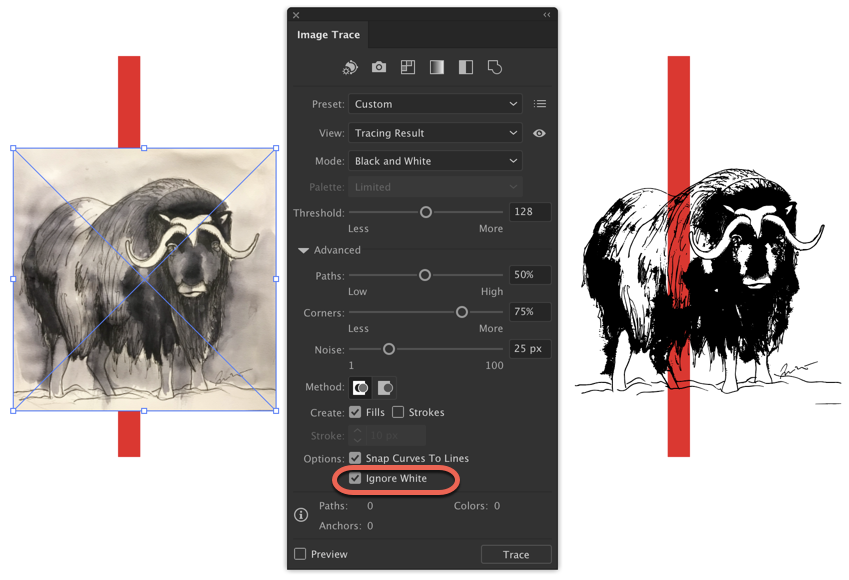
My daughter's artwork, not mine.
Peter
Copy link to clipboard
Copied
While getting a compound path that you're happy with the weight of is probably better in the long run, you could just use the original trace, grouped and set the blending mode to multiply. That will also make it overprint the green, which is advisable.
Copy link to clipboard
Copied
Ah yes! Thank you so much Danny, turns out the simplest action was the best solution!
For anyone who comes across the same problem, here is what I did:
Image trace, editing with Threshold until happy, not checking "Ignore White"
Expand
select and group illustration
place over colored background
select group and change Blending Mode to Multiply.
I can't express how thankful I am towards all of you for your constant advice and suggestions. I really do appreciate all of it, and have learned a lot. Hopefully I won't have another problem like this one for a while..

Copy link to clipboard
Copied
Jeremy,
Have you tried a (new) image trace with the setting Ignore White?
That should rid you of the issue, even before it arises.


Get ready! An upgraded Adobe Community experience is coming in January.
Learn more
 AdChoices