August 15, 2012
해결됨

How do I create a transparent stroke above other shapes?

  • August 15, 2012
  • 2 답변들
  • 68969 조회

Hello

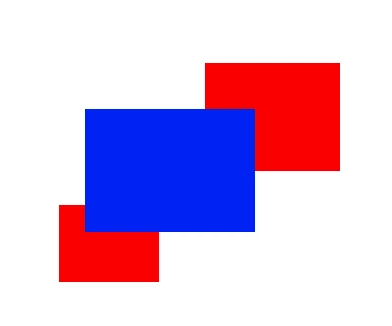
I have the following shape:

What I'm trying to do is give the blue box a transparent stroke that will "cut through" the red boxes and show the background underneath, whatever that may be ...white, another color, or a photo.

I can easily achieve this when I give it a white stroke. It'll look like this:
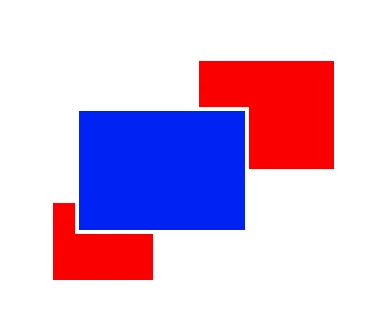
When I change to a background color other than white or even a photo however, I end up with this problem:
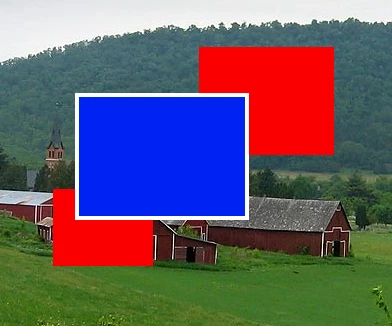
How do I make it so that I have a transparent border (not white) around the blue box? Which effectively cuts a "transparent stroke" (space) between the parts where the blue and red boxes intersect?

Thank you very much for any advice I've been trying to get this done for days without success, so you're my last hope!

이 주제는 답변이 닫혔습니다.
최고의 답변: tromboniator

1. Select the blue rectangle with the white stroke, then do as Silkrooster suggests to set the stroke's opacity to 0. The white stroke will disappear.

2. Select all three rectangles and group them.

3. With the group selected, the Appearance panel should show:

    Group

    Contents

    Opacity

Click on Opacity. In the box that opens, click the box next to Knockout Group until the check/tick mark appears. If the dash appears, click again.

2 답변

tromboniator
Community Expert
Community Expert
August 15, 2012

1. Select the blue rectangle with the white stroke, then do as Silkrooster suggests to set the stroke's opacity to 0. The white stroke will disappear.

2. Select all three rectangles and group them.

3. With the group selected, the Appearance panel should show:

    Group

    Contents

    Opacity

Click on Opacity. In the box that opens, click the box next to Knockout Group until the check/tick mark appears. If the dash appears, click again.

Participant
October 18, 2023

I am trying this with text (one word on the bottom layer and then a few words of text in a different font over top)...I am trying to "knockout" a stroke around the top text so that it cuts as a transparent stroke into the bottom layer of text. I tried doing it before creating outlines of the text and then again with creating outlines, but it doesn't seem to be working either way. (I'm not able to lower the opacity of just the stroke, and after creating outlines opacity does not come up as an option in Appearance). I acheived the look I want in Photoshop, but whenever I'm trying to save this as an EPS (for a t-shirt design), it is making it a flat jpg. Any help appreciated!

Participant
October 18, 2023

The simple fix would be to set the corners of the stroke to rounded. If you do not want that, you will look into outlining the font and adjusting the path.


That helped! Thanks so much!

Silkrooster
Legend
August 15, 2012

Window>Appearence or shift-F6. Once the appearence panel is open, Twirl down the icon next to the word Stroke, Click Opacity and adjust it to your hearts desire...