
Participant
March 26, 2020
Answered

How do I make text eligible over an image with color change?

  • March 26, 2020
  • 6 replies
  • 3384 views

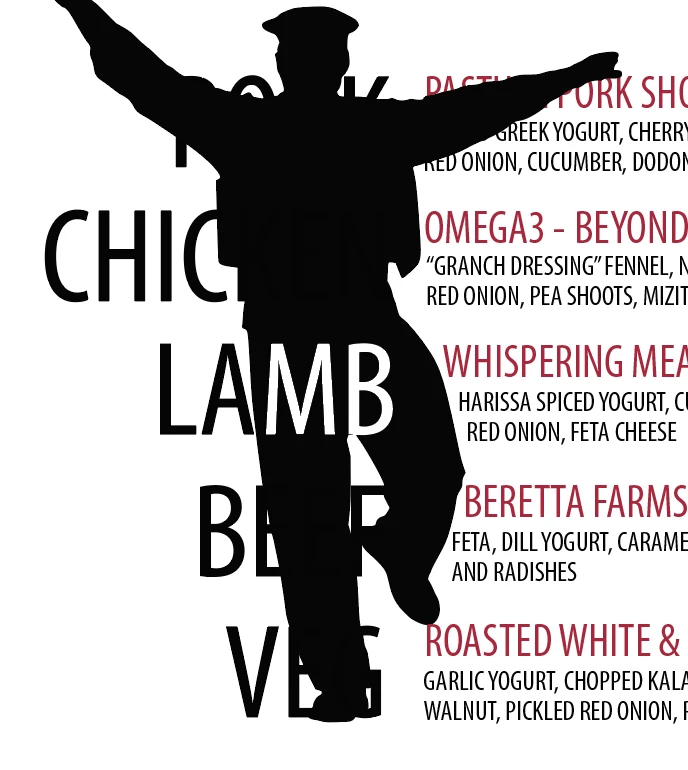
Please see my photo example as I'm trying to learn the easiest way to have the silhouette image superimposed with the color of the text.

In other words, I would like to make any text or object that falls in the black silhouette image to be white. I did this manually with the word LAMB for demo purposes, since the 'A' and 'M' were easy to seperate.

Thank you!
Correct answer Ton Frederiks

"Can you please let me know what you mean by "cut the text"?"

make a copy of your text and fill it with white.

Cut the text meanst you go to Edit > Cut to get the white text on the clipboard.

So you can paste it in place inside your silhouette.

6 replies

Jacob Bugge
Community Expert
Community Expert
March 27, 2020

trenten,


"however is there a way where I can drag the text and it will automatically fill to being white inside the sihlouette or I must manually do it by erasing or using pathfinder?"


To do (almost) that with the (Opacity) Mask/Knockout Group, you may (first) build it with white Type instead of black type as follows in this new improved version, changes shown in bold red, with the added advantage of seeing the white over the silhouette from the beginning:


1) Select all Type and Ctrl/Cmd+G to group, then Ctrl/Cmd+C+F to copy in front of the silhouette and change the fill colour to white;

2) ShiftSelect the silhouette to have that selected too, then in the Transparency palette (flyout) click Make (Opacity) Mask with Clip unticked and and Inverse Mask ticked (in the main Transparency window);

3) ShiftSelect the original Type instances to have those selected too, then Ctrl/Cmd+G to group, then tick Knockout Group in the Transparency palette.


Then, to move the (live) Type (all the Type will appear white, but you can clearly see the changes over the silhouette):


T1) Release the (Opacity) Mask, then select the two Groups of Type (you can do that in the expanded Layer in the Layers palette using Ctrl/CmdClick, or by (Alt/OptionClickingDragging over parts of them outside the silhouette, the former is easier), then Move (you may Drag or use Arrows or use Object>Transform>Move),

T2) Reapply the (Opacity) Mask and tick Inverse Mask.


You could also move the silhouette (all the Type will appear white, but you can clearly see the changes over the silhouette):


S1) Release the (Opacity) Mask, then select the silhouette (you can do that in the expanded Layer in the Layers palette or by (Alt/OptionClickingDragging over parts of them with the Direct Selection Tool outside the silhouette, the former is easier), then Move (you may Drag or use Arrows or use Object>Transform>Move),

S2) Reapply the (Opacity) Mask and Inverse Mask.


You can still edit the live Type.


If you have made the (Opacity) Mask/Knockout Group already, you can just release the mask and change the colour of the Type inside it; the Knockout Group part is unaffected and will still work.


Jacob Bugge
Community Expert
Community Expert
March 26, 2020

trenten,


Regardless (almost) of the unknown version used, another option keeping live/editable Type, is this ancient way (going more than half the way back to the beginning, far beyong CC and beyond CS):


1) Select all Type and Ctrl/Cmd+C+F to copy in front of the silhouette and Ctrl/Cmd+G to group, then change the fill colour to black;

2) ShiftSelect the silhouette to have that selected too, then in the Transparency palette (flyout) click Make (Opacity) Mask with both Clip and Inverse Mask unticked (in the main Transparency window);

3) ShiftSelect the original Type instances to have those selected too, then Ctrl/Cmd+G to group, then tick Knockout Group in the Transparency palette.


If desired, you can simply release throughout and edit (both instances of) the Type and then redo (you may select full objects inside Groups by using the Direct Selection Tool while pressing Alt/Option).


Legend
March 27, 2020

After applying the brilliant technique detailed by Jacob Bugge, you may select with the direct selection tool the silhoutte shape, and in the Transparency panel break the chain with the opacity mask. Now moving the selected silhouette, the effect of white letters inside the shape is kept while moving or transforming the human figure.

Thanks again Jacob

Jacob Bugge
Community Expert
Community Expert
March 26, 2020

trenten,


See below.


Simmer1
Community Expert
Community Expert
March 26, 2020

Ton_Frederiks  answer is very good.


What I might ad is to make a few copies of the text layer just to be safe. 


Also I would right click the text you want to edit and select Create Outlines from the drop down menu.

Then right click again and select Ungroup.


Next use the Pathfinder Minus front function to delete the unwanted areas.

Or use the Eraser if you wish.

Trenten 7Author
Participant
March 27, 2020

Thank you! So far I've found your method to work best, however is there a way where I can drag the text and it will automatically fill to being white inside the sihlouette or I must manually do it by erasing or using pathfinder?

Doug A Roberts
Community Expert
Community Expert
March 26, 2020

You may be able to use Exclude from Pathfinder effects on the layer appearance:

Ton Frederiks
Community Expert
Community Expert
March 26, 2020

You could make a copy of your text and fill it with white.

Cut the text.

Select the silhouette and click the Draw Inside icon at the bottom right of the Toolbar.

Choose: Edit > Paste in Place.

Click the Draw Normal at the bottom left of the Toolbar.

Trenten 7Author
Participant
March 27, 2020

Can you please let me know what you mean by "cut the text"? Thank you!

Ton Frederiks
Community Expert
Ton FrederiksCommunity ExpertCorrect answer
Community Expert
March 27, 2020

"Can you please let me know what you mean by "cut the text"?"

make a copy of your text and fill it with white.

Cut the text meanst you go to Edit > Cut to get the white text on the clipboard.

So you can paste it in place inside your silhouette.