


- Home
- Illustrator
- Discussions
- Re: How to create this pattern or effect?
- Re: How to create this pattern or effect?

Copy link to clipboard
Copied
I'm trying to get this effect but it didn't work out for me:

Looked in the swatches library can't find nothing
Played with the effects in the effect gallery, also didnt work.
Or it is an easy to make pattern that I can't do it.


 1 Correct answer


Hold down Shift as you draw a small square so that it has the exact same height and width. It should have no fill and no stroke.
If you're using Illustrator CC, choose Object > Expand.
If you want a color background on the patter, copy the square. Then choose Edit > Paste in Front and fill it with the color you want.

Create a series of parallel line with the stroke color you want. Rotate the lines 45 degrees. Position them over the square so that each corner of the square is centered between a pair
...

Explore related tutorials & articles
 7
Replies
7
7
Replies
7

Copy link to clipboard
Copied
The image you posted looks like a very subtle gradient. Is that what you want it to look like?

Copy link to clipboard
Copied
Make a pattern with a horizontal line (in one of your other threads people showed you how to make a pattern).
Apply the pattern to an object.
Rotate the pattern with the rotate tool dialog box (and only rotate the pattern, not the object.
Apply a second fill to the object that has a gradient and overly the two.
Copy link to clipboard
Copied
Hold down Shift as you draw a small square so that it has the exact same height and width. It should have no fill and no stroke.

If you're using Illustrator CC, choose Object > Expand.
If you want a color background on the patter, copy the square. Then choose Edit > Paste in Front and fill it with the color you want.

Create a series of parallel line with the stroke color you want. Rotate the lines 45 degrees. Position them over the square so that each corner of the square is centered between a pair of lines. I've zoomed in so that you can see the position more clearly.

Select everything and drag the objects into the Swatches panel to create a new pattern.
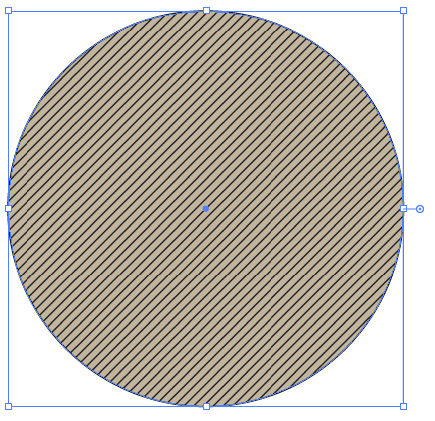
Text the pattern by creating a large shape and filling with the pattern.

Copy link to clipboard
Copied
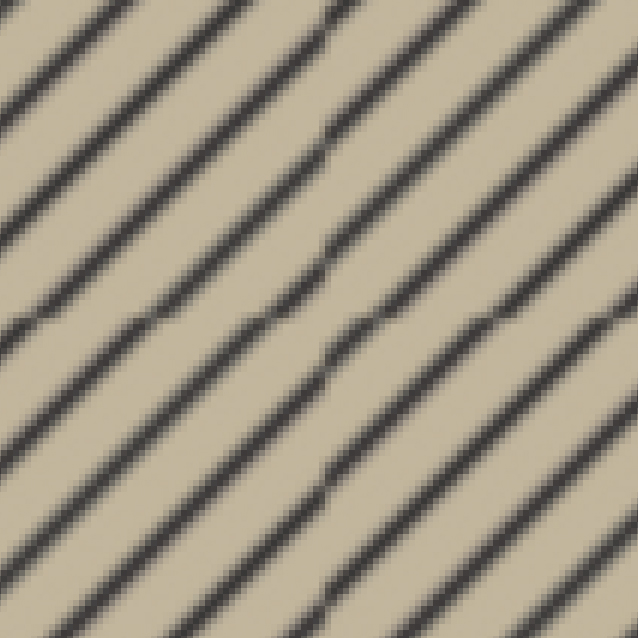
Monika's method is way better. Your result is janky:
Copy link to clipboard
Copied
As I mentioned, it is important to Position the lines over the square so that each corner of the square is centered between a pair of lines.
Often there is more than one way to do things, and more than one "right" way.

Copy link to clipboard
Copied
Barbara,
Have a look at http://tpettit.verio.com/adobe/index.html
and download the Constructing Diagonal Pattern Fills (AI 9) file.
Teri Petit is one of the creators of the Pattern function in Illustrator (since Illustrator 88).
The file gives a very good description of the problems when creating such a diagonal pattern and why the solution Monika mentioned is the easiest to avoid them.
Copy link to clipboard
Copied
Thanks for posting the link.


Get ready! An upgraded Adobe Community experience is coming in January.
Learn more
 AdChoices