


- Home
- Illustrator
- Discussions
- Re: How to move swatch within pattern
- Re: How to move swatch within pattern

Copy link to clipboard
Copied
I am trying to position a swatch within a pattern/shape i have designed? I don't mean the scaling of it; i mean to actually move the whole
swatch within the shape/pattern.
Thanks in advance.


 1 Correct answer


OR you can select the shape and double-click on the Selection tool.
In the dialog that opens, uncheck Transform Objects leaving Transform Patterns checked.
Now you can move just the Pattern the exact amount you want.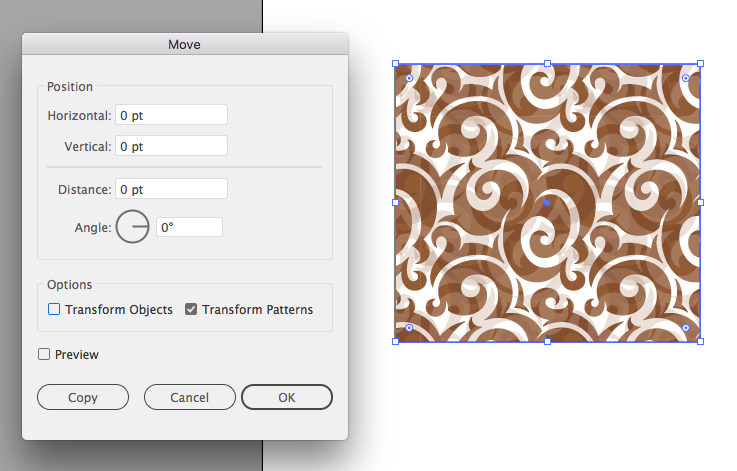


Explore related tutorials & articles
 7
Replies
7
7
Replies
7


Copy link to clipboard
Copied
in the transform palette, check 'Transform Pattern Only' and then adjust the X/Y coordinates.
Copy link to clipboard
Copied
OR you can select the shape and double-click on the Selection tool.
In the dialog that opens, uncheck Transform Objects leaving Transform Patterns checked.
Now you can move just the Pattern the exact amount you want.
Copy link to clipboard
Copied
Thank you Jeff, exactly what i needed!
Copy link to clipboard
Copied
No problem DRACO04. Happy to help!

Copy link to clipboard
Copied
Or you can select the object with the pattern.
Hold down the tilde ~ key and move the pattern only, by dragging or by using the arrow keys.

Copy link to clipboard
Copied
this is an old response but it seems after the new updates this shortcut no longer works. anyone else figure out a solution?
Copy link to clipboard
Copied
Still works for me. Did you select the object with the Selection tool (V) and then use the ~ key?


Get ready! An upgraded Adobe Community experience is coming in January.
Learn more
 AdChoices