


- Home
- Illustrator
- Discussions
- Re: Illustrator Black - 0H, 0S, 0B, 0R, 0G, 0B, 75...
- Re: Illustrator Black - 0H, 0S, 0B, 0R, 0G, 0B, 75...

Copy link to clipboard
Copied
I want to create Illustrator fills with a strong black, 0 HSB, and 0 RGB (only rich black CMYK color values) and drag the image into photoshop as a smart image. I can't create this black in illustrator, every time I try to change it on the color picker it just defaults back to it's previous color which was: 344 H, and 11% S, and 0% B, 0RGB, and 75%C, 68%M, 67%Y, 90%K. When I bring this smart item into photoshop, eyedropper shows that every value has changed together making it an entirely new "black". I'm trying to create beautiful Black to print as a vector. In photoshop I could create type layers, which I believe are vectors, and those eye-dropped with the standard C:75, M68, Y67, K90, 0H 0S 0B, 0R, 0G, 0B and it printed beautifully! How can I create that in Illustrator and maintain it when moved to Photoshop?
My vector image is just black and white.


 1 Correct answer


You could delete all the color swatches. Then mix your black and create a global swatch of the black color - the white also. When you bring them in as a smart object, they will retain their color values.


Explore related tutorials & articles
 14
Replies
14
14
Replies
14

Copy link to clipboard
Copied
You could delete all the color swatches. Then mix your black and create a global swatch of the black color - the white also. When you bring them in as a smart object, they will retain their color values.
Copy link to clipboard
Copied
Thank you for your feedback! Honestly, I need to research global swatches, but I will try that next!

Copy link to clipboard
Copied
I'm not sure why it matters what the HSB and RGB values are as long as what you need is for your black to be C75 M68 Y67 K90. When I defined that CMYK in my Illustrator swatch panel and then filled a shape with it, copied and pasted it into Photoshop as a smart object it eyedroppered exactly as the color it was in Illustrator. If that is your final goal then the HSB and RGB shouldn't matter.
Copy link to clipboard
Copied
Hi Bill, thank you for your help. I have my illustrator in document mode CMYK and each object is also set to CMYK. I'm not sure if the HSB/RGB matter either, that's just the only different I can find. I'm attaching 3 screen shots. 1) Is the color picker for the black that I created in a Photoshop type layer. This black printed the best. 2) Is the "same" black I created in illustrator, and eventually that smart object was moved over to Photoshop. This black printed pretty good. 3) Is another "black" created in the same illustrator document - honestly I messed up and in illustrator it was not the same color code black so when I brought it over to photoshop it seemed like all the other blacks, but then printed blue.
So I think I have a two part question... First, why is there such a difference in black quality from the photoshop black of picture one to the illustrator black of picture 2 when printing on the same machine? and Secondly... for whatever reason something funny is happening on illustrator and I can't recreate the color that was used in the 2nd pictures fill. I manually change the fill color on the color picker or by numbers and then it defaults back to what it previously was which is numerically an off-black so I don't even want to risk printing.
Copy link to clipboard
Copied
1st: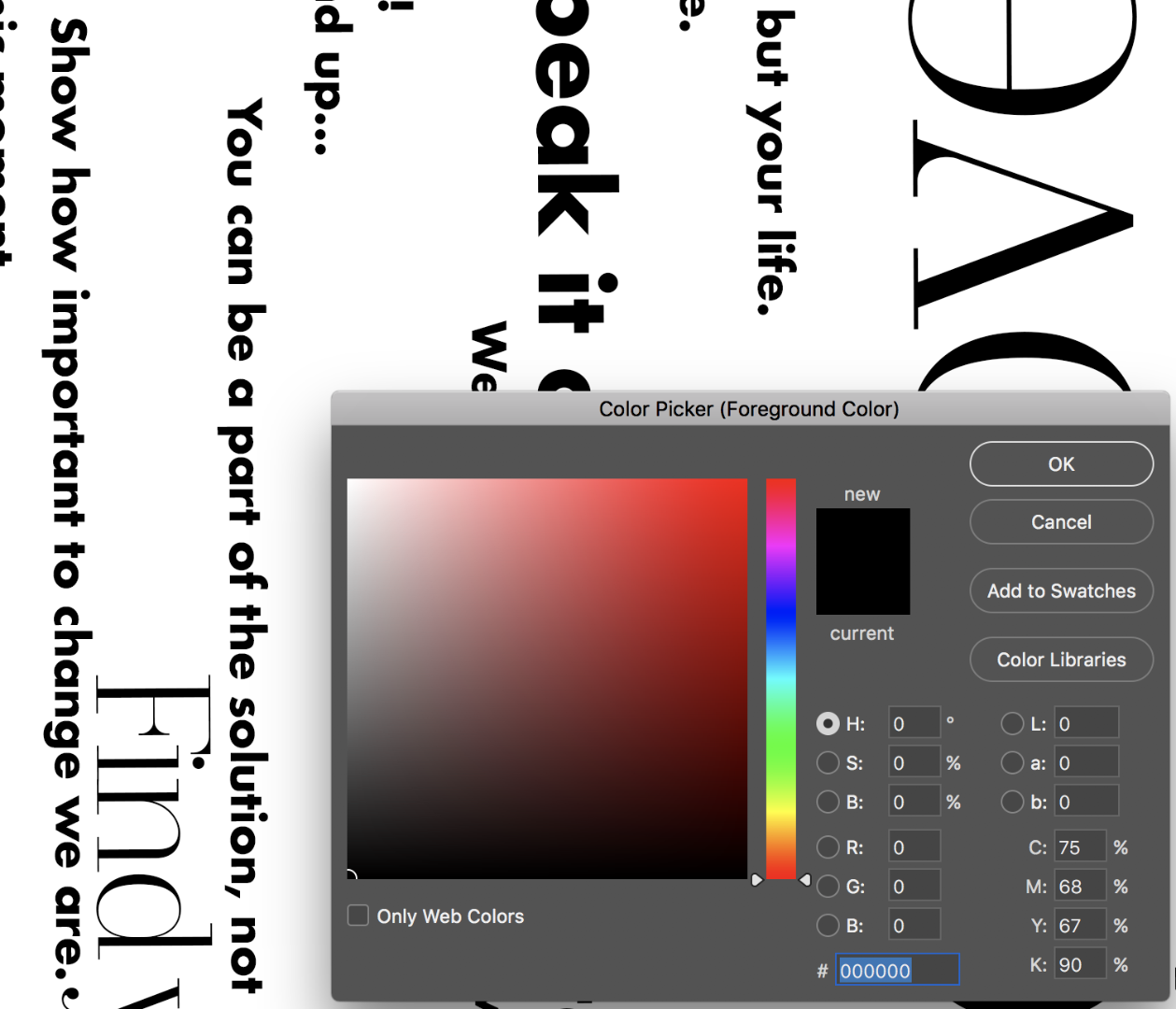
Copy link to clipboard
Copied
2nd:
Copy link to clipboard
Copied
3rd: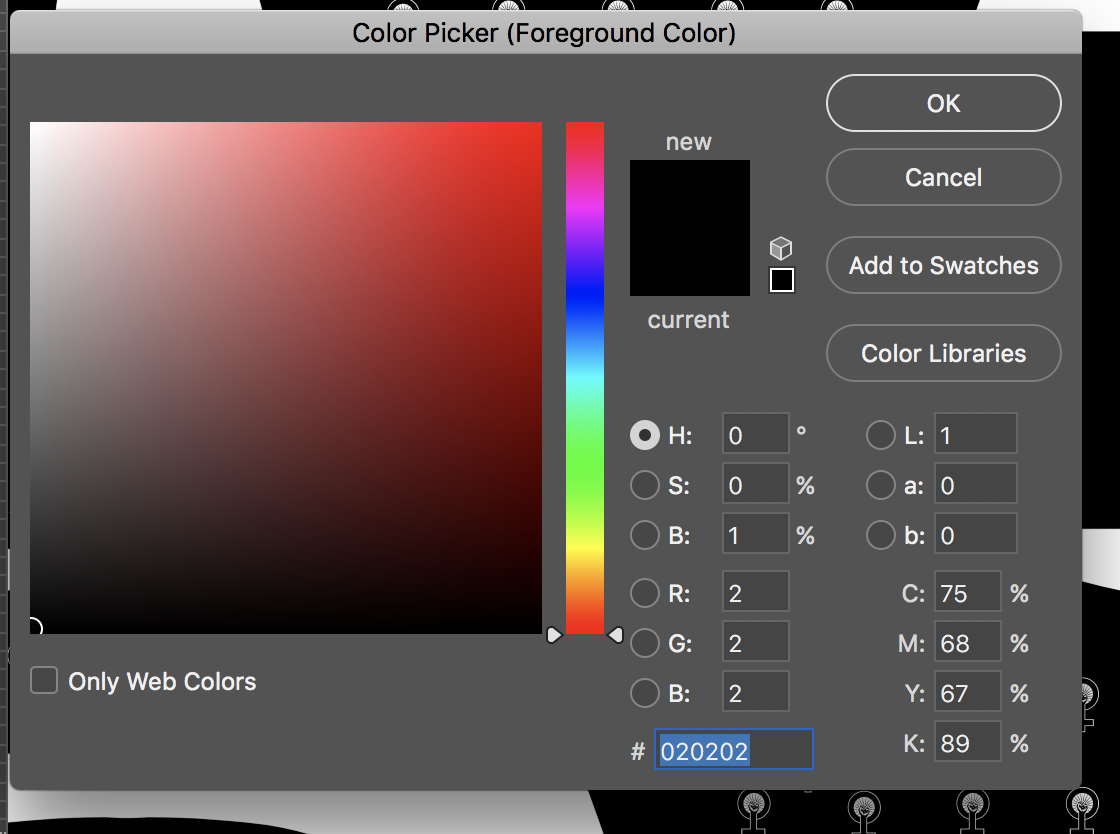

Copy link to clipboard
Copied
bdfrog,
As I (mis)read things, my guess is that you have RGB Color Mode, which will give you strange (muddy) CMYK values for RGB black.
So I would suggest your (making sure you are) using CMYK Color Mode.
Anyroad, for your rich black you may wish to choose a set of CMYK values with 100% (blac)K that matches the (other) artwork as well as possible, rather than a standardized rich black (often suggested mostly with C(yan) and often without Y(ellow).
Copy link to clipboard
Copied
Thank you Jacob for your suggestion! I'm pretty confident everything is set in CMYK, but it can't hurt to check again. I'll play with the CMYK values, and do some test printing.
Copy link to clipboard
Copied
clbfrog,
There are some unfortunate cases where the document or artwork was created in RGB and then less than fully successfully converted to CMYK, so something lingers.
Is it also happening with new artwork in your CMYK Color Mode document, or if you copy the artwork to a new CMYK document?
Copy link to clipboard
Copied
One more question! Is it possible to change the color of a smart object that has been moved over to photoshop without rasterizing it?
Copy link to clipboard
Copied
Yes. You can edit the smart object by double-clicking on the smart object icon in the Photoshop layers panel. It will bring you to a version of the original Illustrator file that has been embedded into the Photoshop file. Within that file you can make any change to the Illustrator file that you could do with the original. Once you hit save and close it you can click on the Photoshop file and the smart object will automatically update in the Photoshop file.
Copy link to clipboard
Copied
Thank you everyone for your prompt and thoughtful help! In conclusion, what I think happened is every time I selected a new color code with the color picker I had actually been selecting a pre-existing swatch, which can not be editted. After reading everyone's feedback, I deleted all the swatches and just made new global swatches with different black combinations of CMYK to test. I noticed it did not matter if I played with the HSB or RGB dials when making the new swatch, because no matter what when I pulled it into photoshop those values were set as zero.
I'm still a little puzzled as to why the type layers in Photoshop are printing darker than the same black fill from illustrator, but it might just be an optical illusion and pointless over-analyzing.
Thanks again!
Copy link to clipboard
Copied
For my part you are welcome, clbfrog.


Get ready! An upgraded Adobe Community experience is coming in January.
Learn more
 AdChoices