Exit
  • Global community
    • Language:
      • Deutsch
      • English
      • Español
      • Français
      • Português
  • 日本語コミュニティ
  • 한국 커뮤니티
0

incremental circle pattern within boundaries ?

New Here ,
Mar 08, 2018 Mar 08, 2018

hello.

ive been trying to mace a simple circle pattern, incremental in diameter and also distance between circle.

BLEND did not give me and incramental distance.

TRANSFORM EFFECT gave me incremental distance and distance , i made it into a brush and aligned it on a curve.

Ive got some distorted circles, but also, its not following the boundries (RED)

any idea how to do this ?

incramental circle pattern-01.jpg

489
Translate
Report
Community guidelines
Be kind and respectful, give credit to the original source of content, and search for duplicates before posting. Learn more
community guidelines

correct answers 1 Correct answer

Advocate , Mar 09, 2018 Mar 09, 2018

You can use two methods:

First:

prepare one small circle and anoher one larger - Use Blend Tool (W) to make blend beetween

Then select your blend and use Imabe>Blend>Blen Options to adjust amounth of circles in beetween

Finally (still selected) choose Image > Expadn command and drag this object to Brushes (F5). Choose Art. Brush and thats all

Draw line with any tool and apply your brush

Second

Prepare line and use Dashed line (eg. 10 pt) set Round Cap and Dash 0pt Gap eg. 8 pt

Drow line you need and us

...
Translate
Adobe
Community Expert ,
Mar 08, 2018 Mar 08, 2018

In order for the circles to be tangent to red paths, the red paths must follow the same rule that defines the points of tangency on the circles. Rather than try to construct them mathematically (or by eye), I would suggest that you draw paths tangent to the straight row of circles from which your brush is made, top and bottom, select both, and make an art brush of them. You can then apply two strokes to one path in the Appearance panel, and adjust their position relative to the black paths  until you are happy with them.

The easiest way that comes into my head at the moment to deal with the distorted circles is to expand the appearance of the path and to replace them with undistorted circles. I think there's a better way, but I'm coming up blank just now.

Peter

Translate
Report
Community guidelines
Be kind and respectful, give credit to the original source of content, and search for duplicates before posting. Learn more
community guidelines
Advocate ,
Mar 09, 2018 Mar 09, 2018
LATEST

You can use two methods:

First:

prepare one small circle and anoher one larger - Use Blend Tool (W) to make blend beetween

Then select your blend and use Imabe>Blend>Blen Options to adjust amounth of circles in beetween

Finally (still selected) choose Image > Expadn command and drag this object to Brushes (F5). Choose Art. Brush and thats all

Draw line with any tool and apply your brush

Second

Prepare line and use Dashed line (eg. 10 pt) set Round Cap and Dash 0pt Gap eg. 8 pt

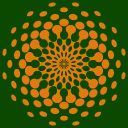
Drow line you need and use Width Tool (Shift+W) to change widht on any end point - it works

circles.jpg

pawel

Translate
Report
Community guidelines
Be kind and respectful, give credit to the original source of content, and search for duplicates before posting. Learn more
community guidelines