Known Participant
May 3, 2021
해결됨

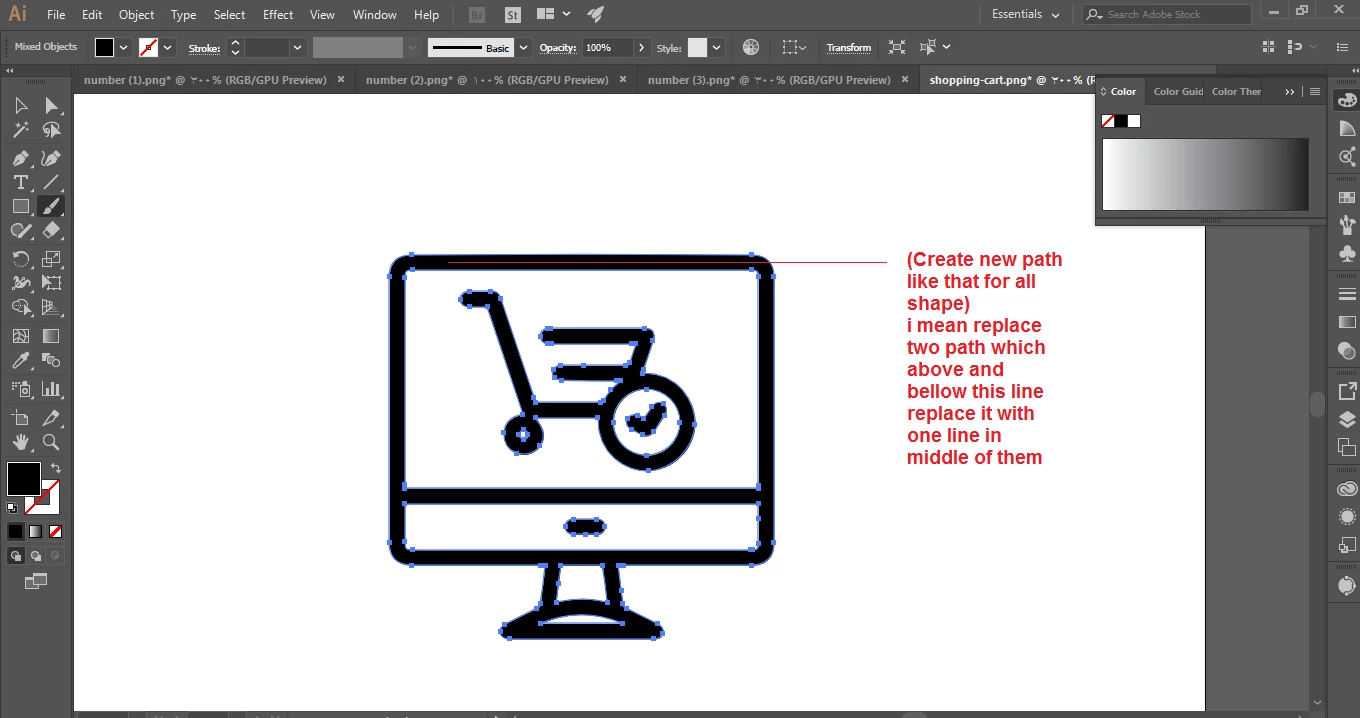
Is it possible to convert two path lines into a single path line located in the middle of them?

  • May 3, 2021
  • 4 답변들
  • 5333 조회

Hello,

When I expand the shape and get two paths facing the entire shape,

is there a way replace them with one path in the middle.


For example, I have the image below: 


When I stroke the path I get two facing lines like this one.


I do not want to have two opposite lines. I want to replace the two path with one path in the middle then i will stroke it as i needed ..


Can I do that ?..
I hope my question is clear ..


thank you

이 주제는 답변이 닫혔습니다.
최고의 답변: Jacob Bugge

I performed Step 1 i get two open paths, outer and inner around letter (i); as shown in the picture bellow
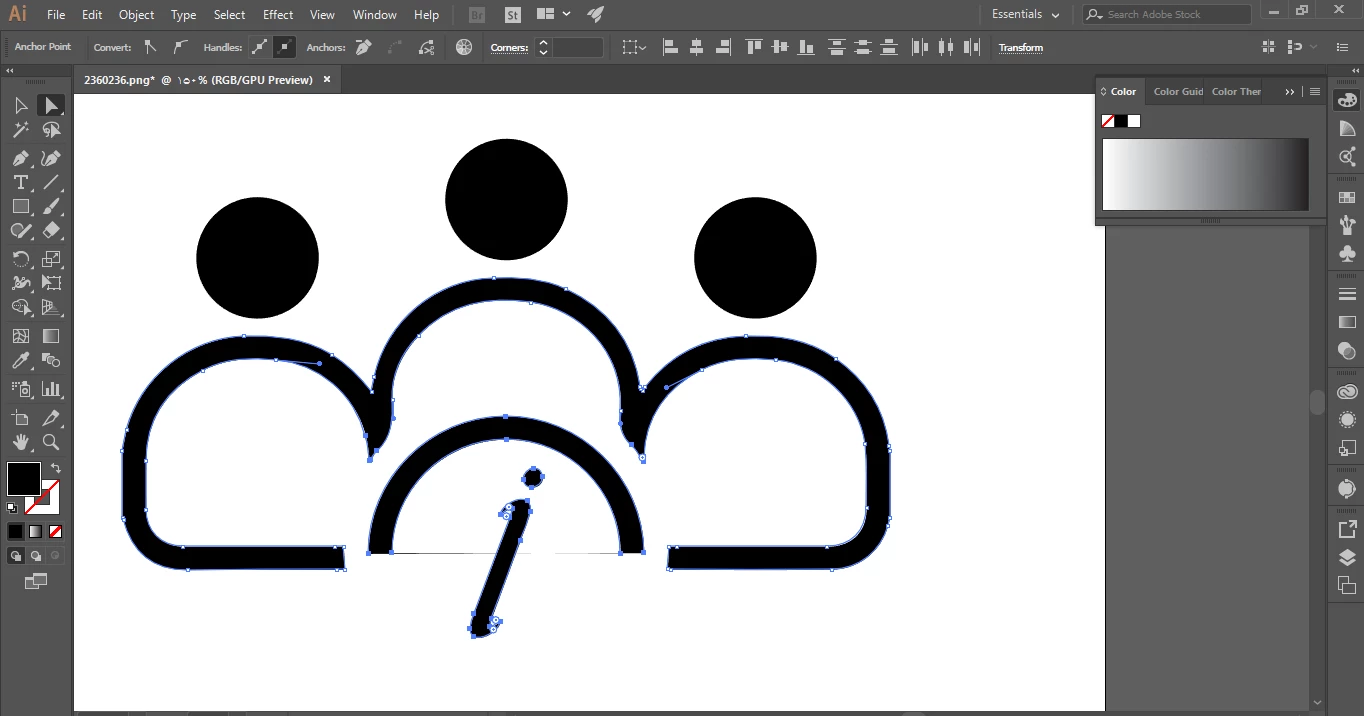
 

then i selected thoses path using (Direct Selection Tool) then i follow step 2, and I didn't notice any change

then i selected thoses path using Selection Tool but i can't press (Object>Blend>Make
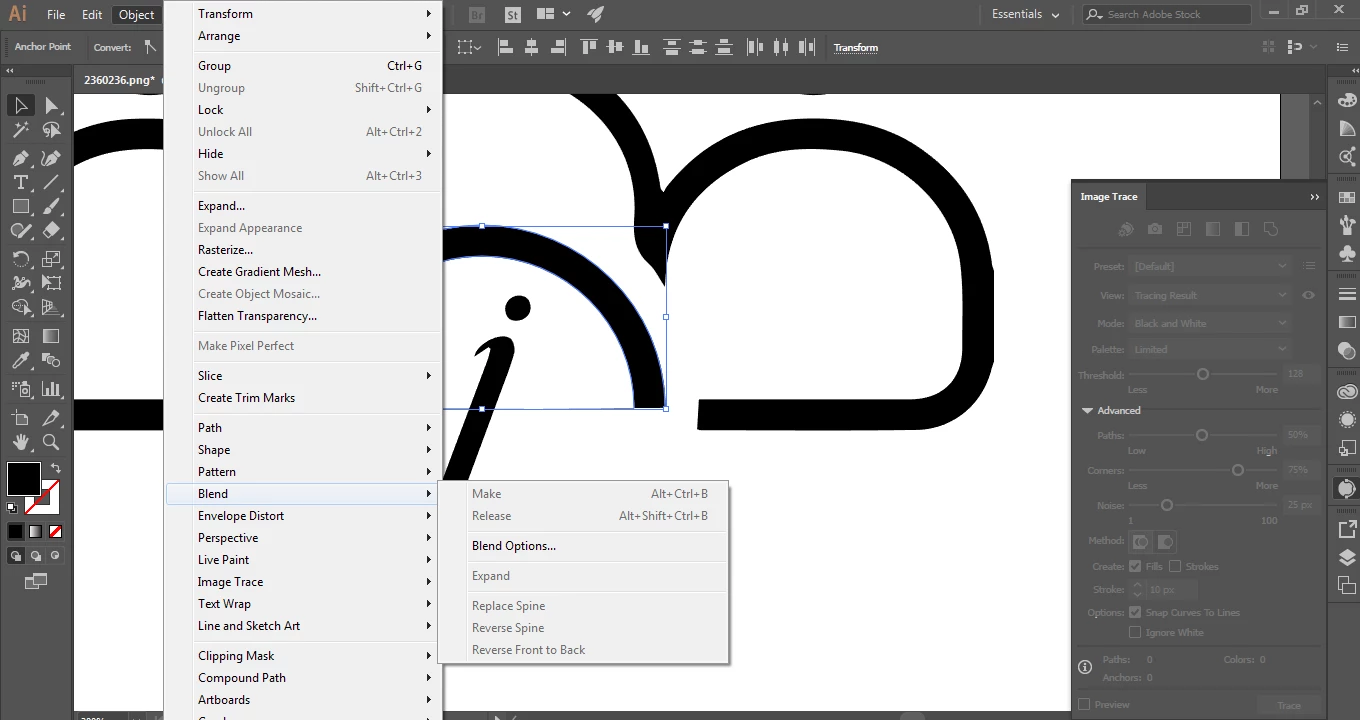
 

Please correct me in case I have performed the steps wrongly ..


Thanks


default01,


Here is a more sound approach (I hope).


Presuming you started out with three identical closed body paths (it sounds better than body parts) and then combined them into the path spanning the three bodies, and presuming you still have the original paths, it could be quite simple.


As I said earlier, "Always keep the original artwork safe and destroy only a copy."


In that case you could create simple blends for each closed body path and then combine the central paths as follows:


For each closed body path which forms a Compound Path (or just for one and then use copies for the others):

1) Switch from fill to stroke and then Object>Compound Path>Release, to have an outer and an inner path, both closed;

2) Object>Blend>Blend Options, setting Spacing to Specified Steps and inserting 1, and setting Orientation to Align to Path;

3) With the normal Selection Tool, select both outer and inner path, then Object>Blend>Make, then Object>Blend>Expand, then Ungroup and delete the outer and inner path.


This will give you a closed central path for each body shape, or to copy and move, to get all three in place;


4) Combine the three central paths into a path spanning the three bodies, either using the Shape Builder Tool (see below) or cutting and joining them where they meet.


This ought to give an accurate shape that extends to the right distance from the i circle, both at the ends and at the transition corners.


https://helpx.adobe.com/illustrator/using/creating-shapes-shape-builder-tool.html


https://helpx.adobe.com/illustrator/atv/cs5-tutorials/creating-complex-art-with-the-shape-builder-tool.html


 

4 답변

Kurt Gold
Community Expert
Community Expert
May 4, 2021

The forum software unfortunately still does not allow to include native .ai files (it's a pity). But you can upload .pdf files that are saved with the Preserve Illustrator Editing Capabilities option turned on.


Or you can upload to any file sharing server and provide a download link.


hisoka.95작성자
Known Participant
May 4, 2021

I was not aware of that..

Well, I attached a (.PDF) file ..

Kurt Gold
Community Expert
Community Expert
May 4, 2021

There may be some other approaches and perhaps they may even be a bit better.


To check that I would have to take a look at some sample files from you (simple as well as more complex ones).


Can you provide a couple of sample Illustrator files (.ai)?


hisoka.95작성자
Known Participant
May 4, 2021

forms doesn't allowed to me to attach (.ai) extension for some reason it show me this message

  • The attachment's 1.ai content type (application/postscript) does not match its file extension and has been removed.

any way now i provide that image , u can open it in Illustrator then apply (Image Trace) for it then expand then u get like my image.


I came up with the next solution. If you know a better way to achieve this result I would be grateful if you tell me about it.


1- Object > Path > Offset Path...


2- Delete unwanted paths (using Direct Selection Tool), and keep only one path


3- Resize The remaining path (using Selection Tool) and trying to put it in the middle of the shape


In this way,

we get one path instead of two,

and the location of this path is Almost in the middle of the shape..

Jacob Bugge
Community Expert
Community Expert
May 4, 2021

default01,


In the latest simple sample you might consider the following, which would fail (or require some serious adaptation) in the first samples because the original paths are fundamentally different.


Always keep the original artwork safe and destroy only a copy.


Presuming a filled path as the shoulders and arms path:


1) For each of the four end segments (the ones following a circle that is larger than the i circle), deselect the artwork, then Direct Select the end segment and delete it, to end with two open paths, outer and inner;

2) Object>Blend>Blend Options, setting Spacing to Specified Steps and inserting 1, and setting Orientation to Align to Path;

3) With the normal Selection Tool, select both outer and inner path, then Object>Blend>Make, then Object>Blend>Expand, then Ungroup and delete the outer and inner path.


This will give you a central path that extends (a wee bit further than) as far as the original paths towards the centre of the circle that cut the filled path; you can use a copy of the circle to snip off the excess if desired/needed.


In any case the central path will be much closer to that circle than with Offset Path which shortens it.


Kurt Gold
Community Expert
Community Expert
May 4, 2021

Yes, the Offset Path route may or may not work well.


The accuracy depends on how your objects are built. Probably more often than not you will just have to do it manually, based on some eyeballing and balancing human decisions.


hisoka.95작성자
Known Participant
May 4, 2021

Thank you for the explanation..

maybe Offset Path is the best way to achieve what i need ...


thanks again

Kurt Gold
Community Expert
Community Expert
May 4, 2021

If it does not have to be a stroked path you may take the Object menu > Path > Offset Path route and use negative offset values.


hisoka.95작성자
Known Participant
May 4, 2021

Thanks for your reply,

I thought my request was impossible because my question moved to the page 4 without answer,


now I tried to use (Offset Path) But it did not help. This is my attempt with simple shape  ..


When I use (Offset Path) it gave me this result, they were two path lines inside the shape,
My problem with this method is:
1- it need a lot of time to delete the other path (because in my case i want only want one path inside the shape) like this:

(i create this path with white stroke to show you how it should look like {only one path in middle})


second problem with Offset Path method is: 2- It is somewhat inaccurate, because it does not make the path completely in the middle, but rather makes the center of the two paths the middle, and in my case I want to make the path in the middle.