


joining lines - different size

Copy link to clipboard
Copied
I did a quick search - but do not want to move file into InDesign - simple logo and don't want to be gross with white out boxes -
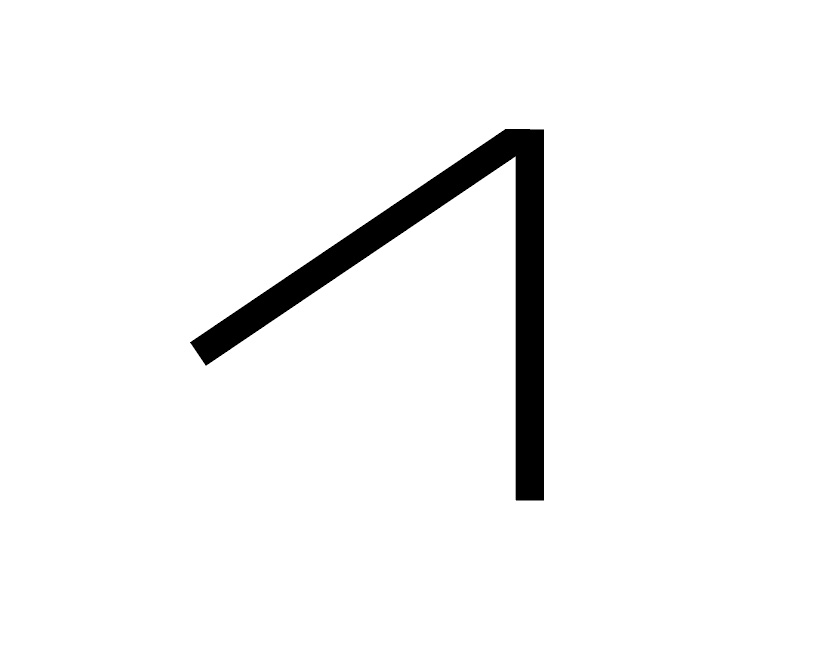
do join two lines so that there is no overlap - ? the angled line needs to reside flush to top of vertical
thank you in advance




Explore related tutorials & articles
 9
Replies
9
9
Replies
9




Copy link to clipboard
Copied
memine,
You may outline (all) the strokes, then ShiftClickDrag to the left with the Line Tool from the top Anchor Point past the sloping path, then Object>Path>Divide Objects Below, then select and delete the unwanted cutoff top object.
Copy link to clipboard
Copied
"ShiftClickDrag to the left with the Line Tool from the top Anchor Point past the sloping path, ..." i would very much like to learn how to do this - played with it a few minutes but can not seem to get the line from corner to corner to divide the parts,,,
Copy link to clipboard
Copied
memine,
The Line Tool suggestion with just one line was meant for the case shown in the OP image with just one cut in one direction.
For the bottom case shown in post #3 you can create a horizontal path first and divide, then a vertical path and divide, then delete the unwanted bits.
For logo use, it is generally recommended to hqave simple paths rather than masks and other complicated things where parts are merely hidden.
Copy link to clipboard
Copied
learned how to Object>path>Divide below -
- drew shape
- moved onto object to be removed
- o>p>divide
- then removed clipped part -
viola -
awesome tool
thank you for assitance
Copy link to clipboard
Copied
For my part you are welcome, memine.
With Smart Guides as your friends (telling you when you are within snapping distance from an Anchor Point, an segment, an intersection, and whatnot), you can always use the Line Tool, or other Tools like the Rectangle Tool or the Pen Tool to draw directly upon the paths to be cut, generally using ClickDragging or ShiftClickDragging, thus avoiding the need to move and getting the shape and size right straight away.

Copy link to clipboard
Copied
Probably the easiest method is using Clipping mask
Select your left line (you can also select both - vertical and angled lines) and this way you can see its bounding box.

Choose M on your keyboard to select Rectangle tool and draw ractangle to hide area you want to see - you don't need to use opacity

Then select line or lines and this rectangle and chose Object > Clipping Mask > Make (CTRL + 7) it works fine
pawel
Copy link to clipboard
Copied
right now i have the mask but it is not "elegant" just a bandaid - I think it can be better accomplished - thinking about using pen tool to create the vertices to manipulate....but this also seems a bit too much

Copy link to clipboard
Copied
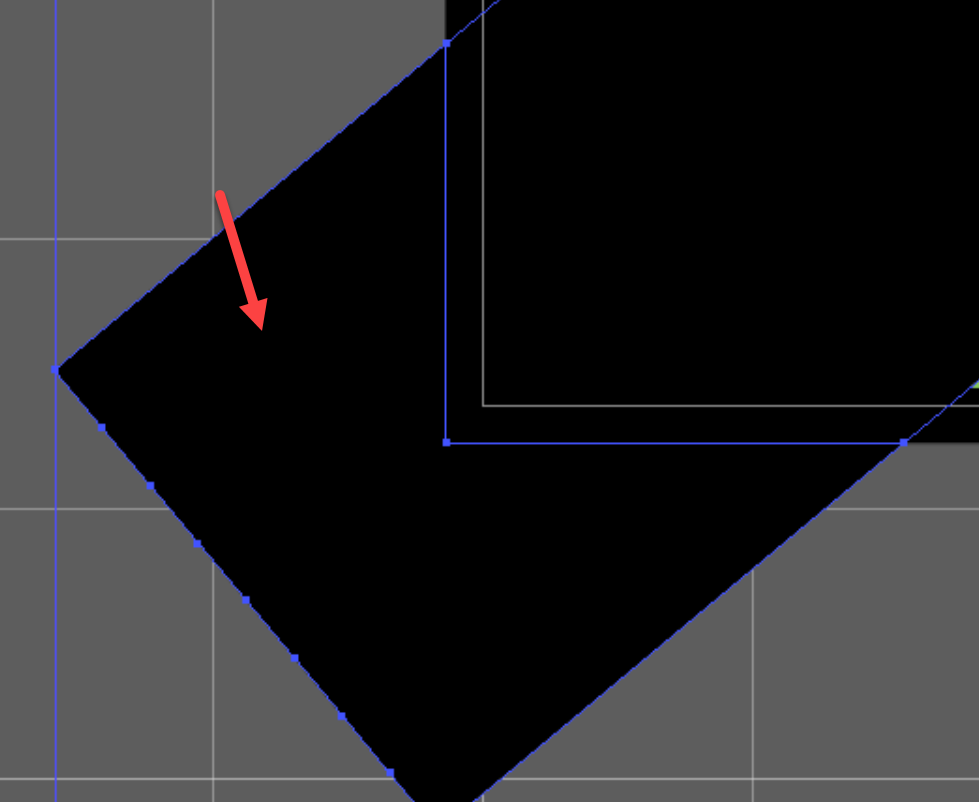
Maybe- with the shapes selected switch to the Shape Builder Tool
hover the mouse pointer over
and Alt (Option on a Mac ) click the pointed area to delete
Copy link to clipboard
Copied
tried SBT - but could not separate the intersections - but will try - this too is a more elegant approach - less patch work. thank you


Get ready! An upgraded Adobe Community experience is coming in January.
Learn more
 AdChoices