laurenh22769
Known Participant
May 26, 2022
Answered

Need help, not sure what is going on...

  • May 26, 2022
  • 7 replies
  • 5274 views

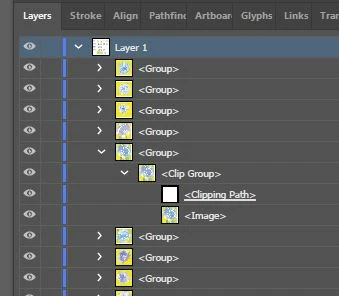
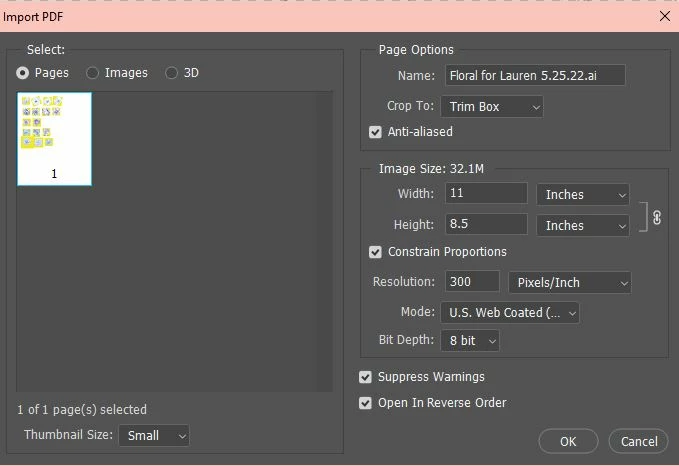
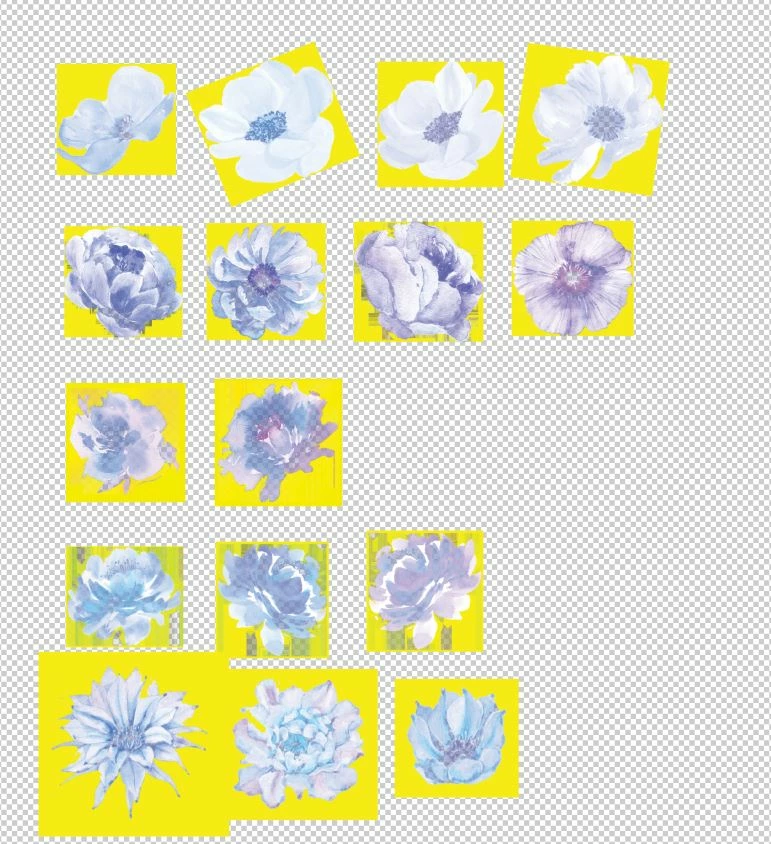
I am at a loss. I haven't changed any settings that I know of but when I opened an illustrator file in Photoshop it seems to be corrupted somehow. I tried another file and it did the same thing. When I open the file back up in Illustrator it's been changed to the weird PS image and as clip groups (last image) Any ideas? I'm ready to cry. I'm afraid to open other files in PS.
 

This topic has been closed for replies.
Correct answer Anshul_Saini

They are still working on it, please follow the Uservoice bug report.


Hi All,


We are glad to inform you that this issue has been fixed in Illustrator v27.0.1. 


Note: The files which are corrupted will not get fixed. To fix them, first, update to v27.0.1 and ensure you relink all the images in order to resolve the issue in the existing files. Let us know if the issue persists after doing this.


Thanks,

Anshul Saini


#Marking it as correct to highlight

7 replies

Anshul_Saini
Community Manager
Community Manager
June 2, 2022

Hi @laurenh22769 @icanino,


We are sorry for the trouble. We are able to reproduce the issue at our end. We have already logged a bug with the product team, and they are currently investigating the issue.

This is happening with the Ai file, which has linked images. While saving, when the "Include linked files " option is selected and then reopened, the Ai file images get inverted, or yellow color can be seen.


To avoid this, you may try the following steps:

  • Embed the images in the document
  • Uncheck the "Include linked files"
  • Downgrade to an older version of Illustrator 


Let us know if this works for you or not.


Thanks & Regards,

Anshul Saini


Thanks, @Ton Frederiks, for highlighting this to me.

Ton Frederiks
Community Expert
June 2, 2022

Good to hear you are working on a fix.

laurenh22769
Known Participant
June 3, 2022

@Ton Frederiksthank you for all of your help!

New Participant
June 1, 2022

Same thing happened to me with 2 files but after reopening in illustrator, no photoshop involved 😭 i dont know why i feel it has to do with the adobe update! Im dying

Ton Frederiks
Community Expert
June 1, 2022
Ton Frederiks
Community Expert
May 26, 2022

Do you mean that, when you open your Illustrator file, you get these images with yellow backgrounds?

laurenh22769
Known Participant
May 26, 2022

Hi Ton- Yes, when I open the file in PS to save as a JPG this happens and when I reopen the file in Illustrator it doesn't revert to the original file. It keeps this weird transformation. I know I can "export" from Illustrator as a JPG but there have been past situations where I didn't like the outcome for one reason or another. It's been a while.

My main concern is that I don't want to corrupt client files which are wedding invitation designs. I need to create mockups and often times I do this with JPG files in Photoshop.

As a side note, it saves fine as a PDF but I need to flatten the art to send to clients so they can't "extract" elements.

Ton Frederiks
Community Expert
May 26, 2022

Hi Lauren, I asked because your problem looks like similar problems posted recently.

Can you show what your Edit menu > Color Settings look like and what it shows for your Illustrator document Profile in Edit menu > Assign Profile?

barbara_a7746676
Community Expert
May 26, 2022

When you open an Illustrator file in Photoshop, it get's rasterized.

Instead of opening the Illustrator file in Photoshop, try File > Place in Photoshop. Or try copy/paste into Photoshop.

laurenh22769
Known Participant
May 26, 2022

Hi Barbara-


Yes, I understand that. I've been doing it this way for a while and my intent is to save it as a JPG to send to a client. I use the other actions you described too but under different circumstances. 🙂

It's not happening to all files and when I posted in a group I belong to I found that I am not the only one this has happened to.