


Copy link to clipboard
Copied
I am trying to scale up this logo. But everytime i do (by dragging bounding box and holding down shift), it seems a few elements do not scale up by the same proportions as other elements. This leaves me with elements having moved out of position/gaps where there were none (see images below).
I've tried grouping all elements first, and ungrouping, and ive tried putting all elements on their own layer. None of this worked. Please help.
ps. i know i could rasterise etc but i want to keep it all easily editable 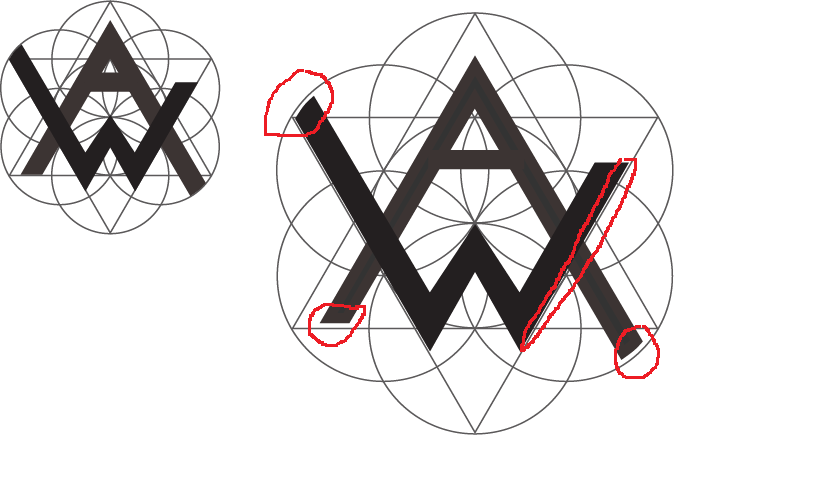
{Renamed by MOD}


 2 Correct answers


Did you check "Scale Strokes & Effects"?


Hi there,
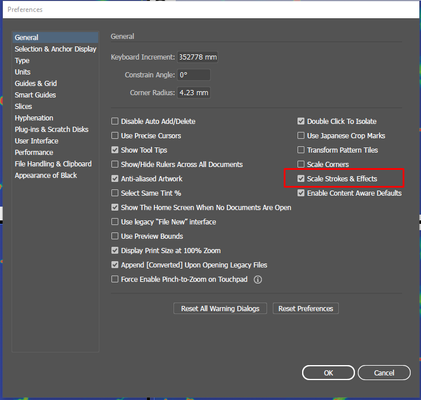
Thanks for reaching out. I agree with the suggestions shared by Ton. Open Illustrator Preferences (Go to Illustrator (MAC)/ Edit (Windows) > Preferences > General) and check Scale Strokes and Effects.
If that doesn't help, will it be possible to share the file with us? If yes, simply upload it to the Creative Cloud and share the download link with us.
Regards,
Srishti

Explore related tutorials & articles
 6
Replies
6
6
Replies
6

Copy link to clipboard
Copied
Did you check "Scale Strokes & Effects"?
Copy link to clipboard
Copied
it worked thank you
Copy link to clipboard
Copied
Hi there,
Thanks for reaching out. I agree with the suggestions shared by Ton. Open Illustrator Preferences (Go to Illustrator (MAC)/ Edit (Windows) > Preferences > General) and check Scale Strokes and Effects.
If that doesn't help, will it be possible to share the file with us? If yes, simply upload it to the Creative Cloud and share the download link with us.
Regards,
Srishti
Copy link to clipboard
Copied
Legend. this worked. thank you

Copy link to clipboard
Copied
Thanks for your guide but unfortunately this is not working for me. This is working with only storkes, but effects are not scalling up by the same proportions.
All the times manual adjusted works which is very annoying and time consuming.
What to do?

Copy link to clipboard
Copied
Molly,
I am afraid the matter is more complicated than it might appear, owing to the nature of the artwork, and that merely ticking Scale Strokes & Effects will fail to solve it.
Obviously, the bar in the A is stroked in contrast to the rest of the A, so you should Object>Path>Outline Stroke before scaling.
Also, the circles are obviously stroked and would become much thicker by scaling up with Scale Strokes & Effects ticked; since (it seems that) you are satisfied with their remaining thin, that would cause a new issue.
I will post my assumptions about the issue and suggestions to solve it in your other thread here (it will be a wee while because of a(nother) urgent matter),


Get ready! An upgraded Adobe Community experience is coming in January.
Learn more
 AdChoices