Exit
  • Global community
    • Language:
      • Deutsch
      • English
      • Español
      • Français
      • Português
  • 日本語コミュニティ
  • 한국 커뮤니티
0

Shape Overlapping

New Here ,
Jul 18, 2020 Jul 18, 2020

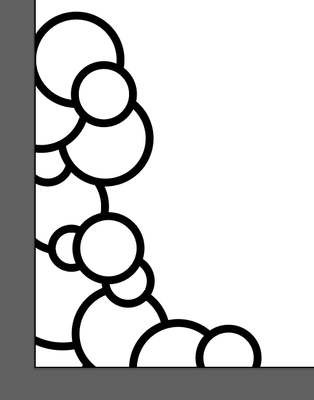
I'm trying to draw a kind of background image, with bubbles overlapping, and I want the final product to be a vector with a transparent background.  I can draw it with a solid white background, like I started below, and I know that I can take each individual bubble, and cut the excess off, but I was wondering if anyone knows of an easier way to do it, where I can just remove the white for the whole piece at once, but not see the overlapping lines underneath, like I would see if I just make the background of the bubbles transparent? 
 

spontaneousgood_0-1595087726538.png


TOPICS
Draw and design
633
Translate
Report
Community guidelines
Be kind and respectful, give credit to the original source of content, and search for duplicates before posting. Learn more
community guidelines

correct answers 2 Correct answers

Community Expert , Jul 18, 2020 Jul 18, 2020

You can use the Shape Builder tool in Delete mode (Alt key modifier) to delete the unwanted bits. Or you can make a Live Paint Group and remove them with the Live Paint Selection tool.


You can also use the Pathfinder palette or the Shaper tool, but you will then get slightly different results.

Translate
Community Expert , Jul 18, 2020 Jul 18, 2020

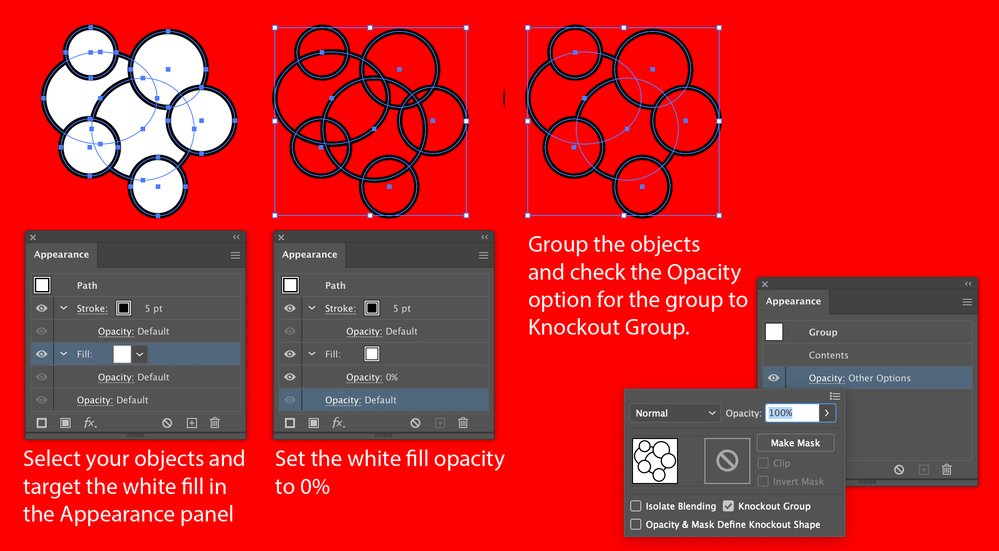
Or you can use a Knockout Group which will still let you rearrange the circles.

Knock.png

Translate
Adobe
Community Expert ,
Jul 18, 2020 Jul 18, 2020

There are a couple of possible approaches, depending on which version of Illustrator you are using.


Which version is it?

Translate
Report
Community guidelines
Be kind and respectful, give credit to the original source of content, and search for duplicates before posting. Learn more
community guidelines
New Here ,
Jul 18, 2020 Jul 18, 2020

CC 2020. 

Translate
Report
Community guidelines
Be kind and respectful, give credit to the original source of content, and search for duplicates before posting. Learn more
community guidelines
Community Expert ,
Jul 18, 2020 Jul 18, 2020

You can use the Shape Builder tool in Delete mode (Alt key modifier) to delete the unwanted bits. Or you can make a Live Paint Group and remove them with the Live Paint Selection tool.


You can also use the Pathfinder palette or the Shaper tool, but you will then get slightly different results.

Translate
Report
Community guidelines
Be kind and respectful, give credit to the original source of content, and search for duplicates before posting. Learn more
community guidelines
New Here ,
Jul 18, 2020 Jul 18, 2020

The live paint group worked! Thanks so much! 

Translate
Report
Community guidelines
Be kind and respectful, give credit to the original source of content, and search for duplicates before posting. Learn more
community guidelines
Community Expert ,
Jul 18, 2020 Jul 18, 2020

Or you can use a Knockout Group which will still let you rearrange the circles.

Knock.png

Translate
Report
Community guidelines
Be kind and respectful, give credit to the original source of content, and search for duplicates before posting. Learn more
community guidelines
New Here ,
Jul 18, 2020 Jul 18, 2020
LATEST

Oh interesting, I'll have to look into this too! 

Translate
Report
Community guidelines
Be kind and respectful, give credit to the original source of content, and search for duplicates before posting. Learn more
community guidelines