Known Participant
February 16, 2017
Answered

Type tool defaulting to Right to Left text alignment

  • February 16, 2017
  • 3 replies
  • 13095 views

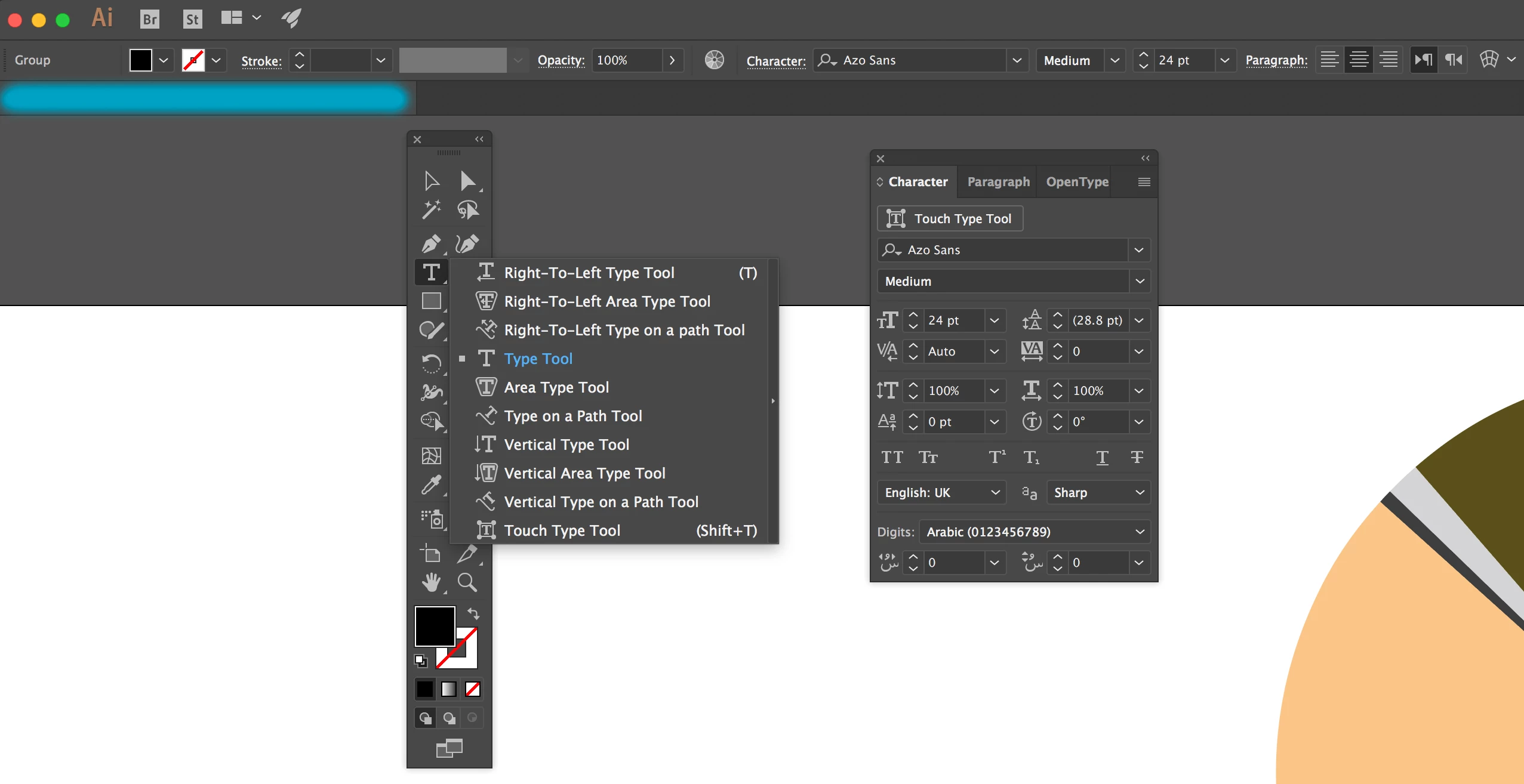
My Type tool has defaulted to setting text alignment Right to Left instead of Left to Right.

I have changed the language to English UK and clicked the align text button to left to right, but to no avail.

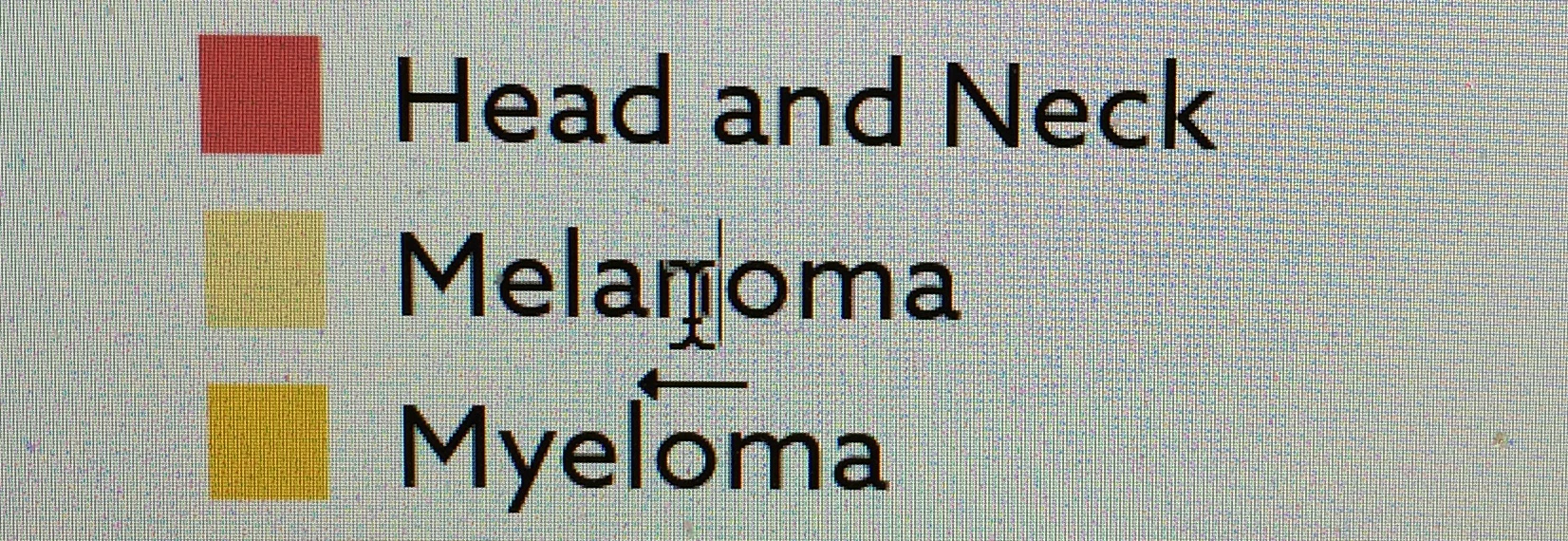
I have attached 2 images for reference.

The second image shows the cursor tool but the arrow underneath points to the left rather than the right.
    This topic has been closed for replies.
    Correct answer sheva17

    Ive just fixed this!

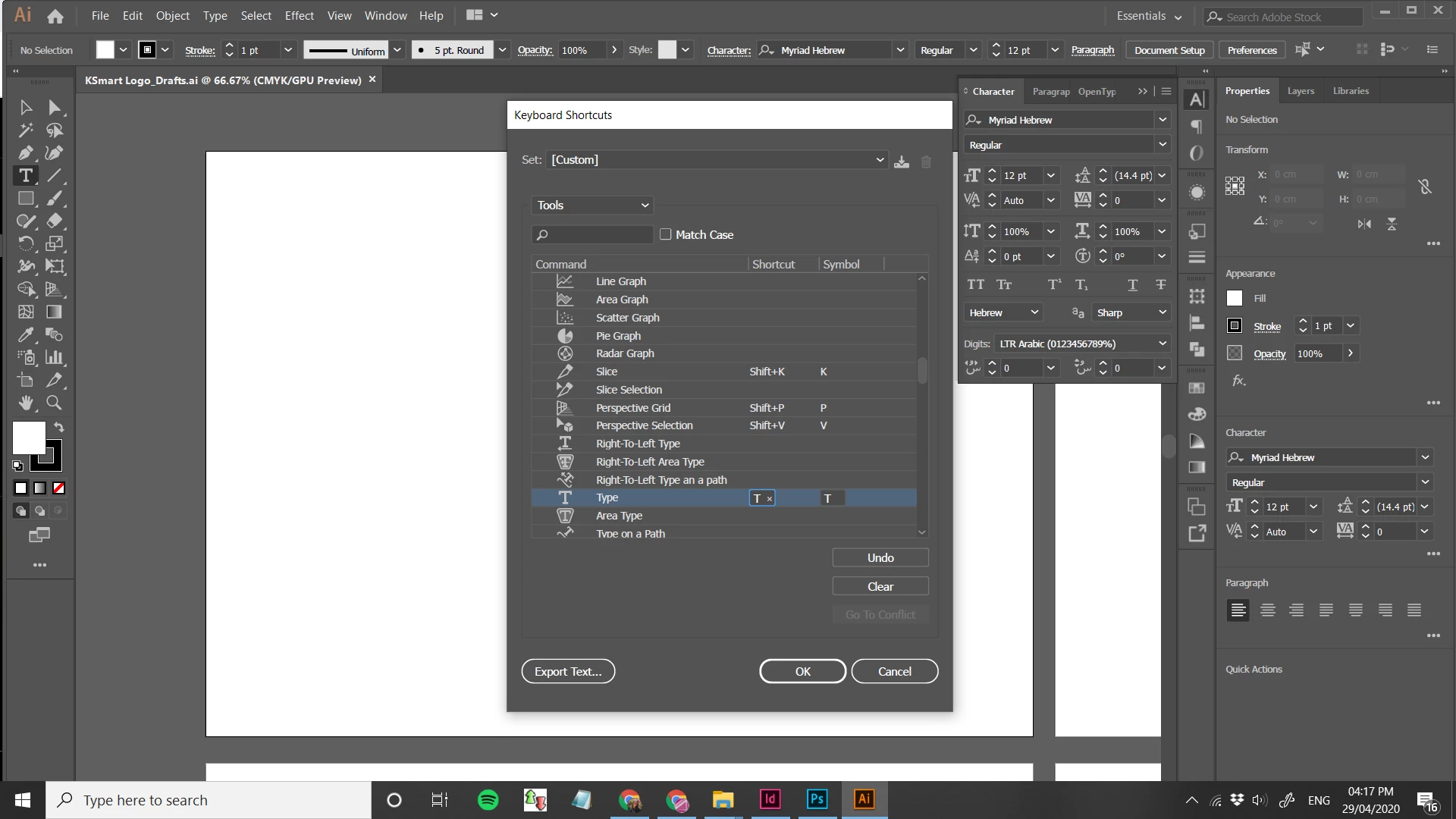
    In edit> keyboard shortcuts.

    I chaged the T shortcut to be for regular text tool.

    Hope this helps you all.


    3 replies

    Participant
    March 29, 2020

    Hello, I have sort of the same problem.
    I was wondering if by any chance there is a way to chnge it so when I press T it would change to the regular text tool instead of the right to left, thank you 🙂

    sheva17Correct answer
    Participant
    April 29, 2020

    Ive just fixed this!

    In edit> keyboard shortcuts.

    I chaged the T shortcut to be for regular text tool.

    Hope this helps you all.


    Participating Frequently
    May 4, 2020

    Unfortunately that only works for the text that is selected. Every single document that I import into in design comes in right to left reading and screws up the justification and the punctuation. I just upgraded to the latest in design cc 2020 and it's no longer doing it so evidently it was something embedded in in design.

    Participant
    June 20, 2019

    I have this problem with type and paragraph justification working with an Illustrator file I received from Germany (I am in the US). I did a search and I see this problem happening all over the place with Photoshop, InDesign, etc... The solutions I see:

    - change the language from Arabic or Asian to English. This does not fix the problem for me. Language was set English UK. Setting to English US does nothing.

    - reset the type panel. This does not fix the problem for me.

    I copied the file into a new file. This does not fix the problem for me.

    I am using a legally registered, current, updated Illustrator 23.0.3 on PC/Windows. Are there other, more global things to reset?

    Participating Frequently
    October 30, 2019

    I have this same problem. Started in May of this year 2019 I think... some jobs come up that way, some don't. Some I can create fine, and then when I import a word doc, it's now right-to-left -- cursor and binding. I don't have a "reset" option in my character box, I'm using CC 2019 indesign.

    Simmer1
    Community Expert
    Community Expert
    February 16, 2017

    Hi,

    Have you tried resetting the Type Tool Panel?

    Thanks,

    Sim

    Participating Frequently
    October 30, 2019

    Hi, I don't have that option in CC2019 inDesign. This has been happening to my indesign docs for months now. I'm a book designer and typesetter and this is driving me nuts since I deal with hundreds of pages per document.


    Monika Gause
    Community Expert
    Community Expert
    October 30, 2019

    "Hi, I don't have that option in CC2019 inDesign. This has been happening to my indesign docs for months now. I'm a book designer and typesetter and this is driving me nuts since I deal with hundreds of pages per document."


    Please create a new thread and describe your system and version.

    And then step by step your issue. It's not possible to follow any issues in this old thread let alone "the same" issue. We can't help you in this thread, so please make it easier for us and create a new one. And since your issue is about InDesign, you might want to post to the InDesign forum. This forum is about Illustrator.


    InDesign: https://community.adobe.com/t5/InDesign/bd-p/indesign