
Overground555
Known Participant
November 13, 2018
Answered

What is causing these rogue lines when I 'join' all lines in an image?

  • November 13, 2018
  • 2 replies
  • 3368 views

I am working on a logo design, as can be seen in image 1, and I have finished several of the lines I want to bring into the design, so now I want to combine them and start filling them with color and adjusting the border colors. When I try to 'join' all the lines together, it creates these odd lines, as can be seen in image 2.
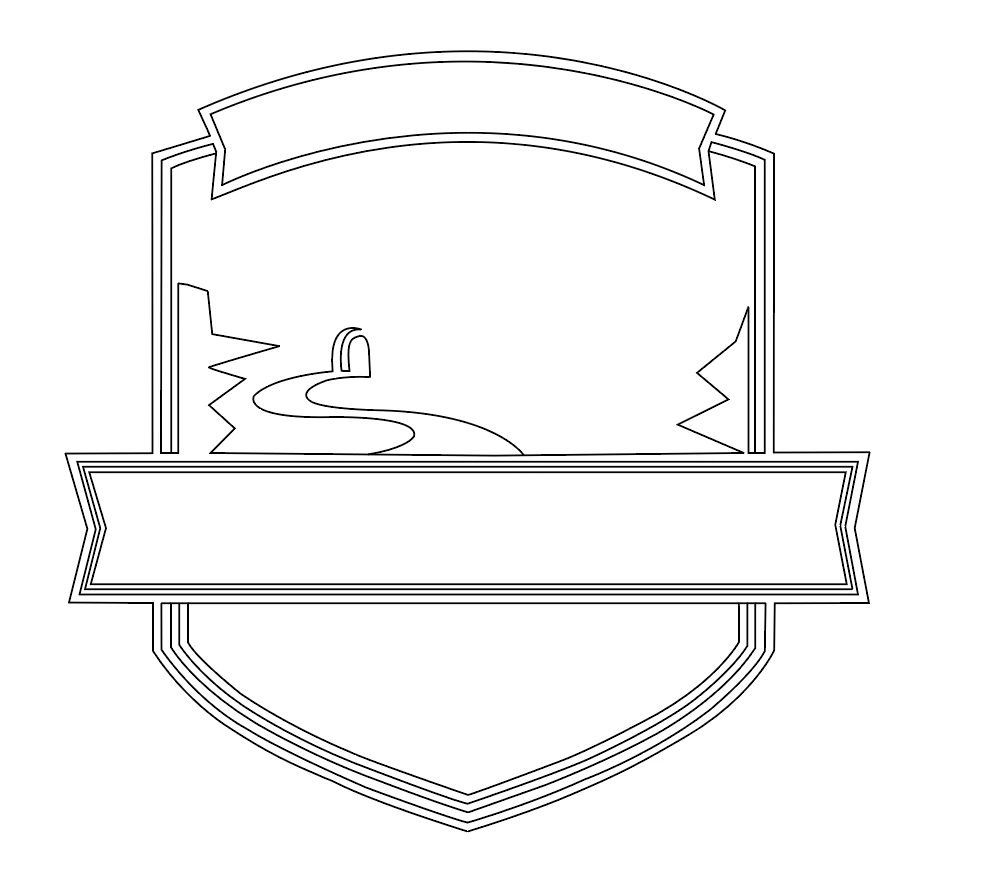
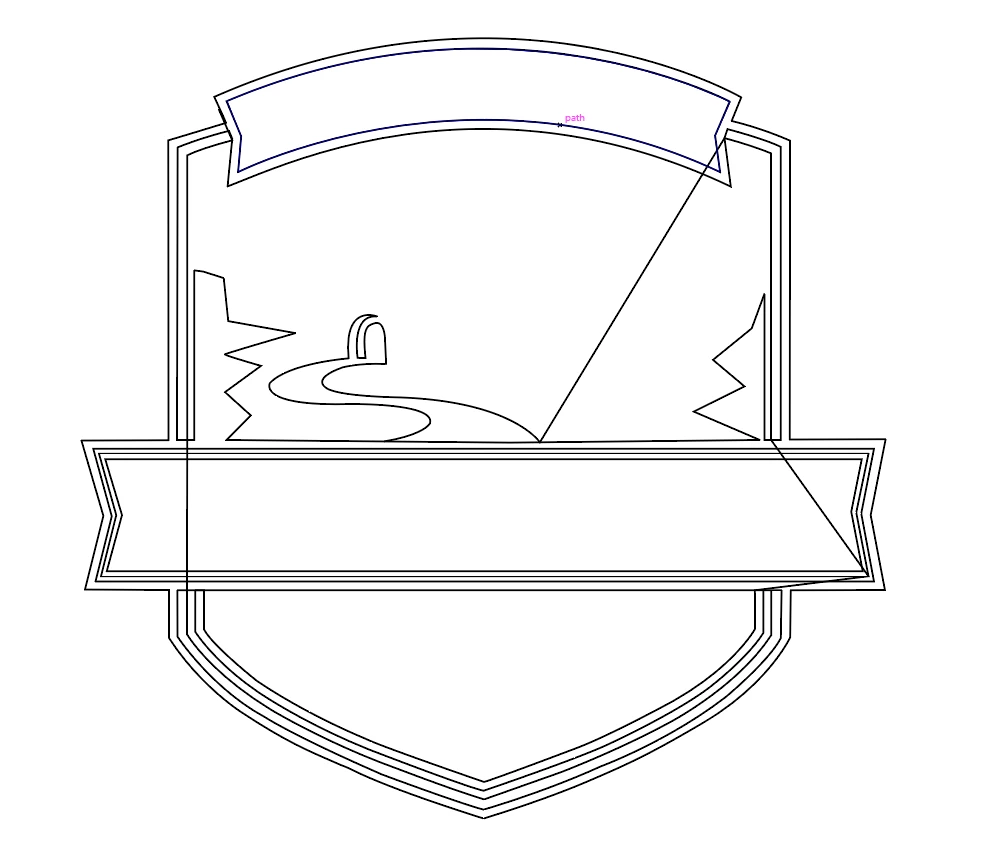
what is causing this, and is there a better way of doing what I am trying to do? Thank you all for your help.

    This topic has been closed for replies.
    Correct answer Doug A Roberts

    nathane49939165  wrote

    Thanks for the response Myra.

    I'm still confused as to why I'm seeing those strange lines that develop when I join everything? Do you know what causes them?

    You have a number of open paths in your design. When you join all, any open ends will be joined to the nearest other open end. This means illustrator will draw connecting paths between those points.

    2 replies

    Myra Ferguson
    Community Expert
    Community Expert
    November 13, 2018

    You can drag over the various segments you want to connect with the Join Tool to connect them.

    Overground555
    Known Participant
    November 13, 2018

    Thanks for the response Myra.

    I'm still confused as to why I'm seeing those strange lines that develop when I join everything? Do you know what causes them?

    I wanted to join everything because I have many lines, and I don't know what should be joined with what, in order to fill this design in.

    Monika Gause
    Community Expert
    Community Expert
    November 13, 2018

    Just expand the live paint.

    Well, not "just expand." Expanding works to make the shape, but Illustrator doesn't automatically join the corners of the original stroked paths. You could expand, then delete the original segments, and apply a stroke.

    For example, below from left to right are 1. 3 non-joined paths, 2. 3 non-joined paths filled as a Live Paint group, 3. the Live Paint group expanded (and the corners look the same regardless of the top 3 Object, Fill, and/or Stroke settings) , 4. The Live Paint group expanded with the original paths deleted, and 5. the expanded Live Paint group with a new stroke applied with corners set to Miter Join.

    Monika Gause, do you have a different way of automatically converting the corners by expanding a Live Paint group?


    When doing construction work with Live paint I don't apply strokes at all. I make shapes first, then convert, then use pathfinder Merge if necessary, then apply strokes.

    Monika Gause
    Community Expert
    Community Expert
    November 13, 2018

    This is happening because joing all lines at once sometimes is not done cleverly. Or because it can't work.

    Use the live paint tool. Read about it in the documentation.