
Tfruas
Participant
January 27, 2019
Answered

After Exporting Image Gets Pixelated

  • January 27, 2019
  • 4 replies
  • 9263 views

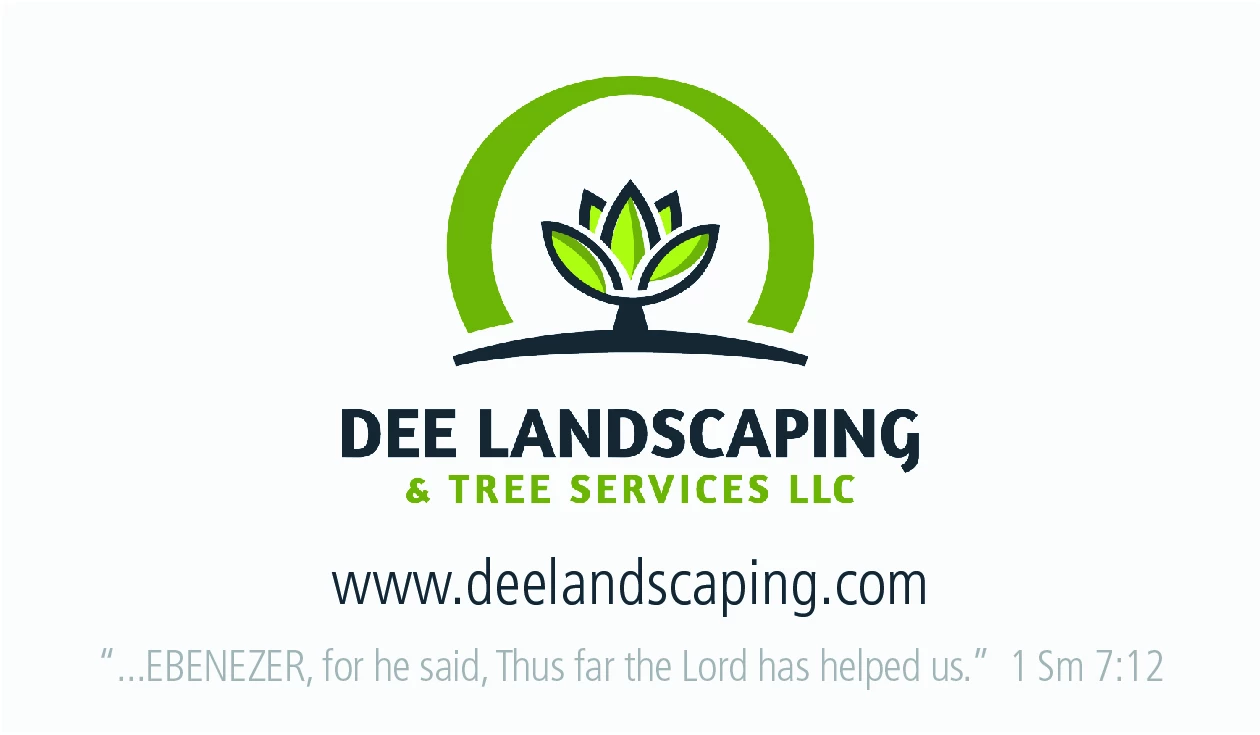
Hello guys, I've been doing the same thing for years, but for some weird reason after the latest update everytime I expert a business card with a 300-350 dpi all logos of any business cards I create is pixelated.

I thought "well, it's just my new macbook pro's amazing resolution that is making it pixelated when I view the exported image"

It turns out after being printed it was a little pixelated. I don't know what the heck I'm doing wrong since I've been doing the same for years.

You might say to export as a PDF, I really can't because the company printing the cards only accepts JPEGs with 300-350dpi resolution.

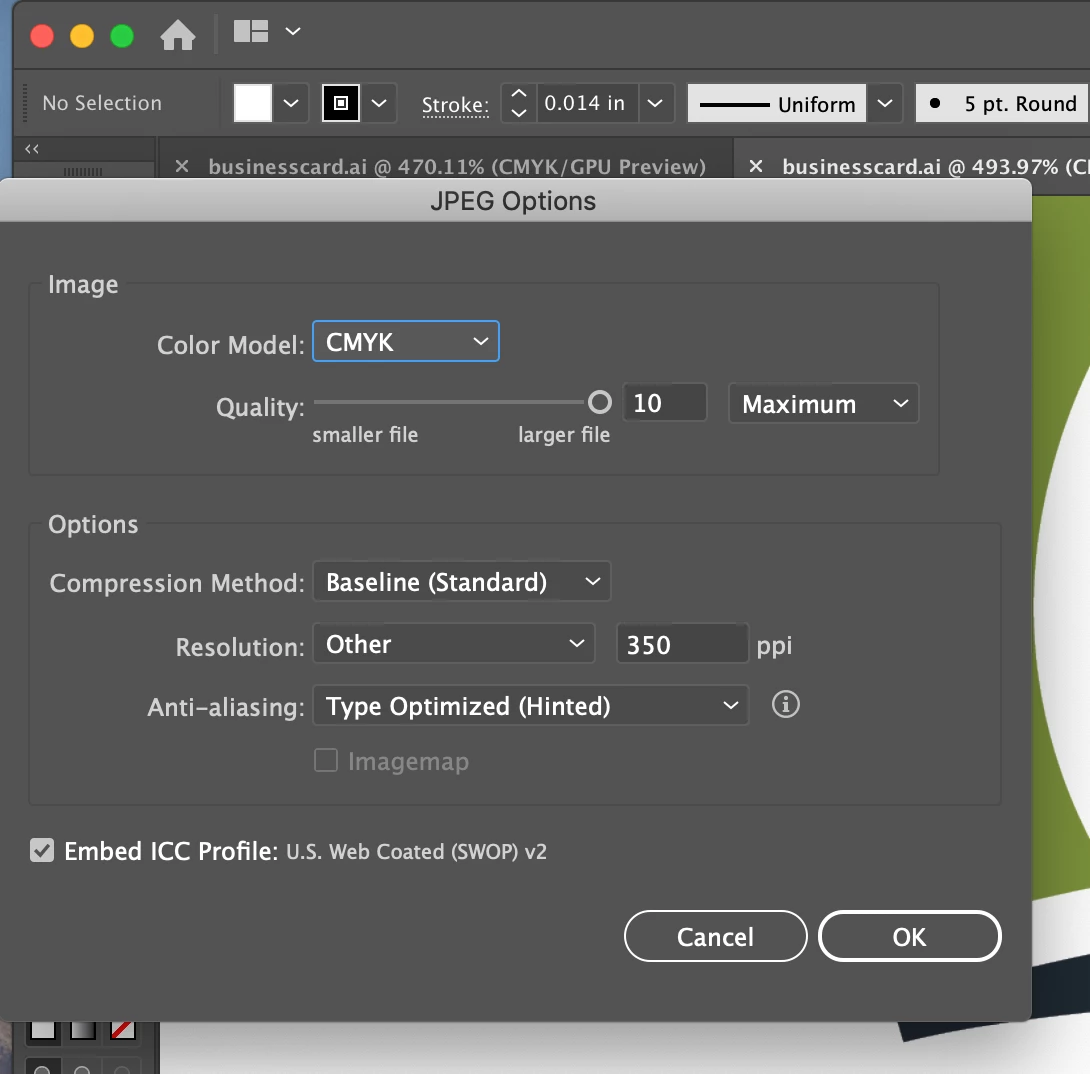
The way I export it is FILE > EXPORT > EXPORT AS
Here's an example of the latest card after being exported:
My client send me a picture of how it looks after printing:

And the .AI file open without any pixels since the logo was designed inside Illustrator, as you can see, there's no pixelated images:
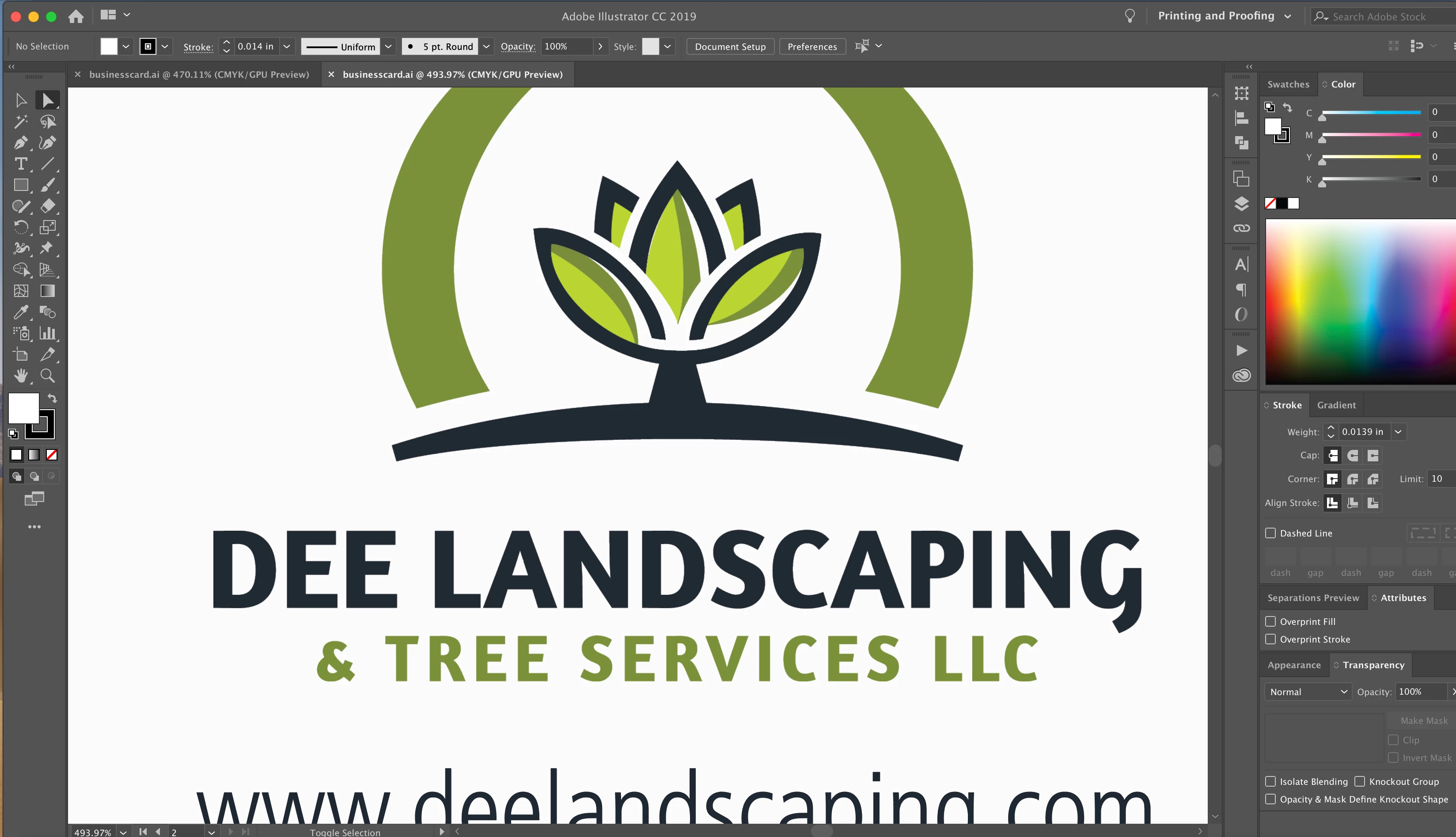
Please, I hope someone can help.

Thank you all!!

This topic has been closed for replies.
Correct answer Monika Gause

The print doesn't show pixels, but the result of halftone screening.

So probably the company is now using different processes than they used to.

4 replies

Participant
March 20, 2019

I did turn on anti-aliasing, and also Scale Strokes and Effects. I created outlines of the text. Put everything together on one layer and scaled it, then exported as a jpg. I placed those into an InDesign Document to run a test print and they looked very pixelated.

I think what happened is that when I scaled it I may have shifted the dimensions by a tiny margin since I didn't have the width and height locked. The original is ever so slightly out of square.

I redid all the files last night, exporting each size as a pdf and a jpg, then ran another test print through InDesign this morning, and they are printing fine now.

Ton Frederiks
Community Expert
Community Expert
March 20, 2019

sirenicity  wrote

I redid all the files last night, exporting each size as a pdf and a jpg, then ran another test print through InDesign this morning, and they are printing fine now.

PDF should be your choice, it keeps the scalable vector information instead of turning it into fixed pixels as jpeg.

Participant
March 20, 2019

Did you find a solution? I'm having the same problem - if I export to a jpg, then it prints pixelated and I can't understand why.

I'm also scaling to multiple sizes... but what I have is an original Illustrator image all vector so I don't understand what I'm doing incorrectly.

Doug A Roberts
Community Expert
Community Expert
March 20, 2019

A JPEG is made of pixels. If you export a JPEG, you are 'pixellating' your vector image.

Participant
March 20, 2019

Yes, I understand that. Let me be more clear. I'm exporting at 300 DPI. There's absolutely no cause for it to print with easily visible step-blocks (which look like pixellation) instead of smooth lines.

barbara_a7746676
Community Expert
Community Expert
January 27, 2019

That type of artwork should be submitted to the vendor as vector, not a bitmap jpg. If it must be jpg, the resolution should be much higher, probably minimum 800 ppi. I would suggest hiring a different printing company that will accept native AI files or PDF.

Monika Gause
Community Expert
Community Expert
January 27, 2019

There will still be halftone screening in the printed result.

barbara_a7746676
Community Expert
Community Expert
January 27, 2019

True, the halftoning that the vendor is using is too coarse.

Monika Gause
Community Expert
Monika GauseCommunity ExpertCorrect answer
Community Expert
January 27, 2019

The print doesn't show pixels, but the result of halftone screening.

So probably the company is now using different processes than they used to.

Tfruas
TfruasAuthor
Participant
January 28, 2019

I feel it looks just like the exported image, if you look closely at the bottom of the logo