
Known Participant
July 31, 2017
Answered

Merging text outline with a shape

  • July 31, 2017
  • 7 replies
  • 16411 views

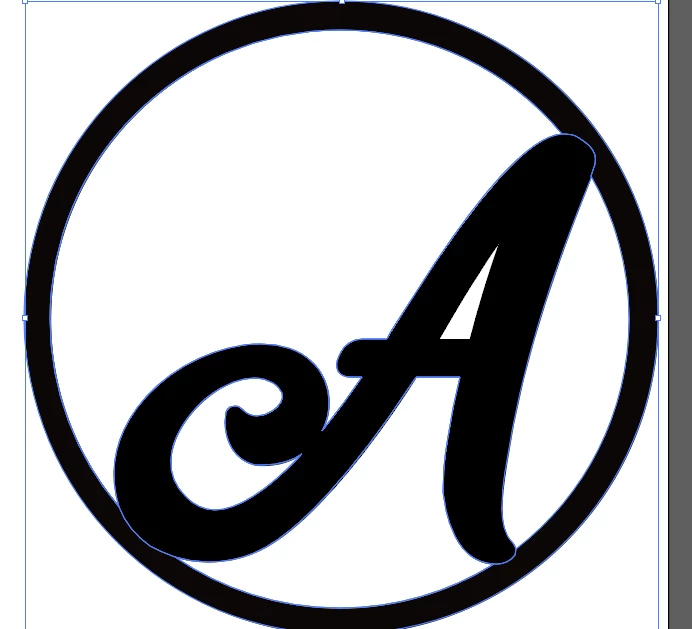
Hello, I create graphics (usually text) that gets cut by a CNC machine so it cannot have any "interior lines". I usually get rid of these with merge and no issues. I've now created a circle and a letter inside and overlapping the circle. I do not want the machine to cut the letter out of the circle, so I am trying to merge the top and bottom of the a with the circle and it's not working. Not sure if this cannot be done with shapes. Any ideas? Thanks!
    This topic has been closed for replies.
    Correct answer Jeff Witchel, ACI

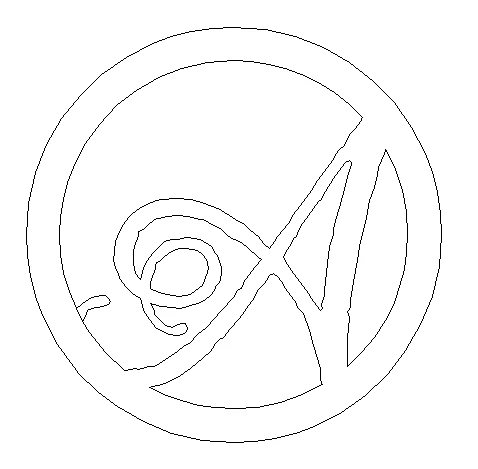
    There's definitely some weird stuff going on in your art in Outline mode.

    I would suggest you start over with a fresh cap A and a circle with a Stroke applied. Then:

    1. Outline your cap A. (Type > Create Outlines)
    2. Expand the Stroked Circle to make it a Filled Compound Path. (Object > Expand)
    3. Go into Outline Mode (View > Outline)
    4. Using your Group Selection tool (Click and hold on the Direct Selection tool to select the Group Selection.
    5. Delete the original Stroke Circle by clicking on it and pressing delete
    6. Then select both your outlined A and the Circle and use the Shape builder tool to combine the shapes the way you'd like.

    Here's a video which showing how to use the Shape Builder tool if you're unfamiliar with it: http://www.jeffwitchel.net/2011/12/geared-up-for-shape-builder/

    Screenshot of A and Circle design in outline below.

    7 replies

    josel76435996
    Participant
    April 13, 2018

    It's pretty simple. All you have to do is follow these steps.

    1: Choose font
    2: Type the letter, word, number, etc.
    3: Give space between each letter, word, number, etc.
    4: With your text selected right click and create outlines.

    5: Add stroke and make it the desired thickness you want it to be.
    6: With your text selected Click Object > Path > Outline stroke.

    7 Open pathfinder: Window > Pathfinder.
    8. With your text selected: press the "Unite" option key in the pathfinder window. It looks like two squares merged together diagonally.

    Good luck!
    (Currently using Adobe Illustrator CC 2018)

    jennmc1Author
    Known Participant
    August 23, 2017

    Jeff Witchel, ACI​ can you please help me? I don't know why I am making this so difficult for myself. Same situation. Trying to follow the instructions but not working. From the beginning, I am taking a shape, and "Make and expand" I need the shape of the heart to be thicker and only have the cut lines on the outer edge and the inner edge. When I click on outline to delete original lines, the thickness in the stroke I created goes away. Attaching some pics. Thank you!

    Jeff Witchel, ACI
    Community Expert
    Community Expert
    August 23, 2017

    Hi,

    You should really start a new discussion for this question. There are lots of very capable ACIs and MVPs on this site. They will not know to look at your question, because the original question has been marked answered.

    I will not be able to look at your question until tomorrow at the earliest.

    Sorry!

    Jeff

    jennmc1Author
    Known Participant
    July 31, 2017
    jennmc1Author
    Known Participant
    July 31, 2017

    I deleted the addl lines - not sure how that happened. here is update

    Mike_Gondek10189183
    Community Expert
    Community Expert
    July 31, 2017

    Was expecting to see paths where I drew lines red. Looks liek your A and circle do not overlap, hence no result form merge.

    As Mr Gold requested, please post a copy via dropbox or similar, as would be quicker for us to fix and tell you how we did this, that go back and forth with posts.

    jennmc1Author
    Known Participant
    July 31, 2017

    Outline view def does not look right.

    Kurt Gold
    Community Expert
    Community Expert
    July 31, 2017

    Can you share this .ai file and post a download link?

    jennmc1Author
    Known Participant
    July 31, 2017

    Yes, both the circle and the a are selected. When I click merge it seems to group rather than merge.

    Mike_Gondek10189183
    Community Expert
    Community Expert
    July 31, 2017

    Do you have everything selected? Your screenshot looks like the "A is not.

    Try view >> outline view, and post  a screenshot so we can see better what you have,. Not Sure if you ahem to outline store, or have a symbol to other. You may want to select items and watch what you appearance palette says incase you have a symbol or something unexpected.